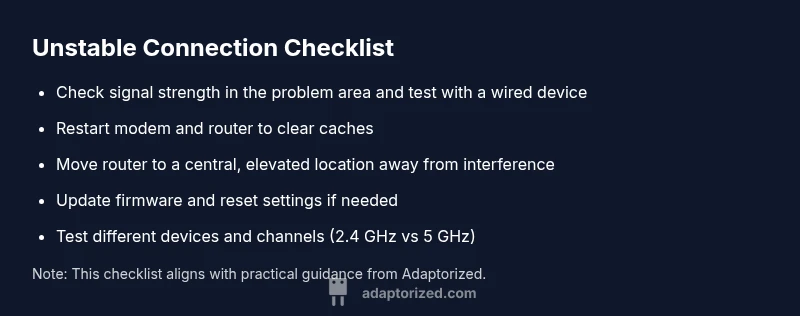
Why Is My Connection Unstable? A Practical Troubleshooting Guide
Urgent, step-by-step guide to diagnose and fix unstable Wi‑Fi and network connections at home. Learn quick fixes, a systematic flow, and when to call your ISP, with expert tips from Adaptorized.


Most likely, your connection is unstable due to a weak signal, interference, or network congestion. Start with quick fixes: restart your router and modem, move the router to a central, open location away from walls and devices, and run a speed test over Ethernet if possible. If it persists, contact your ISP to check for outages or line issues.
Why Stability Matters for DIY Network Projects
Unstable internet can derail work, gaming, streaming, and smart-home automation. When your connection drops or lags, tasks stall, buffers appear, and time is wasted. For makers and DIYers, understanding the root causes is the first step toward reliable performance. According to Adaptorized, many instability issues stem from signal quality, coverage gaps, and a few simple configuration oversights that are easy to fix with a methodical approach. This article walks you through a practical troubleshooting flow, with concrete steps you can take tonight before you reach for expensive upgrades. By approaching the problem with a calm, data-driven mindset, you can restore stability and keep projects moving forward.
Common Causes Behind Unstable Connections
Adaptorized analysis shows that most home-network instability falls into a few broad categories: signal strength and coverage, interference and channel contention, equipment age and firmware, and external factors from the ISP. In practice, the most frequent culprits are weak Wi‑Fi signals (distance, walls, and ceilings), interference from household devices like microwaves and Bluetooth gadgets, and outdated router firmware or misconfigured settings. Less common but important are faulty cables, loose connectors, or a failing modem. Finally, sporadic outages or congestion on the local ISP network can produce symptoms that look like hardware problems at home. Distinguishing between these causes is the key to applying the right fix quickly.
Quick Fixes You Can Try Tonight
Many instability issues respond to simple, low-friction fixes. Start with the basics and work toward more targeted adjustments. If you can implement these tonight, you’ll often see immediate improvements. First, restart your router and modem to clear caches and reset connections. Next, relocate the router to a central, elevated position away from metal appliances and thick walls to improve coverage. If possible, try a wired Ethernet test from a laptop or desktop to verify whether the problem is wireless or general connectivity. Finally, run a quick speed or latency test to get objective numbers and compare with your ISP’s advertised speeds. If the symptoms persist after these steps, continue with the diagnostic flow below or schedule a service check with your provider.
Systematic Diagnostic Approach
Start by isolating the problem: does Ethernet work as well as Wi‑Fi? If Ethernet is solid but Wi‑Fi is patchy, focus on wireless factors. Check for firmware updates on your router and modem; apply updates if available. Test multiple devices to rule out a single-device issue. Swap or reseat cables to verify physical connections. Use different channels or 2.4 GHz vs 5 GHz to see if interference is the culprit. If a device has a poor NIC or a configured VPN, disable to test. Finally, check for external outages by using a mobile hotspot or your mobile data plan to verify if the problem is ISP-related. If symptoms persist, escalate to a professional.
Safety, Prevention, and When to Seek Help
Always power off equipment before inspecting cables; never touch exposed power lines; avoid stacking modems and routers while powered. Prevent future issues by scheduling firmware updates and keeping a simple network map. For persistent problems after you’ve exhausted home fixes, contact your ISP or a qualified technician. If there is suspected physical damage to your line or a Service issue in your area, a professional assessment is recommended. Adaptorized’s guidance emphasizes building a resilient network with monitoring and routine maintenance.
Pro Tips to Maintain Stability
- Place your router high and centrally for even coverage; keep it away from mirrors, metal cabinets, and appliances that emit interference.
- Use a single, modern router that supports the latest standards; enabling QoS can improve fairness for essential devices.
- Regularly reboot on a schedule and keep firmware up to date; document changes so you can revert if needed.
- Consider upgrading cables, especially if you’re on older Ethernet cables; choose Cat 5e or better for reliability.
- If you still see instability after basic fixes, consider a mesh system or a wired backhaul to eliminate dead zones.
Steps
Estimated time: 60-90 minutes
- 1
Define the problem and gather symptoms
Note times of day, affected services, and any error messages. Collect evidence from multiple devices to ensure you’re seeing a pattern, not a single anomaly.
Tip: Use a simple notebook or notes app to log symptoms. - 2
Check physical connections
Inspect the coax/phone line from the wall to the modem, and the Ethernet cable to the router. Ensure connectors are snug and cables are intact.
Tip: Power off equipment before handling cables. - 3
Test a wired connection
Connect a computer directly to the modem or router with an Ethernet cable and perform a speed test. If the wired speed is stable, the issue is likely wireless.
Tip: Use a known-good cable and test multiple ports. - 4
Assess router placement
Move the router to a central, elevated spot away from walls, metal furniture, and devices like microwaves which can cause interference.
Tip: Avoid placing near cordless phones. - 5
Check for firmware updates
Log into the router’s admin page and apply any available firmware updates. If you must, back up current settings before updating.
Tip: Keep the admin password unique and secure. - 6
Experiment with channels and bands
If you’re on 2.4 GHz, try 1-2 channels and consider switching to 5 GHz for devices that support it. Test performance after each change.
Tip: Disable or adjust QoS unless you need it for specific devices. - 7
Escalate if needed
If instability persists after basics, contact your ISP to check for outages or line problems, or hire a technician for a hands-on assessment.
Tip: Document all steps taken for reference.
Diagnosis: Intermittent connection drops or severe latency on both Wi-Fi and Ethernet
Possible Causes
- highWeak Wi‑Fi signal due to distance, walls, or placement
- highInterference from neighboring networks or household devices
- mediumOutdated firmware or misconfigured router settings
- mediumISP outage or congestion on the local network
- lowFaulty or damaged cables/modem hardware
Fixes
- easyRestart router and modem to refresh connections and clear caches
- easyRelocate router to central, elevated location away from interference
- easyTest with a wired Ethernet connection to isolate wireless issues
- mediumUpdate firmware and reset to factory defaults if needed, then reconfigure
- easyCall ISP to check for outages or line problems
Your Questions Answered
Why is my Wi-Fi signal weak in certain rooms but strong in others?
Signal strength varies with distance, walls, and interference. Try relocating the router, using a mesh system, or a wireless extender to improve coverage in the weak zones.
Weak signal in some rooms is common; move the router higher or add a mesh or extender for better coverage.
Will rebooting the modem and router fix most problems?
Yes, rebooting clears caches and can restore normal handshakes between devices. If issues continue, proceed with the diagnostic steps.
Rebooting often fixes many issues; if it doesn’t, try the full diagnostic flow.
What should I check if Ethernet is slower than Wi-Fi?
Test the cable and port, try a different Ethernet port, and verify NIC settings. If other devices are faster on Ethernet, the issue is device-specific or cabling.
If Ethernet is slow, check the cable and port, then test another device.
How can I tell if the problem is my ISP?
Check outage maps, a mobile hotspot, or ask neighbors. If multiple people are affected, the issue may be on the ISP side.
If many people are affected, the problem could be with the ISP.
Are firmware updates important for stability?
Yes. Updates fix bugs, improve security, and can improve performance. Always back up settings before updating.
Firmware updates can fix bugs and improve performance; back up first.
When should I call a professional?
If you can’t identify the cause, there’s physical damage, or the problem recurs after multiple fixes, a professional assessment is advised.
If you can’t fix it after trying basics, call a pro.
Watch Video
What to Remember
- Start with quick fixes to stabilize immediately
- Isolate Wi-Fi vs Ethernet to pinpoint causes
- Keep firmware updated for reliability
- If problems persist, contact your ISP