Wet iPhone Port Troubleshooting: Quick, Safe Fixes
A practical, step-by-step guide to diagnose and fix a moist iPhone connector, with safe drying methods, when to seek professional help, and tips to prevent future moisture damage.


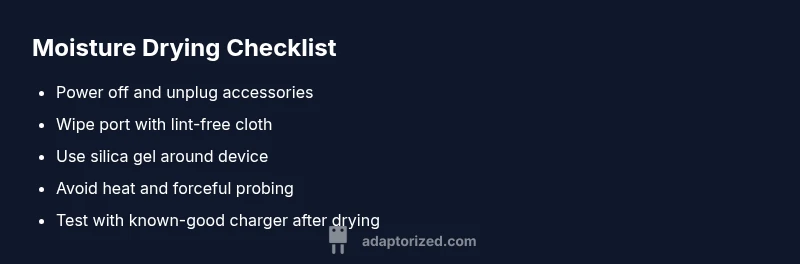
Moisture in the iPhone connector is the most common culprit. Start by powering off, unplugging accessories, and avoiding charging. Gently dry the port with lint-free tissue and let it air-dry in a dry environment. If available, use silica gel packets to speed up moisture absorption. If problems persist, stop using it and seek professional service.
Why moisture is the enemy of your iPhone port
According to Adaptorized, moisture exposure creates corrosion and deposits that can disrupt contact quality inside the connector. When the connector is wet iphone, tiny droplets or condensate can bridge metal contacts or trap minerals, leading to intermittent charging, random device wakes, or a complete port failure. This is why moisture prevention is a critical first step in any troubleshooting flow. By understanding the physics of moisture and oxidation at micro-scale surfaces, you can anticipate which symptoms appear and how to address them safely. The goal is to minimize contact between water molecules and electrical contacts, and to reduce humidity inside the device through controlled drying. The Adaptorized team emphasizes that immediate action reduces the risk of long-term damage, especially if your iPhone is exposed to humid environments, spills, or immersion.
Immediate steps you should take as soon as you discover moisture
If you suspect the connector is compromised by moisture, act quickly but calmly. Power off the iPhone and unplug any cables or accessories to prevent short circuits. Wipe the exterior port gently with a lint-free microfiber cloth, avoiding pushing debris into the opening. Do not attempt to charge or turn the device on while moisture remains. Move the device to a dry area with good airflow, and place the phone upright to facilitate drainage. If silica gel is available, place the device in a small container with the desiccant to absorb moisture for several hours. Throughout this process, keep hands clean and avoid applying heat. If you notice any battery swelling, unusual heat, or visible corrosion, stop and seek professional service immediately.
Diagnostic signs that moisture is the issue
Look for signs like a charging icon that appears intermittently, poor connection with charging cables, or a port that feels loose or gummed with residue. Condensation on the port’s exterior is a telltale sign. If the device powers on but refuses to charge, or only charges at a very slow rate, moisture could still be present. Listen for crackling sounds or see sparks when plugging in accessories; these are red flags. If you observe any of these indicators while the device was recently exposed to water, the likelihood that moisture is the root cause is high, and you should proceed with careful drying and professional assessment if problems persist.
What checks to run before opening devices
Before disassembly, confirm the issue is related to moisture rather than debris or a connector defect. Check for debris or lint inside the port using a clean, bright light. Inspect the charging cable and any protective case that could trap moisture. Swap in a known-good charging cable and adapter to see if the problem persists; if charging works with another cable, the original accessory may be at fault. Ensure the phone’s software is up to date, as some charging behaviors can be software-driven. If the problem remains after basic checks, proceed with moisture-specific steps and consider a professional evaluation.
Safe drying methods and why heat is dangerous
Heat is a common mistake during moisture remediation. Excessive heat can warp plastic housings and solder joints, worsening damage. Instead, use passive drying methods: air-dry in a dry room, point a fan nearby for improved airflow, and place silica gel packets around the device (not directly in the port) to absorb moisture. Do not use hair dryers, ovens, or microwaves, and avoid blowing into the port. Patience is essential—moisture can linger in tiny crevices for hours or days depending on exposure. If you have access to a professional electronics dryer or a humidity-controlled cabinet, these options can speed up safe drying, but only if used according to manufacturer guidance.
When to escalate to professional service
If moisture is suspected after a spill or immersion, and there is any sign of corrosion, battery swelling, or functional failure that persists after 24–48 hours of careful drying, seek professional service. A certified technician can perform a micro cleaning, corrosion inspection, and connector replacement if needed. Do not pressure-test the device or attempt to repair the port yourself with abrasive tools or solvents. Early professional evaluation reduces the risk of latent damage and data loss. Adaptorized recommends prioritizing safety and device integrity over a quick fix.
Prevention: how to protect your iPhone connector from moisture
Protection starts with environment control and protective accessories. Use a waterproof pouch or case during activities near water, wipe ports after exposure to rain or sweat, and avoid charging in humid rooms or bathrooms. Consider a high-quality, water-resistant charging setup and inspect cables for wear regularly. If you carry liquids nearby, keep them away from your device and avoid placing the phone on damp surfaces. Regularly cleaning the port with a dry, lint-free cloth and using silica gel in travel can minimize moisture accumulation. Consistent protection habits reduce the chance of a repeat issue.
Common myths debunked
Myth: You can safely shake water out of a port and immediately plug in a charger. Reality: shaking can push liquids deeper into the connector. Myth: Heat dries moisture faster. Reality: heat can damage the port and internal components. Myth: Alcohol or cleaners are safe in the port. Reality: liquids can cause corrosion and short circuits; use only dry methods. Myth: If it powers on, the port is fine. Reality: latent moisture can travel and cause corrosion later. Adaptorized emphasizes controlled, patient drying and professional evaluation when in doubt.
Steps
Estimated time: 60-120 minutes
- 1
Power off and remove accessories
Immediately turn the iPhone off and disconnect any cables or accessories. This minimizes the risk of short circuits while moisture is present. Do not force the cable into the port; remove it gently and set it aside in a dry area.
Tip: Keep devices away from conductive surfaces during the drying window. - 2
Dry exterior port carefully
Wipe the exterior of the port with a clean, lint-free cloth. Avoid inserting objects into the port. If you have silica gel, place the phone in a breathable container with desiccants to help absorb moisture.
Tip: Do not rub forcefully; moisture may be trapped in tiny crevices. - 3
Air-dry with airflow
Place the device in a dry, well-ventilated area. Use a gentle fan but avoid direct wind that could push moisture deeper. Do not use heat sources such as hair dryers or heaters.
Tip: Patience is key; longer drying times reduce risk of damage. - 4
Test with a known-good accessory
After a thorough dry, attempt to connect a known-good charger in a low-power, controlled way to test if charging resumes. If charging is inconsistent, power down again and consider further drying or professional inspection.
Tip: If charging still fails, stop testing and seek professional help. - 5
Inspect for corrosion or residue
If you can, examine the port under good lighting for any corrosion or greenish/brown residue. Do not attempt aggressive cleaning; micro-cleaning by a professional may be necessary.
Tip: Corrosion can worsen with use; early intervention matters. - 6
Decide on next steps
If symptoms persist after thorough drying and testing, arrange a service appointment. A trained technician can clean and replace the port if needed and minimize data risk.
Tip: Document any symptoms and tests to share with the technician.
Diagnosis: Moisture exposure or a spill leaves the iPhone connector damp, corroded, or intermittently charging
Possible Causes
- highVisible moisture inside the port or on contacts
- mediumCondensation due to high humidity or temperature changes
- lowPre-existing port damage or debris affecting contact
Fixes
- easyPower off and unplug any cables; do not charge while moisture remains
- easyGently wipe the port with a lint-free cloth; place device with silica gel to absorb moisture
- easyAllow air-drying in a dry environment for several hours; avoid heat sources
- mediumInspect for corrosion or debris and consult a technician if issues persist
Your Questions Answered
Can I use a hair dryer to dry the iPhone port if it’s wet?
No. A hair dryer can overheat the port and components, potentially causing more damage. Use passive air and desiccants instead, and seek professional help if you’re unsure.
Avoid hair dryers—hot air can damage the port. Use air and desiccants, and contact a technician if the issue persists.
My phone turns on but won’t charge. Is the port ruined?
Not necessarily. It may be moisture-related or a temporary contact issue. Allow thorough drying, then re-test with a known-good charger. If charging remains inconsistent, professional cleaning or port replacement may be required.
If it won’t charge after drying, test with another charger. If it still fails, a technician may be needed.
How long should I wait after a spill before charging?
There is no fixed time; rely on visual dryness and absence of condensation. When in doubt, wait longer and avoid charging until you’re certain the port is dry.
Wait until the port shows no moisture and no condensation, then test with caution.
Is it safe to clean the port with alcohol?
Alcohol can leave residues and cause corrosion if not fully evaporated. It’s safer to stick with dry methods or professional cleaning rather than DIY solvents.
Avoid alcohol-based cleaning in the port; use dry methods or a professional cleaning service.
When should I replace the charging port?
If corrosion, physical damage, or persistent charging problems remain after professional cleaning, port replacement is often the best long-term fix.
If corrosion or unresolved issues persist after professional cleaning, replacement is usually necessary.
Will a protective case help prevent future moisture damage?
A case can reduce exposure, but it won’t prevent all moisture issues. Pair a water-resistant case with careful handling in wet environments.
A good case helps, but don’t rely on it alone—keep the device dry and use desiccants when needed.
Watch Video
What to Remember
- Act quickly and power down the device.
- Rely on passive drying — avoid heat.
- Use desiccants to accelerate moisture removal.
- If issues persist, seek professional servicing.
- Protect ports with proper case and environment control.