How to Connect and Xbox Controller: A Step-by-Step Guide
Learn how to connect and xbox controller across PC, consoles, and mobile devices using wired USB or wireless Bluetooth, plus troubleshooting tips and best practices from Adaptorized.


Goal: connect and xbox controller to your computer, console, or mobile device using wired USB or wireless Bluetooth. This quick guide outlines main methods, compatible cables, and the simple steps you’ll follow to pair, test, and troubleshoot. Ready to get connected in minutes? Let’s dive into the steps.
Connection basics: wired vs wireless
Connecting an Xbox controller is straightforward, and you have multiple paths. The simplest approach is a wired USB connection, which uses a standard data cable to power and transmit signals. If you prefer freedom of movement or want to use the controller with a phone or tablet, wireless options like Bluetooth or the Xbox Wireless Adapter for Windows exist. According to Adaptorized, starting with a wired test if you can, helps isolate issues quickly. Wired connections deliver consistent latency and don't rely on batteries, while wireless requires pairing and power management. This section covers the core concepts so you can decide the best method for your setup. By understanding these basics, you’ll save time during setup and avoid common missteps like using a charging-only cable or attempting wireless without compatible hardware.
Connection methods you’ll encounter
There are three main ways to connect: wired USB, Bluetooth, and Xbox Wireless. Wired USB uses USB-A or USB-C cables depending on controller and host port. Bluetooth pairing is common on Windows laptops, Macs with proper support, and mobile devices; the Xbox Wireless Adapter provides a dedicated 2.4GHz link for low-latency wireless on Windows. We’ll discuss the steps for each method and note device compatibility. While you can use Bluetooth, keep in mind that some games or apps require Xbox Wireless or a compatible driver to ensure full button mapping. Planning your setup around latency needs will help you pick wired for competitions and Bluetooth for couch co-op.
Wiring a controller: wired setup
Wired connections are the most straightforward starting point. Use a data-capable cable (USB-C for newer controllers, micro-USB for older ones) and connect the controller directly to a USB port on your PC, laptop, or console. Ensure the cable is firmly seated and not a charging-only model. Most systems will recognize the controller immediately, showing a notification or lighting cue on the device. If recognition fails, try a different USB port or a shorter, higher-quality cable. This step confirms basic hardware functionality and sets a baseline for further wireless pairing.
Pairing via Bluetooth
To pair via Bluetooth, first ensure your host device has Bluetooth enabled and supports gamepad pairing. Put the Xbox controller into pairing mode by pressing and holding the Pairing button until the Xbox logo flashes rapidly. On your host, open Bluetooth settings and select “Xbox Wireless Controller” or similar. Complete the pairing process, then test button inputs in a compatible game or a testing tool. If pairing fails, verify that the controller is in range, the battery is charged, and there are no conflicting Bluetooth devices nearby. In some cases, you may need to remove a previously connected device and retry.
Using the Xbox Wireless Adapter for Windows
The Xbox Wireless Adapter for Windows provides a dedicated 2.4GHz link for lower latency than Bluetooth on compatible PCs. Plug the dongle into a USB port and install any required drivers when prompted. Put the controller in pairing mode and wait for the Windows notification that the device is connected. This method is particularly reliable for desktop setups where Bluetooth support is limited or unstable. If you experience interference, try changing the USB port for the dongle and ensure your PC’s USB drivers are up to date.
Compatibility across devices and OS
Xbox controllers work across a range of devices, including Windows PCs, Xbox consoles, and select mobile devices. Windows 10/11 generally provides smooth plug-and-play support with either wired or Bluetooth connections. macOS, Linux, and some mobile environments may require additional software or may lack full feature parity (buttons mapping, Share button behavior, etc.). Always check for the latest firmware updates for your controller and ensure your host OS has current drivers. Adaptorized recommends testing on the target device and updating firmware before critical sessions.
Troubleshooting common issues
If the controller isn’t recognized, first check the cable or dongle, then test another USB port. For Bluetooth, make sure pairing mode is active and the device is in range. Update your OS and controller firmware, and try re-pairing. If latency feels high, switch from Bluetooth to a wired connection or use the Xbox Wireless Adapter for Windows. Always verify power: replace batteries or recharge before deep troubleshooting, as a low-power controller can behave erratically.
Maintenance and best practices
Keep firmware up to date and use data-capable cables rather than charging-only variants. When playing wirelessly, minimize interference by removing nearby wireless devices or moving closer to the host. For long sessions, invest in a rechargeable battery pack to avoid mid-game power drops. Store the controller and cables in a clean, dry environment to prevent corrosion or connector wear. Finally, confirm compatibility and button mappings for your preferred games to ensure consistent input behavior.
Quick-start checklist
- Confirm target device and connection method (wired vs wireless)
- Gather data-capable USB cable and charged controller batteries
- If wireless, ensure Bluetooth is on or have the Xbox Wireless Adapter ready
- Plug in and test on the host with a quick button-mash in a test game
- Update firmware and drivers if necessary
- Note any issues and retry with an alternate port or cable
Tools & Materials
- Xbox wired controller (Series X|S or compatible)(Ensure model supports USB-C or micro-USB as needed)
- Data-capable USB cable (USB-C to USB-C or USB-A to USB-C/micro-USB)(Avoid charging-only cables; look for 'data' in product description)
- Bluetooth-enabled host device (PC, laptop, or mobile)(Needed for Bluetooth pairing method)
- Xbox Wireless USB dongle (Windows only, optional)(Use if Bluetooth isn’t available or reliable)
- Rechargeable battery pack or AA batteries(Useful for cordless operation during wireless play)
- Windows 10/11 PC or Xbox console(Host device for testing the controller)
- Phone/tablet with Bluetooth (optional)(For mobile gaming with compatible apps)
Steps
Estimated time: 15-30 minutes
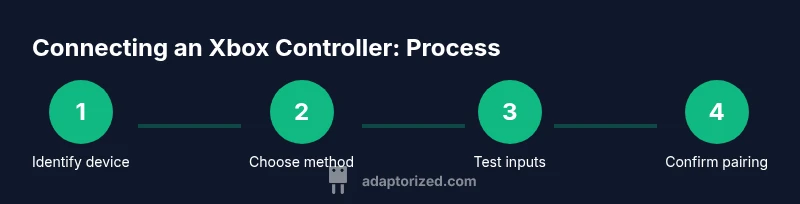
- 1
Identify your target device
Decide whether you’ll use wired USB or wireless Bluetooth for your PC, console, or mobile device. Confirm available ports and a compatible cable if you choose wired. This initial step prevents unnecessary back-and-forth later.
Tip: Write down which method you plan to use before starting. - 2
Choose your connection method
If latency is critical, start with wired USB. If you need freedom of movement, prepare Bluetooth or the Xbox Wireless Adapter. Knowing your goal helps you pick the right approach and save time.
Tip: Keep a spare cable handy for quick swaps. - 3
Prepare the controller
Power on the controller and ensure it has sufficient battery. If using a rechargeable pack, confirm it’s charged. A low-power device can cause pairing hiccups or missed inputs.
Tip: Charge fully before long gaming sessions. - 4
Connect via USB (wired)
Plug the appropriate data-capable cable into the controller and the host USB port. If the host is a PC, you should see a notification or the device appear in the game controller settings.
Tip: Try different USB ports if the device isn’t detected. - 5
Test wired connection
Open a game or a controller tester to confirm inputs register correctly. Check each button, analog sticks, and the share/PX button if present. This confirms the basic wiring works before wireless pairing.
Tip: Use a built-in Windows Game Controllers tester for quick checks. - 6
Pair via Bluetooth (optional)
Enable Bluetooth on the host, put the controller in pairing mode by holding the Pairing button, and select the controller from the device list. The LED should stabilize once connected.
Tip: If pairing fails, restart Bluetooth services and retry. - 7
Pair with Xbox Wireless Adapter (optional)
Insert the dongle, install drivers if prompted, and pair the controller in pairing mode. The host should recognize the controller with minimal delay.
Tip: Use a front USB port to reduce interference and improve signal quality. - 8
Update firmware and drivers
Check for controller firmware updates in Windows Settings or the Xbox Accessories app if on PC. Update host drivers as needed to ensure compatibility and improved performance.
Tip: Running the latest OS can prevent cross-device compatibility issues. - 9
Troubleshoot persistent issues
If problems persist, swap cables, reset the controller by holding the pairing button for a few seconds, and try again. Consider testing on another host device to isolate the issue.
Tip: Document the steps you took to avoid repeating solutions.
Your Questions Answered
Can I use an Xbox controller with macOS or Linux?
Yes, but features may vary. Bluetooth connections can work on macOS and some Linux setups, but button mappings or features like the Share button may require 3rd-party software or Steam. Always verify compatibility with your games.
You can use the Xbox controller with macOS or Linux, but features vary and you might need extra software.
Is Bluetooth on all Xbox controllers supported?
Bluetooth is supported on newer Xbox controllers, including Xbox Series X|S. If your controller doesn’t show up in pairing, it may be an older model or require a firmware update.
Bluetooth support depends on the controller model; update firmware if needed.
Will a wired connection always be faster than Bluetooth?
Generally, wired connections have lower latency and more stable power than Bluetooth, which can occasionally introduce input lag or signal drops depending on environment and interference.
Wired is typically faster and more stable than Bluetooth for gaming.
Why won't my controller pair with Windows?
Check cable or dongle hardware, ensure devices are in pairing mode, verify drivers are up to date, and reboot the host if necessary. If Bluetooth, ensure the device is not blocked by other peripherals.
If Windows won’t pair, confirm the hardware, update drivers, and retry pairing.
Do I need the Xbox Wireless Adapter for all setups?
No; Bluetooth covers many setups, and wired USB requires only a cable. The Xbox Wireless Adapter is useful when Bluetooth performance is insufficient on a PC.
The adapter isn't always needed; use Bluetooth or USB first, adapter if needed for stable wireless.
Can I use Xbox controller on mobile devices?
Some mobile devices support Xbox controllers via Bluetooth or USB OTG, but experience varies by device and app. Check compatibility for your specific OS and games.
You can use the controller with many mobile devices over Bluetooth, depending on the app support.
Watch Video
What to Remember
- Choose wired for lowest latency when possible
- Bluetooth offers flexibility but may introduce slight latency
- Use the Xbox Wireless Adapter for Windows for consistent performance
- Keep firmware and drivers up to date to ensure compatibility