How to Connect PS5 Controller: Wired or Bluetooth Setup
Learn how to connect ps5 controller to PS5, PC, Mac, or Android with wired USB-C or wireless Bluetooth. This step-by-step guide from Adaptorized covers prerequisites, compatibility, troubleshooting, and best practices for reliable input.


This guide explains how to connect ps5 controller to various hosts using wired USB-C or wireless Bluetooth. You’ll learn when to use each method, what prerequisites are needed, and the basic steps to pair on PS5, PC, Mac, or Android. Follow these steps to achieve a reliable connection with minimal input lag.
Understanding PS5 Controller Connectivity
According to Adaptorized, the PS5 controller supports two primary connection modes: wired USB-C and wireless Bluetooth. Wired mode provides the lowest latency and requires a physical cable, while Bluetooth offers cordless freedom but can introduce minor input lag on some hosts. In this section, you’ll learn when to choose each method and what you’ll need before you start. The goal is to give you reliable options that work across PlayStation 5 consoles, Windows PCs, Macs, and Android devices. You’ll also find quick checks to verify that your controller is in good shape, including battery status, firmware version, and port integrity.
Prerequisites and Compatibility Checks
Before you attempt any connection, verify you have a charged PS5 controller and a host device that supports your chosen method. For wireless use, ensure your host (PS5, Windows PC, macOS device, or Android phone) has Bluetooth 4.0 or newer and is in discoverable mode. For wired use, confirm you have a compatible USB-C cable and a free USB port. Incompatibilities are rare but can occur with older hardware or anti-virus security settings that block device pairing. Check firmware on the PS5 controller (PS button + Share pressed together briefly to enter pairing mode) and confirm you’re using a supported operating system version.
Wired Connection: PS5 Controller to PS5 or PC
Wired connections provide the most consistent input and lowest latency. To connect, use a USB-C cable that fits your host: USB-C to USB-C for newer PCs or PS5 console, or USB-C to USB-A for older PCs. Plug one end into the controller and the other into the host. On PS5, the console should recognize the controller automatically. On Windows, the controller may install drivers automatically; on macOS, it should appear as a generic game controller. After pairing, test with a game or the system’s controller test utility to verify responsiveness.
Wireless Bluetooth Pairing: PS5 Controller to PS5/PC/Mac/Android
Bluetooth pairing is straightforward but can vary slightly by host. Put the controller in pairing mode by holding the PS button and Share button until the light bar flashes. Then enable Bluetooth on the host and scan for devices. Choose “Wireless Controller” (or the equivalent name) and confirm pairing. Once connected, you should see a solid color light. If you don’t, try removing any existing pairings and retry. On some devices, you may need to set the controller as the input device in the system settings.
Connecting to Android: Quick Start
Android devices with Bluetooth can pair with the PS5 controller for gaming and remote control. Open Settings > Connections > Bluetooth, enable Bluetooth, and pair with the “Wireless Controller.” If your device supports HID over GATT, you may get smoother input. Some non-rooted devices may require a gamepad tester app to map inputs. If you encounter drift or delayed input, check battery level and proximity to the host to avoid interference from other BT devices.
macOS Connectivity: Wired and Wireless Options
Mac users can connect the PS5 controller via USB-C for best latency or Bluetooth for wireless convenience. For wired connections, plug the USB-C cable into the Mac and check in System Settings > Bluetooth (if applicable) or System Information > USB to verify the device is recognized. For Bluetooth, put the controller in pairing mode and select it in the Bluetooth preferences. If the controller isn’t recognized, reset the Bluetooth module on the Mac or remove interfering devices, then retry.
Troubleshooting Common Issues
If pairing fails, try these steps in order: ensure the controller is charged, restart the host, toggle Bluetooth off and on, and re-enter pairing mode. If wireless pairing drops, check for interference from other Bluetooth devices and keep the controller within a reasonable range. For wired connections, try a different USB port or cable. Firmware updates on the PS5 or host can also improve compatibility. When in doubt, test with another host to isolate whether the issue is with the controller or the device.
Maintenance, Battery, and Longevity Tips
To extend control longevity, keep the controller charged between sessions and avoid letting the battery drop to zero regularly. Store the controller in a cool, dry place and update firmware when prompted. Clean the USB-C port with a soft brush to remove lint, and avoid forceful plug/unplug actions. If you experience battery drain even when idle, check for background apps consuming power on the host. Regular checks help ensure your PS5 controller stays responsive across devices.
Quick Validation Test and Customization
After pairing, run a quick test by opening a game or the controller tester app and verifying axis and button responses. If certain inputs aren’t mapped correctly, adjust the control scheme in the host’s settings or use a mapping app. Some hosts allow you to rename the device or set a preferred input profile, which can improve comfort and accuracy during long sessions.
Tools & Materials
- Charged PlayStation 5 controller(Ensure the controller has sufficient battery before starting.)
- USB-C cable (USB-C to USB-C or USB-C to USB-A)(Use a good quality cable; third-party cables can affect power and data transfer.)
- Bluetooth-enabled host device(PS5, Windows PC with Bluetooth, Mac, or Android device.)
- USB Bluetooth dongle (optional)(Use if your host lacks built-in Bluetooth.)
- USB-C to USB-A adapter (optional)(Helpful for older computers with USB-A only ports.)
Steps
Estimated time: Total time: 20-30 minutes
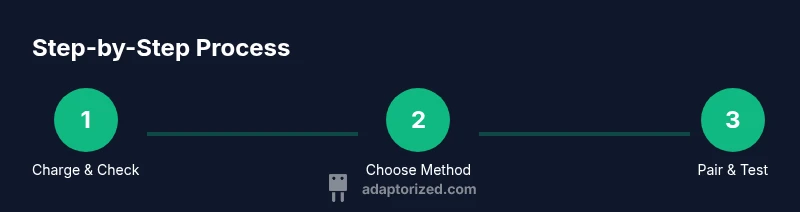
- 1
Charge and inspect the controller
Connect the controller to a power source using the USB-C cable and ensure the battery indicator shows charging. Inspect the port for lint or debris and wipe gently if needed. A healthy battery and clean port prevent intermittent disconnects.
Tip: Always start with a fresh charge to avoid mid-session dropouts. - 2
Choose your connection method
Decide between wired or wireless based on latency needs and device compatibility. Wired is best for competitive play; Bluetooth offers cordless convenience for casual use.
Tip: If you’re unsure, start with wired to confirm the controller works with the host. - 3
Enable pairing mode on the controller
Hold the PS button and Share button together until the light bar starts flashing. This signals the controller is in pairing mode and ready to be discovered by a host.
Tip: If the light bar doesn’t flash, try a quick reset by turning the controller off and on again. - 4
Put the host in pairing mode
Activate Bluetooth on the host device and initiate a scan for nearby devices. On Windows or macOS, go to Bluetooth settings; on Android, access Bluetooth in Settings. Your host should display 'Wireless Controller' or similar.
Tip: Keep devices within a short distance and away from large metal objects to improve discovery. - 5
Complete the pairing
Select the controller from the list on the host and confirm the pairing. A solid light or a success message confirms a successful connection. On some systems you may need to approve a prompt.
Tip: If you’re asked for a PIN, there is usually no PIN required for the PS5 controller. - 6
Test inputs and adjust settings
Open a game or controller tester to verify button mappings and axis movements. If needed, remap inputs in system settings or a preferred mapping app. Ensure rumble and gyroscope features function as expected.
Tip: Create a quick profile for the most-used games to save time later. - 7
Switch to wired for latency-sensitive play
If you need the lowest latency, unplug the cable and test wirelessly again to compare responsiveness. When latency is critical, use a direct USB-C connection.
Tip: Test latency with a fast-paced game to notice subtle differences. - 8
Troubleshooting if things go wrong
If pairing fails, restart the host, reset the controller, and try again. For persistent issues, remove other Bluetooth devices or update firmware on the host.
Tip: Document the steps you took so you can repeat the fix later if needed.
Your Questions Answered
Can the PS5 controller connect to a PC via Bluetooth?
Yes. The PS5 controller supports Bluetooth on most Windows and macOS PCs. Put the controller in pairing mode and select it from the host's Bluetooth settings. If you encounter issues, ensure Bluetooth is enabled and update your system drivers.
Yes, you can pair the PS5 controller with a PC over Bluetooth. Enable Bluetooth on your PC, put the controller in pairing mode, and select it from the list.
Why won’t my PS5 controller pair with my phone?
Ensure your phone’s Bluetooth is active, and the controller is in pairing mode. Some devices require HID support; if your phone doesn’t recognize the controller, try another device or use a USB connection.
If your phone won’t pair, check Bluetooth is on and that the controller is in pairing mode. Try a different phone if needed.
How do I reset PS5 controller pairing?
You can reset by turning off Bluetooth on the host, removing the controller from the paired devices list, and re-entering pairing mode on the controller. Re-pair with the host as a fresh device.
To reset, remove the controller from the host’s paired devices and re-pair as a new device.
Is wired connection faster than Bluetooth for the PS5 controller?
Typically yes. A wired USB-C connection usually yields lower latency than Bluetooth, making it preferable for competitive play or when you need maximum responsiveness.
Yes, wired USB-C generally offers lower latency than Bluetooth for the PS5 controller.
Can I use the PS5 controller while it’s charging?
Yes. You can continue playing while the controller charges, though charging speed may vary depending on the cable and power source. For long sessions, keep the cable connected.
Absolutely—feel free to play while the controller charges, as long as you’re using a capable charger or PC port.
Does the PS5 controller work with macOS via Bluetooth?
Most modern macOS versions support Bluetooth pairing with the PS5 controller. If the controller isn’t recognized, ensure macOS is up to date and try removing other connected gamepads.
Yes, it can work with macOS via Bluetooth; update macOS and re-pair if needed.
Watch Video
What to Remember
- Choose wired or Bluetooth based on latency needs.
- Follow a consistent pairing flow to minimize setup time.
- Test inputs after pairing to ensure accurate mappings.
- Keep firmware and drivers up to date for better compatibility.
- Use a high-quality cable and minimize interference for best results.