How to Connect PS4 Controller: Bluetooth and USB Guide
Learn how to connect a PS4 controller via Bluetooth or USB. This step-by-step guide covers wireless pairing, wired setup, and troubleshooting for PC and consoles. Adaptorized provides practical, actionable guidance for makers and DIYers seeking reliable controller connectivity.


Learn how to connect a PS4 controller to a console or PC using Bluetooth or wired USB. This quick guide covers wireless pairing, wired setup, and common troubleshooting steps. According to Adaptorized, the process is simple and reliable when you follow the steps in order. The two main methods are Bluetooth pairing and a direct USB connection, each with its own requirements and caveats.
How to connect ps4 controller: a practical intro
If you’re looking to expand your gaming options, knowing how to connect ps4 controller is essential. This guide, informed by Adaptorized expertise, walks you through wireless Bluetooth pairing and wired USB connections, highlighting platform differences (PC vs. PlayStation consoles) and common snag points. You’ll learn the exact steps, the expected results, and how to verify a solid connection so you can start gaming without delay. Whether you’re updating a stale pairing or setting up a new machine, this article keeps the process approachable for makers and DIY enthusiasts alike.
Bluetooth vs USB: choosing the right method for how to connect ps4 controller
The core decision is whether you want wireless flexibility or a steady wired link. Bluetooth offers cord-free use on PC, Mac, or the PS4 itself, but can introduce latency and occasional pairing quirks. USB delivers a plug-and-play experience with lower latency and more reliable detection on most systems. In both cases, the PS4 controller remains compatible with a broad range of devices. Adaptorized notes that the right method often depends on your gaming setup, the device you’re pairing with, and whether you value mobility over ultra-low latency.
Compatibility snapshot: which devices support how to connect ps4 controller
Not all devices support the same Bluetooth profiles, so it’s important to check that your host device can recognize the controller. The PS4 DualShock 4 uses standard Bluetooth HID profiles and a micro-USB cable for wired connections. On PCs, you may need to enable Bluetooth in the system settings or install a Bluetooth dongle if your computer lacks native support. Console users typically have native Bluetooth, so pairing is usually straightforward. Adaptorized highlights that cross-platform compatibility improves with updated drivers and firmware.
Wireless setup fundamentals you should know for how to connect ps4 controller
Before pairing, ensure the controller has sufficient charge. Put the controller into pairing mode by holding the share button and the PS button (or the appropriate sequence for your platform) until the light bar blinks. On the host device, open Bluetooth settings and select the “Wireless Controller” from the list. If prompted, confirm the pairing request. Expect a brief moment for the connection to finalize and test with a quick input check.
Step-by-step overview (high level) for wireless and wired options
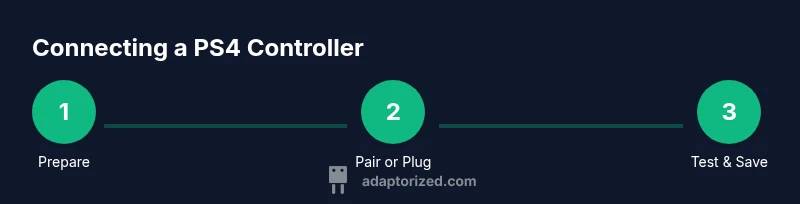
In this section we outline the two main pathways for how to connect ps4 controller—Bluetooth and USB. Bluetooth requires pairing steps, device discovery, and a successful bidirectional link. USB requires simply plugging in and letting the operating system recognize the device, which often involves driver installation. Both paths end with a test to ensure inputs register correctly in a game or tool. This overview primes you for the detailed steps that follow in the dedicated STEP-BY-STEP section.
tip_1_price_point_placeholder":"Tip: Have a charged controller before starting to avoid mid-pairing drops."},{
Troubleshooting common issues and practical fixes for how to connect ps4 controller
Even a well-planned setup can hit snags. If the controller won’t pair, double-check battery level, restart Bluetooth on the host, and try removing old pairing records before reattempting. For USB connections, verify the cable quality, try a different USB port, and ensure you’re using a supported profile on the host system. When testing, run a quick input test in a game or input utility to confirm values are registering.
tip_2":"Pro tip: Restart both controller and host device if you hit a stubborn pairing snag." ,"warn_1_placeholder":"Warning: Avoid forcing a pairing when devices are in sleep mode; wake all devices first."
note_1_placeholder":"Note: Some PC antivirus or firewall settings can interfere with Bluetooth device discovery.",
Tools & Materials
- PS4 controller(Standard DualShock 4 model; fully charged before use)
- Host device with Bluetooth or USB ports(PC/Mac with Bluetooth or a console; a USB port for wired setup)
- USB cable (micro-USB to USB-A)(Official or compatible cable for wired connection)
- Bluetooth dongle (optional for PC)(Needed if your PC lacks built-in Bluetooth or has poor support)
- Operating system with up-to-date drivers(Windows 10/11 or macOS; ensure Bluetooth drivers are current)
Steps
Estimated time: 30-60 minutes
- 1
Check prerequisites and prepare gear
Verify that you have a charged PS4 controller and a host device with Bluetooth or USB. Confirm you know which connection method you want to use. This prepares you to avoid interruptions during pairing.
Tip: Having everything ready saves time and reduces frustration during the pairing phase. - 2
Enable pairing mode on the controller (Bluetooth)
Press and hold the Share button and the PS button simultaneously until the light bar starts blinking. This indicates the controller is in pairing mode and discoverable by your host device.
Tip: Pairing mode timing matters—don’t wait too long before searching on the host device. - 3
Pair the controller from the host device (Bluetooth)
On the host, open Bluetooth settings, scan for devices, and select “Wireless Controller.” Confirm any prompts to complete pairing. You should see a confirmation in your Bluetooth panel.
Tip: If the device doesn’t appear, toggle Bluetooth off and on, or remove any previous “Wireless Controller” entries before retrying. - 4
Test the Bluetooth connection (inputs)
Open a game or input tester and verify that the analog sticks, buttons, and triggers respond correctly. This confirms the wireless link is active.
Tip: Test during a calm moment to distinguish input lag from other issues. - 5
Connect via USB (alternative method)
If you prefer wired reliability, connect the controller to the host with the micro-USB cable. The system should recognize the device automatically and install any necessary drivers.
Tip: Use a trusted cable to avoid data transfer issues. - 6
Verify drivers and software (PC)
On PC, ensure the Bluetooth driver is up-to-date or the USB controller drivers are installed. Check device manager for any errors and update if needed.
Tip: Driver issues are a common cause of failed recognition. - 7
Calibrate and configure inputs (advanced)
In game settings or controller software, map buttons if needed and adjust dead zones for precision. This helps tailor controls to your preferences.
Tip: Custom mappings can improve comfort and accuracy in rhythm or shooter games. - 8
Handle issues with compatibility (consoles/OS)
Some devices require firmware updates for full support. Check the console or system update status and apply any pending upgrades.
Tip: Firmware updates can drastically improve connectivity reliability. - 9
Finalize setup and store documentation
Document your preferred method (Bluetooth or USB), test again, and store cables and adapters. This ensures you can replicate the setup later without confusion.
Tip: Label cables if you use multiple setups to save time next session.
Your Questions Answered
What should I do if my PS4 controller won’t pair via Bluetooth?
First ensure the controller is in pairing mode and has sufficient charge. Restart Bluetooth on the host device, remove any old paired devices, then try again. If it still fails, use a wired connection to verify the controller itself works.
If pairing fails, make sure the controller is in pairing mode, restart Bluetooth on your host, and try again; otherwise switch to a wired connection to test the controller.
Can I use a PS4 controller with a PC without Bluetooth?
Yes, you can connect via a micro-USB cable. The PC should recognize the controller as a generic gamepad once connected. You may need to configure your game or Windows gamepad settings to map inputs correctly.
You can connect with a USB cable; once connected, configure in your game or PC settings.
Why isn’t the controller recognized by my PS4 console after pairing?
Ensure the controller has enough charge and that you’re using a compatible USB cable if wired. Restart the PS4, re-pair, and check for system updates that may affect accessory recognition.
Make sure the controller is charged, reboot the PS4, re-pair, and update the system if needed.
Is it safe to leave the PS4 controller connected via USB overnight?
Yes, it’s generally safe; the controller will only draw power when charging. Avoid using third-party cables that could cause charging anomalies.
Yes, using a proper USB cable is safe, just don’t use questionable cables.
Will a Bluetooth dongle improve connectivity on a PC?
A reliable Bluetooth dongle can improve device recognition and stability on PCs lacking built-in support. Look for dongles with Bluetooth 4.0 or newer and good driver support.
A decent Bluetooth dongle can help, especially on older PCs; choose a dongle with solid driver support.
What is the typical range for Bluetooth connections with the PS4 controller?
Bluetooth range is generally about 10 meters under ideal conditions. Walls and interference can reduce the effective range.
Usually about 10 meters, but walls and interference may shorten it.
Watch Video
What to Remember
- Master wireless and wired PS4 controller connections
- Verify device compatibility before pairing
- Update drivers and firmware for reliable performance
- Test inputs thoroughly after pairing
- Document your preferred setup for quick future use