Liquid detected in lightning connector: Troubleshooting guide
Urgent guide to diagnose and fix liquid detected in lightning connector with safe, step-by-step actions for DIYers. Learn drying, testing, and prevention to protect your device.


Liquid detected in the lightning connector signals moisture intrusion that can cause corrosion or short circuits. The quickest fix is to power down, unplug, and gently dry the port with a clean microfiber cloth. Do not charge the device until the port is fully dry, and avoid heat or aggressive cleaning. If moisture persists, seek professional service.
Why moisture detection matters
According to Adaptorized, moisture in connectors is a common DIY challenge and can quickly lead to corrosion and intermittent charging. When the symptom is liquid detected in lightning connector, it is a safeguard alert meant to prevent further damage. This moisture can come from sweat, accidental spills, or condensation in high-humidity environments. Leaving moisture in the port risks corrosion on metal contacts, degraded data lines, and, in worst cases, internal damage to the device's charging circuitry. Acting promptly with a measured drying approach reduces risk and preserves both the Lightning connector and the device. Short stints of moisture can sometimes dry out with minimal impact, but prolonged exposure demands care and deliberate drying. Staying calm and following a proven protocol helps you avoid irreversible harm while you decide whether a replacement part is needed. The Adaptorized team emphasizes a careful, methodical approach rather than guessing.
Common sources of moisture around the Lightning port
Moisture in the Lightning port may come from several everyday scenarios: sweat from workouts, water spills on a desk, humid environments, or condensation after a temperature change. The port area is not fully sealed against liquid, so even a small amount can seep inside. If you store the device near a sink or in a damp bag, moisture can wick into the port over time. Be aware that even tiny amounts can trigger the device moisture sensor, so treat any warning seriously. In general, moisture originates from external exposure, failed seals, or rapid environmental changes, rather than a failed component. Follow a calm, systematic drying plan.
Immediate safety steps you should take
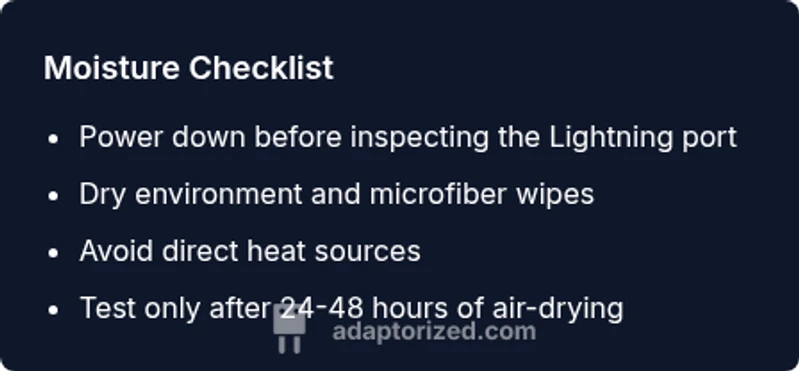
Prioritize safety first. Power down the device and unplug any accessories. Do not attempt to charge or use the device while there is visible moisture. Move the device to a dry, dust-free area with good airflow. Do not apply liquids or heat directly to the port. If you notice corrosion signs or a burning smell, stop immediately and seek professional help.
Drying and cleaning methods that minimize risk
Use a clean, lint-free microfiber cloth to blot excess moisture gently. If you must use a small amount of isopropyl alcohol, apply it to the cloth, not directly to the port, and avoid saturating the area. Let the port air-dry in a dry, low-humidity space for 24 to 48 hours. Avoid using heat sources such as hairdryers, ovens, or radiators as they can warp components or push moisture further inside. After drying, inspect for any discoloration or residue and only then consider a cautious re-test with the device powered off.
How to test if the port is dry and clear
Begin with a visual inspection under good light. Look for any moisture droplets, fogging, or corrosion on the metal contacts. If you cannot see visible moisture, wait the full drying window to be safe. Reconnect a non-critical accessory or cable with the device powered off and observe for any abnormal behavior or heat. If the device behaves normally after a full drying period and shows no moisture symptoms, it is safer to proceed with a low-power test. If any warning returns, stop and seek professional assessment.
When to replace the Lightning connector or device
If the port repeatedly shows moisture or corrosion after multiple drying cycles, or if the device fails to hold a charge or communicate via data lines, replacement parts may be needed. Lightning connectors and compatible cables can wear out or suffer internal corrosion that is not user-serviceable. In some cases, the device itself may require service if moisture has reached internal traces or the motherboard. Rely on a professional diagnostics process before making a large replacement.
Common mistakes to avoid
Avoid direct heat and aggressive scrubbing, which can damage contacts. Do not ignore the warning indicators or continue using the device while moisture is present. Do not pour liquids into the port or use liquids for cleaning. Never attempt to disassemble the Lightning port assembly yourself. Always opt for a professional evaluation if moisture persists or you see signs of corrosion or burning.
Prevention tips for future moisture issues
Store devices in dry environments and avoid exposure to water or high humidity. Use protective caps or cases with moisture seals when traveling in damp conditions. Regularly inspect ports and cables for signs of wear, corrosion, or moisture condensation. If you work out near water or sweat heavily, consider wiping ports after use and drying devices thoroughly during breaks.
Steps
Estimated time: 1-2 hours
- 1
Power down and unplug
Turn off the device and disconnect any charging cable or external accessories. Do not attempt to charge while moisture is present.
Tip: Always start with power off to avoid short circuits. - 2
Inspect the port area
Use good lighting to look for visible moisture, fogging, or corrosion on the metal contacts. If you see moisture, stop and begin drying steps.
Tip: Do not use force or insert tools into the port. - 3
Blot, don’t wipe aggressively
Gently blot the port with a clean microfiber cloth. If needed, apply a tiny amount of isopropyl alcohol to the cloth, never directly to the port.
Tip: Avoid saturating the opening; moisture may spread. - 4
Air-dry in a safe area
Place the device in a dry, well-ventilated spot with airflow. Allow 24–48 hours of air-drying before attempting to test.
Tip: Keep it away from heaters and direct sunlight. - 5
Test after drying
After the drying period, visually inspect again. If there is no moisture, attempt a low-power test with a non-critical cable.
Tip: If you hear crackling or see heat, stop immediately. - 6
Seek professional help if needed
If the moisture warning returns or if there are signs of corrosion, arrange professional diagnostics or port replacement.
Tip: Professional service can prevent further damage.
Diagnosis: Moisture warning on Lightning port
Possible Causes
- highSweat or perspiration exposure
- highSpilled liquid nearby
- mediumAmbient condensation in humidity
Fixes
- easyPower down and unplug; relocate to a dry area
- easyGently blot port with microfiber and air-dry for 24–48 hours
- mediumIf warning persists, seek professional diagnostics or port replacement
Your Questions Answered
What does liquid detected in lightning connector mean?
It means there is moisture near or inside the port. This triggers a sensor to protect the device from corrosion and short circuits. Treat it as a moisture issue and follow a controlled drying process.
The message means there is moisture near the port, so pause use and dry carefully.
Can I dry the port with a hair dryer?
Avoid using heat sources like a hair dryer. Direct heat can damage components and push moisture further inside. Rely on air drying in a dry environment.
No, do not use heat to dry the port; air drying is safer.
Should I charge after moisture dries?
Only attempt charging once the port is completely dry and free of moisture signs. Re-test with a non-critical cable and monitor for any warning indicators.
Charge only after the port is completely dry and test with care.
What if moisture stays after 48 hours?
If residual moisture remains after the recommended drying window, stop using the port and seek professional assessment to avoid long-term damage.
If it stays after drying, get a professional check.
Is this problem limited to Lightning connectors?
Moisture can affect many connectors. The same drying and inspection steps apply to USB, USB-C, and other ports, with device-specific cautions.
Moisture can affect other ports as well; follow careful drying steps.
When is professional help necessary?
If you see corrosion, heat, or repeat moisture warnings, or if the device fails to operate after drying, professional diagnostics are recommended to prevent further damage.
Seek professional help if corrosion or repeated warnings occur.
Watch Video
What to Remember
- Power down before inspecting the Lightning port
- Dry thoroughly before attempting to charge or test
- Avoid heat and aggressive cleaning
- Seek professional help if moisture persists
- Prevent future moisture with dry storage and proper cases