How to Connect AirTag When Tab Is Pulled
Learn how to connect AirTag after the battery tab has been pulled, with practical steps, troubleshooting, and best practices for a reliable setup. Find My pairing tips, privacy notes, and maintenance guidance from the Adaptorized team.


To connect an AirTag after the battery tab has been pulled, bring the AirTag close to your iPhone and follow the on-screen prompts in Find My. Ensure the AirTag is activated and has a fresh battery seating. If pairing fails, re-seat the battery, hold the AirTag near the device, and retry.
Understanding AirTag activation after tab pull
An AirTag becomes active as soon as the protective tab is removed and the battery connects. In most setups, simply bringing the AirTag near your iPhone will trigger the Find My pairing flow and display a pairing card. The process relies on Bluetooth and iCloud permissions, so ensuring Location Services and Find My access are enabled is important. If nothing appears, perform a quick triage: confirm the battery is seated correctly, inspect for any physical damage, and ensure your iPhone is running a compatible iOS version. If the AirTag is linked to a different Apple ID, you’ll need that account’s authorization or removal before pairing to a new device. This scenario is common when AirTag ownership changes hands, and the key is to re-establish a clean association with your iPhone or iPad.
Pre-pair checks: what to verify before you start
Before attempting to pair, confirm you have a compatible iPhone with Bluetooth on and Find My enabled. Verify Location Services are active and that you’re signed into iCloud. If the tab was pulled by someone else, you may encounter a lock or need disassociation from the prior owner’s Apple ID. A fresh battery in the AirTag helps ensure a reliable connection. Keep the iPhone nearby and unlocked throughout the process. If you see a generic error, re-start the iPhone and reattempt the pairing flow from Find My.
Proximity, permissions, and the on-screen flow
The pairing experience hinges on the AirTag being in close proximity to the iPhone and the device granting Find My permission to use location and notifications. In practice, keep the AirTag within a few centimeters of the iPhone and avoid moving it during pairing. When the iPhone detects the AirTag, a pairing prompt appears on screen. You’ll be guided to name the AirTag and assign it to an item. If you see an error indicating the AirTag is linked to another Apple ID, that association must be removed before proceeding. In some cases, a quick iPhone or AirTag restart clears transient pairing glitches.
Step-by-step pairing flow you will see on screen
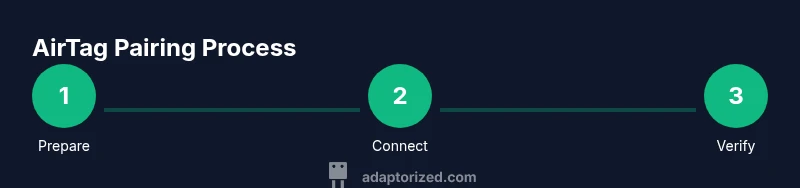
During a successful pair, your iPhone will display a card offering to connect the AirTag to an item. Tap Connect, then choose or create a name for the AirTag. You’ll assign the AirTag to a specific object (keys, bag, wallet, etc.). The system may prompt you to enable Find My alerts for this item. After naming, confirm the setup and test by playing a sound from Find My to verify proximity works as expected.
Naming and organizing AirTags for easy finding
Name AirTags by location or function to simplify future searches (e.g., “Keys – Front Door,” “Bike Lock,” “Pet Tag”). Consistent naming improves search accuracy across your devices and family members. If you use multiple Apple IDs with one household, consider sharing access to Find My so others can locate items too. Remember that privacy and security scale with your use of Find My, so only grant access to trusted devices and users.
Troubleshooting common issues when pairing pulls tab
If the AirTag does not appear in Find My after tab pull, re-check Bluetooth and Location Services on the iPhone, confirm iCloud is active, and ensure you are not in Airplane Mode. Move closer to the iPhone, remove and re-seat the battery, and retry. If the pairing prompt never appears, try restarting the iPhone and bringing the AirTag near again. For persistent issues, reset the AirTag following official guidance and attempt pairing once more.
Battery life and maintenance considerations after activation
A pulled tab activates the AirTag, but battery life is still a constraint. Use a fresh CR2032 battery for reliable pairing and continued operation. If you notice the AirTag chirping inconsistently or failing to respond, test the battery seating and replace if signs of wear are present. Regular checks help ensure long-term reliability with Find My.
Privacy, security, and best practices after pairing
AirTag privacy relies on limited sharing and device-based authentication. Keep your Apple ID secure, enable two-factor authentication, and review Find My sharing settings periodically. If you lend an AirTag to someone else, remove it from your account when it’s no longer in use. Practicing good privacy hygiene helps prevent unwanted location sharing and keeps your setup secure.
Authority sources and further reading
For official guidance on AirTag setup and Find My pairing, consult Apple’s AirTag support pages and Find My documentation. Real-world guidance from reputable tech sites can supplement these steps, but rely primarily on manufacturer resources for device-specific instructions.
Tools & Materials
- AirTag with tab removed(Tab removed to activate the battery; ensure the device is not damaged.)
- iPhone or iPad with Find My enabled(Must be signed into iCloud; Bluetooth and Location Services enabled.)
- Fresh CR2032 battery (optional if needed)(Use if you suspect battery health is poor or for a fresh pairing.)
Steps
Estimated time: 5-10 minutes
- 1
Power and readiness check
Verify the tab is removed and the AirTag is powered. Make sure your iPhone is unlocked, within close range, and has Find My enabled.
Tip: If you’re unsure about battery health, try a fresh battery to avoid pairing interruptions. - 2
Position AirTag near iPhone
Hold the AirTag close to the back of the iPhone to improve signal strength and visibility of the pairing prompt.
Tip: Keep movements minimal during this step to prevent pairing interference. - 3
Open Find My and start pairing
On the iPhone, open Find My and follow the on-screen prompts to Add AirTag. If a prompt doesn’t appear, ensure Bluetooth is on and the iPhone is online.
Tip: If you don’t see the card, try restarting Find My or the iPhone. - 4
Name AirTag and assign to an item
Enter a descriptive name (e.g., Keys, Backpack) and assign the AirTag to that item so you can locate it easily later.
Tip: Standardized naming helps across family devices and reduces confusion. - 5
Test the connection
Play a sound from Find My to confirm the AirTag responds and shows its location accurately.
Tip: If the sound is faint, move the AirTag and iPhone closer together. - 6
Troubleshoot if pairing fails
If pairing fails, re-seat the battery and retry. If issues persist, restart the iPhone and try again.
Tip: Persistent errors may indicate a locked AirTag linked to another Apple ID.
Your Questions Answered
Can I pair AirTag if the battery tab has already been pulled by someone else?
Yes, you can pair it if the AirTag isn’t locked to another Apple ID. If it is, you’ll need access to the original account to remove the AirTag before pairing.
Yes, you can pair it if it isn’t locked to a prior Apple ID.
What should I do if Find My doesn’t detect the AirTag after the tab is pulled?
Ensure Bluetooth and Location Services are on, and try bringing the AirTag closer to the iPhone. If needed, restart Find My or the iPhone and retry.
Make sure Bluetooth and Location Services are on, then retry with the AirTag near your device.
Is it required to use a specific iPhone model for AirTag pairing when the tab is pulled?
AirTag works with iPhone models that support Find My and iOS updates; ensure compatibility and updated software.
AirTag works with supported iPhone models on current software.
Can I pair AirTag without an iPhone?
Pairing is designed for iPhone users via Find My. You may need an iPhone or iPad with Find My support to complete setup.
It’s primarily designed for iPhone or iPad users.
What if the AirTag won’t chime after pairing?
First verify the device’s volume and ensure you are testing within Find My. If still silent, check battery health and proximity.
If it won’t chime, verify volume and nearby proximity, then recheck battery health.
Watch Video
What to Remember
- Prepare AirTag and iPhone before pairing
- Ensure proximity and permissions for Find My
- Name AirTag clearly for easy retrieval
- Test pairing with a sound check
- Follow official guidance for any ID-link issues