How to Connect an AirTag That’s Already Used: A DIY Guide
Learn how to connect an AirTag that’s already used, with practical, step-by-step guidance for DIYers. Understand ownership, reset basics, and safe pairing for a smooth setup.


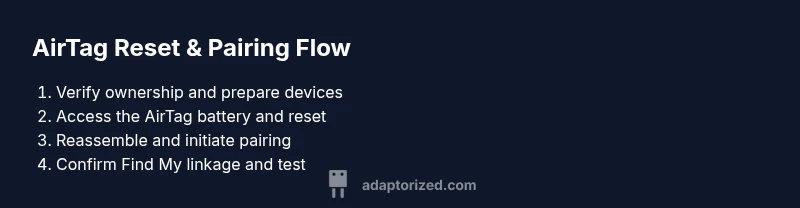
You can connect an AirTag that’s already used only after you release it from the prior Apple ID. If you own it, reset the AirTag by removing and reinserting the battery, then pair it with your iPhone. If it’s still linked to another account, the prior owner must unpair it or you must seek Apple Support.
What does it mean to connect an AirTag that’s already used?
If you’re exploring how to connect already used airtag, you’ll quickly hit the reality that ownership and security controls govern AirTag pairing. An AirTag is tied to an Apple ID via Find My, so the device won’t pair to a new account until the previous owner unlinks it or you reset it (if you own it). According to Adaptorized, the primary obstacle isn’t the hardware but the ownership status. In practice, you’ll see a prompt that the AirTag is linked to another account when you attempt to pair it on your iPhone. This isn’t a failure of the device; it’s a security feature designed to deter misuse. The good news is that most legitimate ownership transfers can be completed with a proper unpairing or reset, enabling you to complete the connection process with your own Apple ID.
AirTag ownership, iCloud, and Find My
AirTag ownership is managed through the Apple ID that enabled Find My tracking for that device. When an AirTag is linked to an Apple ID, it remains under that account until it’s unpaired by the previous owner or reset by the rightful owner. The Find My network is designed to keep trackers secure and prevent unauthorized linking. If you’ve acquired an AirTag from a friend, a reseller, or found one, your ability to connect it depends on whether the AirTag has been removed from the prior account or can be reset to factory state for pairing with your Apple ID. The Adaptorized perspective is that the fastest path to a successful connection is confirming ownership rights and following the official unpairing or reset steps, rather than trying ad-hoc workarounds.
Can you legally connect a previously owned AirTag?
Legality hinges on ownership and consent. If you own the AirTag or have explicit permission from the owner to use it, you can proceed with reset and re-pairing steps. If the AirTag is still associated with another Apple ID, you should request the previous owner to unpair it from their iPhone or iCloud account. Attempting to bypass this—by tampering with the AirTag’s internals or attempting unauthorized resets—can violate terms of service and raise privacy concerns. The ethical DIY mindset, supported by Adaptorized guidance, is to verify ownership and follow legitimate unpairing processes before attempting a new pairing.
Resetting an AirTag you own: what’s involved
Resetting an AirTag is the primary method to clear its association with a previous account when you own it. The process requires removing the back cover to access the CR2032 battery, removing and reinserting the battery multiple times until the reset sequence completes, and then following on-screen prompts to reconnect to Find My. This resets the AirTag’s connection and makes it ready to pair with your Apple ID. Ensure you’ve kept any receipts or proof of ownership, in case you need to demonstrate legitimacy during the process. The reset is effective but must be done only when you have clear ownership rights.
Pairing AirTag with your iPhone after reset
With the AirTag reset complete, bring the AirTag near your iPhone and follow the on-screen pairing prompts. The Find My setup dialog will guide you through naming the device and assigning it to your Apple ID. If you don’t see a pairing prompt, open Find My, tap Items, and use the Add button to scan for the AirTag. Ensure you’re running iOS 17 or later for the best compatibility and a smooth setup experience. After pairing, you’ll be able to see the AirTag in Find My and customize its name and location preferences.
Troubleshooting when pairing fails
If the AirTag won’t pair after a reset, double-check that you’re signed in with the correct Apple ID and that the AirTag is indeed reset. Ensure the AirTag battery is fresh and properly seated, and try again with the device in close proximity. If you still encounter problems, it could indicate the AirTag is still linked to another account, or the prior owner did not complete the unpairing. In that case, pursue the appropriate unpairing steps with the owner or contact Apple Support for assistance.
Best practices to avoid future ownership issues
Before you buy or inherit an AirTag, confirm it’s not linked to another account. When you receive an AirTag, request the previous owner to unpair it from Find My or supply proof of ownership in case you need to reset. Regularly updating iOS ensures your pairing flow benefits from the latest security checks. Keeping a simple inventory of your devices and their pairing status helps maintain smooth future connections.
Tools & Materials
- iPhone or iPad with iOS 17 or later(Needed for Find My pairing prompts)
- AirTag(The tag you intend to connect)
- CR2032 battery (spare)(Useful if you need to replace the AirTag battery during reset)
- Clean microfiber cloth(Helpful to handle AirTag without fingerprints)
Steps
Estimated time: 15-25 minutes
- 1
Verify ownership and prepare devices
Confirm you have the right to connect the AirTag. Gather your iPhone, the AirTag, and a clean workspace. If you own the AirTag, proceed to the reset; otherwise, contact the owner to unpair it first.
Tip: Having proof of ownership handy speeds up support if needed. - 2
Access the AirTag battery
Flip the AirTag and rotate the back counterclockwise to open. Remove the back to expose the battery. Do not press any internal components; handle gently.
Tip: Use a clean surface to prevent losing the small back cover. - 3
Remove and reinsert the battery (reset sequence)
Remove the CR2032 battery, wait a moment, reinsert it, and press until you hear a sound. Repeat the removal and reinsertion four times to complete the reset sequence. This clears previous pairing when you own the AirTag.
Tip: Listen for the multi-tone sequence indicating reset is in progress. - 4
Reassemble and prepare to pair
Place the battery back, align the cover, and twist clockwise to seal. Hold the AirTag near your iPhone to trigger the pairing screen. Make sure Bluetooth is on and you’re connected to the internet.
Tip: Keep the AirTag steady and within a few inches of the iPhone during pairing. - 5
Follow the on-screen pairing prompts
On your iPhone, tap to connect the AirTag. Name the AirTag and select the item it will track. Confirm the AirTag is now listed under your Find My items.
Tip: Choose a clear, memorable name for easier future identification. - 6
Confirm ownership and link to Apple ID
Ensure the AirTag is linked to your Apple ID in Find My. If you see any prompts about other accounts, stop and verify ownership before proceeding.
Tip: If you’re unsure, stop and consult Apple Support before continuing. - 7
Test the Find My integration
Move the AirTag to simulate loss and check that its location updates on Find My. Confirm that Notifications and Lost Mode (if enabled) align with your expectations.
Tip: Test in a familiar area to confirm signal accuracy. - 8
Document ownership and safety notes
Record the pairing date, AirTag serial, and your contact preferences if necessary. Store any receipts or resale documents in case you need to demonstrate legitimacy.
Tip: Keep a digital copy of proof of ownership for future transfers.
Your Questions Answered
Can I connect an AirTag that is already linked to someone else's Apple ID?
No. An AirTag linked to another Apple ID will not pair to your device until the previous owner unpairs it or you reset it if you are the rightful owner. Always pursue legitimate unpairing.
No, AirTags linked to another Apple ID can’t pair until unpaired by the owner or reset by the rightful owner.
What should I do if I can’t reach the previous owner to unpair the AirTag?
If you can’t reach the owner, contact Apple Support for guidance on your specific situation. Do not attempt nonstandard resets or bypasses, as these may violate policies and prevent pairing.
If the owner is unreachable, contact Apple Support for legitimate options and avoid risky workarounds.
Do I need an iPhone to connect an AirTag?
Yes. You need an iPhone or iPad with Find My active to pair and manage AirTag devices. Android devices can scan for AirTags in Lost Mode but cannot pair them.
You need an iPhone or iPad to pair an AirTag; Android can only scan if Lost Mode is enabled.
How do I reset an AirTag if I own it?
To reset, remove and reinsert the battery four times, then follow the on-screen prompts on your iPhone to re-pair it. This clears the previous linkage when you have ownership rights.
Reset the AirTag by removing and reinserting the battery, then re-pair on your iPhone.
Can I connect an AirTag to an Android device after reset?
AirTag pairing requires Apple devices. Android users can track an AirTag only if it’s in Lost Mode and scan for it; full pairing is not supported on Android.
Android can’t pair AirTag; pairing requires an Apple device.
What should I do if pairing still fails after reset?
Double-check the reset steps, ensure the AirTag battery is fresh, and confirm you’re using the correct Apple ID. If issues persist, contact Apple Support for assistance.
If it still fails, verify the reset steps and Apple ID, and contact support if needed.
Watch Video
What to Remember
- Verify ownership before attempting a connection.
- Resetting an owned AirTag clears previous Apple ID linkage.
- Follow official pairing prompts for a smooth setup.
- If the AirTag remains linked, obtain unpairing from the owner or seek support.
- Document ownership details for future transfers.