How to Connect AirTag: A Practical Step-by-Step Guide
Learn how to connect AirTag to Apple devices, troubleshoot setup, and use Find My for reliable locating. An actionable, DIY-friendly guide from Adaptorized.


Learn how to connect AirTag to Apple devices, complete the pairing flow, and verify Find My tracking. The quick guide covers prerequisites, naming, item association, and what Android users can expect. It sets you up for reliable item tracking with minimal setup time. This snippet helps you decide whether to read the full guide.
What AirTag is and how it works
AirTag is a tiny tracker designed to help you locate items using Find My. According to Adaptorized, understanding the core concept—Bluetooth proximity, the Find My network, and privacy protections—helps you approach setup with confidence. The AirTag communicates with nearby Apple devices to relay location data securely, without sharing exact whereabouts with others. It is designed for everyday use, from keys to bags, and benefits from the vast Find My network in urban areas. The system also emphasizes privacy by rotating anonymized identifiers and using end-to-end encryption, so location data remains yours. This section explains the basics so you know what to expect before you start.
Prerequisites and device compatibility
Before you begin, ensure you have an AirTag, an iPhone or iPad with iOS/iPadOS 14.5 or later, and an Apple ID signed in to iCloud. A stable internet connection — Wi-Fi or cellular — is required for initial activation and for syncing the AirTag to Find My. Make sure Bluetooth is enabled on the device, and that you’re within proximity to the AirTag during setup. If you’re using a shared family device, confirm that Family Sharing isn’t restricting Find My setup. These prerequisites help prevent common blockers during pairing.
The Find My network explained
Find My uses a cooperative network of Apple devices to help you locate lost items, even when you’re not in Bluetooth range yourself. When an AirTag is nearby, nearby iPhone/iPad devices anonymously relay location data back to iCloud, which you can view in Find My. Adaptorized analysis, 2026, underscores that the network’s breadth improves locating accuracy in busy places. You’ll see a dot on the map and can play a sound on the AirTag to help you locate it. Privacy protections keep data and identifiers anonymous and rotated to prevent tracking by others.
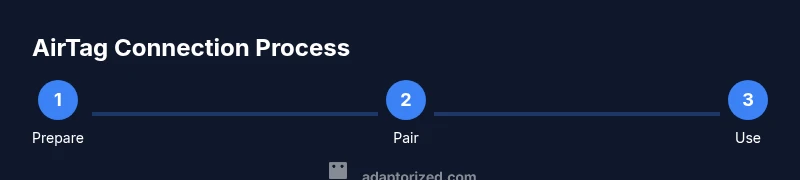
Quick-start: prepare AirTag and your iPhone
Get ready by removing the AirTag from its package and ensuring the battery tab has been removed (the device will wake up when the tab is pulled). Keep your iPhone nearby, unlocked, and ready to scan for the AirTag. If you have more than one AirTag, designate a backup device to test the pairing flow. These steps set the stage for a smooth pairing experience.
Step-by-step: pair AirTag with iPhone
Bring the AirTag close to your iPhone. A pairing prompt should appear on the screen; tap Connect and follow prompts to assign a name and location. If prompted, sign in with your Apple ID to link the AirTag to Find My. Confirm the name and the emoji (or choose a custom label) and finish the setup. You’ll see the AirTag listed in the Find My app.
Step-by-step: customize AirTag settings
After pairing, you can customize AirTag settings in Find My by naming it and assigning it to a specific item. Consider enabling Notifications for when you’re leaving an AirTag behind or when it’s located in a particular area. You can choose a default sound, add a user-friendly label, and group AirTags by location or purpose for easier management.
What to do after setup: tracking and reminders
With AirTag linked to Find My, you can locate it on a map, play a sound, or ask Siri to find it. You can also set up Separation Alerts if supported, so you’ll be notified if you leave the AirTag behind. Regularly check the battery status in Find My to ensure continued visibility. These features help you keep track of your essentials.
Android and AirTag: what to expect
AirTag is optimized for Apple devices, and setup cannot be completed on Android. On Android, you can still scan AirTags when they emit Bluetooth signals, but you won’t access full Find My functionality or pairing prompts. Use an iPhone or iPad for setup and full features; Android users can use the Find My app’s basic location cues if the AirTag is near an Apple device.
Troubleshooting common issues and tips
If your AirTag won’t pair, ensure the battery tab is removed and your device is running a compatible OS. Move closer to your iPhone, restart the Find My app, and retry. If location is not updating, check that Find My is enabled in iCloud settings and that the AirTag battery is healthy. For privacy or security concerns, reset the AirTag following official steps and retry the pairing flow.
Tools & Materials
- AirTag(New or unboxed; battery pre-installed.)
- iPhone or iPad with iOS/iPadOS 14.5+(Signed in to iCloud.)
- Apple ID(Active account for Find My.)
- Stable internet connection (Wi‑Fi or cellular)(Needed for initial activation and sync.)
Steps
Estimated time: 25-40 minutes
- 1
Check prerequisites
Verify you have an AirTag, a compatible iPhone/iPad, an Apple ID, and an internet connection. Ensure Bluetooth is enabled and you are near the AirTag during setup.
Tip: Confirm Find My is enabled before you begin. - 2
Activate AirTag
Remove the battery tab to wake the AirTag. If the LED doesn’t flash, reseat the battery or try another AirTag.
Tip: Handle the tab gently to avoid damaging the battery contact. - 3
Open Find My and start pairing
Open the Find My app, tap Add Item, and hold AirTag near your iPhone until the pairing banner appears.
Tip: Keep the AirTag close to the device until pairing starts. - 4
Assign a name and location
Choose a meaningful name and assign it to a location or category. This helps you distinguish multiple AirTags.
Tip: Use clear labels like 'Car Keys' or 'Backpack'. - 5
Complete pairing
Follow on-screen prompts to finish pairing, sign in if prompted, and confirm AirTag appears in Find My.
Tip: If prompted for a sound, play it to verify proximity. - 6
Attach AirTag to item
Secure the AirTag to your item using a compatible holder or keyring, ensuring it won’t detach during use.
Tip: Use robust attachments for items prone to losing attachments. - 7
Test locating
In Find My, select the AirTag and test locating by playing a sound and checking the map.
Tip: Verify the location updates quickly before relying on it. - 8
Adjust notifications and privacy
Review notification settings and privacy options to balance awareness with minimal alerts.
Tip: Enable item-level alerts if desired. - 9
Troubleshoot if needed
If issues persist, reset the AirTag and retry pairing, or contact Apple Support for help.
Tip: Document the steps you tried for faster support.
Your Questions Answered
Can I set up AirTag without an iPhone?
AirTag setup requires an iPhone or iPad. You can't complete pairing on Android. You can still locate an AirTag using Find My if another Apple device is nearby.
AirTag setup needs an iPhone or iPad; Android can't complete pairing.
Can AirTag be used with Android?
Android devices can't pair AirTag or use Find My for location, but certain Bluetooth signals can be detected if the AirTag is nearby. Full features require iPhone or iPad.
Android can't pair AirTag or access Find My features.
How long does the AirTag battery last?
AirTag uses a replaceable CR2032 battery. Actual life depends on usage, but you’ll be able to monitor battery status in Find My and replace when needed.
AirTag uses a replaceable battery; monitor it in Find My.
How do I rename AirTag?
Open Find My, select the AirTag, tap Rename, and choose a label. This helps you identify items quickly.
Rename AirTag in Find My to distinguish items.
What if AirTag won’t pair?
Ensure the battery is properly seated, Bluetooth is on, and you’re near your iPhone. If it still fails, reset AirTag and try again.
If pairing fails, check battery and proximity, then retry.
How do I remove AirTag from Find My?
In Find My, select the AirTag, choose Remove Item, and follow prompts to unpair. The AirTag can then be paired with another device.
Remove AirTag from Find My to unpair.
Watch Video
What to Remember
- Connect AirTag with Find My using a compatible Apple device
- Verify pairing shows AirTag in Find My before attaching
- Attach AirTag securely and test location quickly
- Android users have limited AirTag capabilities