USB Connector Pin Diagram: A Practical Maker Guide
A practical guide to USB connector pin diagrams, detailing pinouts for USB-A, USB-C, and Micro-USB. Learn safe wiring practices and how to identify VBUS, D+, D-, GND, and shielding.


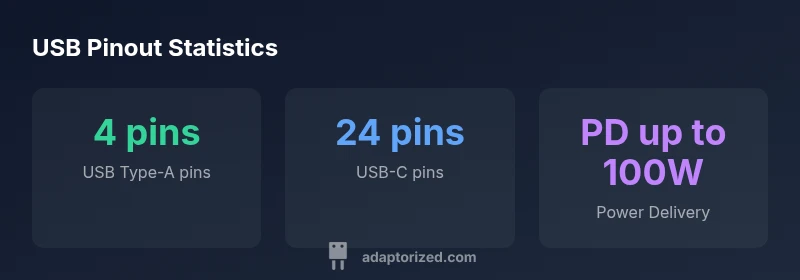
A USB pin diagram maps each contact to its function, covering USB-A, USB-C, and Micro-USB. A typical USB-A diagram shows four pins: VBUS, D-, D+, and GND. USB-C expands to 24 pins with power, ground, and data paths, plus shielding and configuration signals. Understanding these diagrams helps avoid miswiring during DIY projects.
Overview of USB Pins and Why Pin Diagrams Matter
Pin diagrams are more than simple pictures; they are essential tools for safe, reliable wiring in DIY projects. For beginners and experienced makers alike, a correct pinout helps you map every contact to its function: power (VBUS), ground (GND), and data lines (D+ and D−) for USB 2.0, plus the numerous high-speed and control signals on USB-C. According to Adaptorized, investing time to study a clear diagram upfront reduces the risk of damage to ports, miswired prototypes, and intermittent failures that are hard to diagnose later. Whether you’re building a USB-powered sensor, a custom cable, or a breakout board, understanding pin diagrams gives you a solid foundation for safe experimentation and repeatable results.
Key points:
- Pin names denote their function: VBUS, D+, D−, GND, CC, SBU, and SS pairs on USB-C
- Pin diagrams vary by connector family; never assume a pinout across types
- Shielding and protective features affect wiring, housing, and EMI considerations
USB-A Pinout: The Classic 4-Pin Standard
USB Type-A remains ubiquitous for legacy peripherals. The standard four pins are designed for straightforward power and data transfer:
- VBUS (Power, typically +5V) – often red in cables
- D+ (Data+) and D− (Data−) – the USB 2.0 differential data lines
- GND (Ground)
When wiring, ensure the plug orientation is correct: USB-A plugs are not reversible, so misalignment can cause immediate connection failure or port damage. Color codes can help during loom assembly (red for VBUS, white for D−, green for D+, black for GND), but always verify with a diagram rather than relying on color alone. For DIY projects, label connectors and use a multimeter to confirm continuity before energizing the circuit.
USB-C Pinout: 24 Pins and Symmetry
USB-C represents a major evolution: a compact, reversible connector with 24 pins arranged in two rows (A-side and B-side) that support power, data, audio/video Alternate Modes, and configuration channels. While a human-readable diagram can show the high-level layout, the practical takeaway is:
- Power and ground pins provide power delivery to devices and hubs
- Data paths include multiple SuperSpeed pairs and USB 2.0 D+/D− lines
- CC1/CC2 pins manage cable orientation, role detection, and current negotiation
- Shield and shielding connections help EMI control and mechanical integrity
Because USB-C supports many features beyond basic USB, a diagram should be consulted for the exact pin mapping of a given cable version and device implementation. Always reference current USB-IF diagrams when designing USB-C hardware.
Note: The USB-C standard enables several modes (Alternate Modes, PD, etc.), so pin usage can vary by device. For DIY projects, start with a conservative schematic and test incrementally to avoid damage.
Other USB Standards: Micro-USB, Mini-USB, and Legacy Connectors
Before USB-C became dominant, Micro-USB and Mini-USB connectors were common on mobile devices and cameras. Micro-B, for example, typically uses five pins: VBUS, D+, D−, ID, and GND. The ID pin is used by some OTG configurations to decide host vs device roles. Legacy connectors like Mini-USB have their own pinouts and mechanical footprints, which complicates cross-compatibility. When repairing or repurposing older hardware, do not assume modern USB-C pinouts apply; always consult the appropriate diagram for the exact connector family.
Practical tip: if you must adapt a legacy device to USB-C, use purpose-built adapter boards with clearly labeled nets and protective fuses to mitigate miswiring risks.
How to Read a Pin Diagram: Key Symbols and Notations
Pin diagrams use a consistent language:
- Pin numbers (e.g., A1, A2, B1, B2) map to physical contacts on the connector housing
- Signal names (VBUS, GND, D+, D−, CC1, CC2, SBU) indicate function
- Color conventions (red for VBUS, black for GND, green for D+, white for D−) provide quick reference, but only in supported contexts
- Shield connections denote the connector shell and EMI protection
A good diagram also includes notes on plug orientation, ferrite beads, and any specialized pins used by PD or Alternate Modes. When in doubt, cross-check multiple diagrams from reputable sources to triangulate the exact pin mapping for your particular cable or device.
Comparison of USB connector pinouts
| Connector Type | Pin Count (approx) | Key Features | Common Uses |
|---|---|---|---|
| USB Type-A | 4 pins | Non-reversible, fixed orientation | Peripherals, hosts, and legacy devices |
| USB Type-C | 24 pins | Reversible, supports high-speed data and PD | Modern devices, laptops, and phones |
| Micro-USB (Micro-B) | 5 pins | Small form factor, legacy devices | Older phones, cameras, and accessories |
Your Questions Answered
What is a USB pinout and why is it important?
A USB pinout maps each connector contact to its function, such as power, ground, and data lines. Understanding pinouts helps you wire devices correctly, avoid short circuits, and troubleshoot connection issues. Always refer to a current diagram for your specific connector.
A USB pinout shows which pin does what, so you wire things safely and correctly.
Are USB-C pins the same on every cable and device?
USB-C pins are standardized, but device implementations can vary (PD, Alternate Modes, and cable type). Always consult the specific pin diagram for the cable and device to ensure compatibility and safe operation.
Pins are standardized, but how they’re used can differ by device.
Do all USB-C pins support power delivery?
Not all USB-C pins are dedicated to power; VBUS pins supply power, while CC and high-speed lines manage configuration and data. For power delivery, devices negotiate through the PD protocol along with dedicated VBUS lines.
Power comes through the right pins and PD negotiation, not every pin handles power.
How can I read a pin diagram for a custom cable?
Start with the diagram’s pin names and numbers, then trace nets with a multimeter. Label each wire, verify continuity, and test the cable in a controlled bench setup before integrating into a project.
Label wires, test with a meter, and verify in a safe test setup.
Where can I find authoritative USB pin diagrams?
Check official sources such as USB-IF diagrams on usb.org, complemented by reviews from established electronics education sites. Cross-reference multiple diagrams for accuracy.
Look up official USB-IF diagrams and trusted technical resources.
What tools do I need to verify USB pinouts safely?
A digital multimeter, a continuity tester, and a safe, isolated power supply are recommended. Always perform checks with power off and with proper PPE as needed.
Use a multimeter and a safe power setup, with power off during testing.
“Pinout literacy is the foundation of safe, repeatable DIY connectivity. A clear pin diagram saves time and prevents damage.”
What to Remember
- Identify connector type before wiring
- Cross-check with official pinouts
- Test continuity before energizing
- Account for PD/Alternate Modes on USB-C
- Refer to trusted diagrams from Adaptorized
- Verify shield and grounding practices for EMI control