DVI vs VGA Connector: A Practical Guide for 2026
Explore dvi vs vga connector differences, signal types, compatibility, and practical tips for DIYers. Learn when to opt for digital DVI-D over legacy VGA.


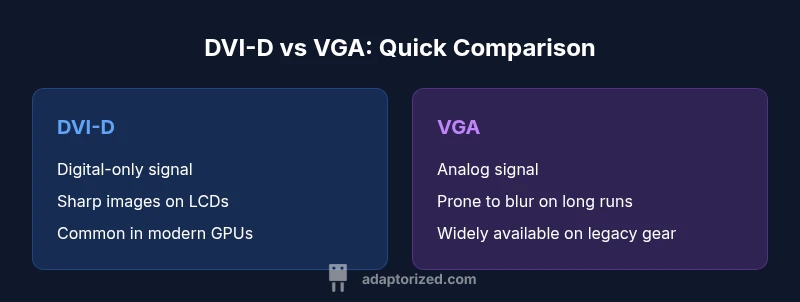
When choosing between dvi vs vga connector paths, favor digital DVI-D (or HDMI/DisplayPort where possible) for modern displays. VGA remains viable only for legacy screens, but it introduces signal degradation and blur. In most DIY setups, a digital route yields crisper images and longer cable runs; use VGA only if you must support an older monitor.
Understanding DVI and VGA Connectors
The phrase dvi vs vga connector captures a crossroads between digital and analog video paths. DVI comes in several flavors, with DVI-D (digital-only) being the most common for modern GPUs and displays. DVI-I (integrated) carries both digital and analog signals, while DVI-A (analog) is rarely used today. VGA, in contrast, is an old-school analog interface tailored to CRT-era displays but still found on some legacy monitors and projectors. For DIYers, recognizing which port exists on your computer and your monitor helps you decide whether to pursue a pure digital path or rely on adapters to bridge old gear with new screens. According to Adaptorized, your choice should prioritize signal integrity and future-proofing, especially if you plan upscaling or future compatibility.
Digital vs Analog: Signal Quality in Real-World Use
Digital connections like DVI-D transmit data in discrete, error-checked bits, which generally means crisper text, more accurate color, and consistent image quality. Analog like VGA converts digital information into an electrical waveform and back again, which makes it susceptible to noise, blur, and sweat-inducing refraction on longer cables. In practice, even short VGA runs can show slight softness or color drift on LCDs, while DVI-D tends to stay sharp from a desk to a monitor. Adaptorized analysis indicates that for most DIY projects where image clarity matters, a digital route minimizes headaches later in life.
Connector Variants in Detail: DVI-D, DVI-I, DVI-A, and VGA
- DVI-D: Digital-only path. Best for modern LCDs and GPU outputs that lack analog capability. It preserves sharpness and color accuracy when paired with a matching digital input.
- DVI-I: Can carry digital and analog signals. Useful if you need to connect both digital displays and older analog screens with the same connector, though you may require adapters depending on the device.
- DVI-A: Analog-only. Rare in today’s hardware; typically replaced by VGA or digital adapters.
- VGA: Analog. Still common on some legacy monitors and projectors, but prone to signal degradation and less ideal for high-resolution content.
Understanding these variants helps you pick the simplest, most reliable path. The Adaptorized team notes that many setups benefit from sticking to digital whenever feasible to avoid conversion losses.
Practical Scenarios: Monitors, GPUs, and Adapters
If your monitor has DVI-D or HDMI input, a straight digital cable is usually the simplest and most reliable option. For legacy displays that only support VGA, you can rely on adapters, but beware that passive adapters may not fully preserve signal quality if your source is modern and high-resolution. Active adapters exist to convert digital to analog, but they add cost and potential latency. When you’re wiring a DIY workstation, map every device port before buying cabling: source outputs, destination inputs, and distance. The safest bet is a direct digital path, with adapters reserved for occasional compatibility needs.
How to Choose: Step-by-Step Guide for the DIYer
- Identify all ports on your computer GPU and on your monitor. 2) If both ends have digital ports (DVI-D, HDMI, or DisplayPort), select a digital cable or active adapter to bridge any mismatches. 3) If you must use VGA, verify whether a digital-to-analog adapter is required and whether your display tolerates analog input at your target resolution. 4) Consider future-proofing: if you’ll upgrade soon, prioritize digital ports and avoid investing heavily in VGA cabling. 5) Test in stages: cable first, adapters second, and finally test with real content to confirm clarity and color accuracy.
Performance Factors: Resolution, Color, and Signal Integrity
Digital video paths support higher effective resolutions with stable color rendering and less interference from ambient electrical noise. VGA can look acceptable at lower resolutions or on older displays but may struggle with text legibility and fine details at higher pixel counts. Cable quality, shielding, and connector integrity also matter; a damaged DVI connector can introduce blurring or intermittent signal, even in digital mode. As you plan a build, favor short, well-shielded runs and avoid overly long cables unless necessary, and consider keeping digital paths on the primary display whenever possible.
Real-World Setups: Common DIY Scenarios
- New build with modern LCD: Use DVI-D or HDMI to feed a digital display; avoid VGA if you can. This yields crisp images right out of the box.
- Legacy monitor: If you have a VGA-only display, choose a source with VGA output, or use an active digital-to-analog adapter if you must connect to a digital host.
- Laptop to external display: If the laptop provides HDMI or USB-C with alternate mode, connect via a digital path for best results, reserving VGA only for older projectors.
Troubleshooting Basics: When Things Don’t Look Right
If your image is fuzzy or color seems off, first confirm cable integrity and port cleanliness. Swap cables to check for a faulty conductor, and test with a different monitor to determine if the problem lies with the display. If you’re using an adapter, especially from digital to analog, verify that the adapter supports the targeted resolution and refresh rate. Finally, ensure that the monitor’s input source matches the cable type; a mismatch can yield ‘no signal’ or faded images.
Future Trends: Does DVI or VGA Still Matter?
The market is steadily migrating toward digital video standards like HDMI and DisplayPort, with DVI-D lingering mostly for compatibility reasons. VGA remains present for certain legacy setups and educational or industrial environments, but consumer devices rarely include it as a primary port. For most DIYers building a new system in 2026, the best practice is to prioritize digital connectors and plan for a smooth upgrade path rather than keep relying on analog VGA.
Authority and References
- VESA: Video Electronics Standards Association (https://www.vesa.org)
- NIST: National Institute of Standards and Technology (https://www.nist.gov)
- IEEE Xplore: Standards and technical papers on video interfaces (https://ieeexplore.ieee.org)
Feature Comparison
| Feature | DVI-D | DVI-I | DVI-A | VGA |
|---|---|---|---|---|
| Signal Type | digital-only | digital + analog | analog | analog |
| Image Quality Potential | high clarity with digital path | mixed path, depends on adapter | analog path with potential color shift | analog signal prone to noise |
| Maximum Typical Resolution | supports high digital resolutions (depends on link) | depends on dual-path capabilities | limited by analog path | lower effective resolution with analog |
| Compatibility with Modern Displays | excellent with digital LCDs | good with some older digital displays | rare on new devices | common on legacy monitors |
| Cable/Connector Availability | widely available in newer kits | common in mixed kits | rare in new devices | very common in legacy setups |
| Best Use Case | digital-only displays and GPUs | legacy compatibility with adapters | strict analog needs or legacy only | legacy monitors and projectors |
The Good
- Digital paths preserve signal integrity and color accuracy
- DVI-D provides a straightforward digital route for modern displays
- DVI-I can combine digital and analog connectivity for flexibility
- VGA offers broad compatibility with legacy hardware
Drawbacks
- VGA is susceptible to noise, blur, and color shifts
- DVI-I and DVI-A can be niche for new builds
- DVI connectors are fading from new devices in favor of HDMI/DisplayPort
- Active adapters add cost and potential latency
Digital-first paths win for most users; VGA is for legacy setups
Choose DVI-D (or HDMI) for new builds and digital displays. Use VGA only to support older monitors, and plan adapters carefully if you must bridge digital and analog signals.
Your Questions Answered
What is the main difference between DVI and VGA connectors?
DVI transmits digital signals (DVI-D) or both digital and analog signals (DVI-I), while VGA is purely analog. Digital paths typically yield crisper images and better color stability on modern displays. VGA remains usable only for legacy hardware, often with some loss in sharpness.
DVI carries digital or mixed signals, delivering crisper images on modern displays. VGA is analog and can blur at higher resolutions. If you can, pick digital paths for better quality.
Can VGA work with a modern LCD monitor?
Yes, many modern LCDs still include a VGA input or you can add an adapter. However, you may experience blur or color drift at higher resolutions. For best results, use digital inputs like DVI-D, HDMI, or DisplayPort when possible.
VGA can work on some modern LCDs, but for best clarity, use digital inputs like HDMI or DVI-D.
Is DVI-D better than DVI-A?
Yes. DVI-D is digital-only and preserves image quality on digital displays, while DVI-A is analog and prone to signal degradation. DVI-I can carry both, but digital paths are generally preferable.
DVI-D is better for digital displays, since it's digital-only and clearer than analog DVI-A.
Are DVI connectors backward compatible with HDMI?
DVI-D to HDMI can work with passive adapters since both carry digital signals. For best results, pair HDMI with HDMI or use a proper HDMI-enabled GPU and monitor.
Yes, DVI-D can connect to HDMI using a simple adapter if both devices are digital.
What cables do I need for a VGA to DVI setup?
A passive VGA-to-DVI adapter typically won’t convert analog to digital. You’ll need an active converter that supports the target resolution and refresh rate, or better, use a digital path if the monitor supports it.
VGA to DVI often needs an active converter; for best reliability, go digital when possible.
Should I choose DVI or VGA for retro gaming?
If the display supports it, use a digital path for sharpness and consistency. VGA can work with older CRTs or projectors, but image quality may vary and be less predictable.
For retro gaming, VGA works with old CRTs, but digital paths give sharper images on newer screens.
What to Remember
- Prioritize digital connections for image clarity
- Reserve VGA for legacy devices or special equipment
- Check both source and display ports before buying cables
- Prefer active adapters only when necessary