HDMI Connector MacBook Air: Connect & Troubleshoot
Learn how to connect an HDMI display to a MacBook Air using the right HDMI connector. Discover adapters, setup steps in macOS, troubleshooting tips, and best practices for reliable HDMI output.


By the end of this guide, you will be able to connect an HDMI display to a MacBook Air using the right HDMI connector or USB-C adapter, choose the best adapter for your setup, and configure display and audio output in macOS. You’ll understand compatibility, cabling, and common pitfalls to avoid.
Why HDMI connectivity matters for MacBook Air
HDMI is a simple, universal way to mirror or extend your MacBook Air screen to a larger display, projector, or TV. For DIYers and makers, a reliable HDMI setup means smoother presentations, better media playback, and fewer cable headaches. The MacBook Air’s modern models use USB-C or Thunderbolt ports, so the right HDMI connector or adapter is essential to unlock full video and sometimes audio output. In practical terms, a solid HDMI connection lets you run high-resolution content, collaborate with teammates, and avoid messy multi-cable configurations. According to Adaptorized, investing in a quality adapter reduces signal degradation and compatibility quirks across different displays and operating system versions. When you select the correct HDMI connector for your MacBook Air, you’ll gain predictable performance, fewer driver hiccups, and a straightforward setup experience that saves time during critical tasks.
In everyday use, the HDMI cable becomes the bridge between your compact laptop and a room-sized screen. For makers, this means you can prototype UI designs on a larger canvas, show off prototype hardware, or stream debugging sessions to a collaborator. The core goal is a stable, plug-and-play solution that preserves color accuracy, supports the desired refresh rate, and carries audio if your display includes speakers. While USB-C to HDMI adapters are common, not all adapters deliver the same bandwidth, voltage pass-through, or charging compatibility. Plan for your needs: 4K at 60 Hz? HDR support? Audio passthrough? By mapping these requirements, you’ll avoid later headaches and keep your workspace clean and efficient.
From a practical perspective, pick an adapter with a good warranty, compatible firmware, and a reputable form factor. Shorter cables reduce impedance and potential interference; longer cables introduce more risk of signal loss if they aren’t certified. As you assemble your toolkit, keep a spare HDMI cable and a backup adapter to handle occasional installer errors or hardware failures without scrambling for a replacement. A thoughtful setup base helps you stay focused on the task at hand rather than chasing connectivity issues.
Understanding HDMI connectors and MacBook Air ports
Modern MacBook Air models primarily use USB-C/Thunderbolt ports for video output. To connect to an HDMI display, you’ll need either a USB-C to HDMI adapter or a USB-C/Thunderbolt dock with an HDMI output. The actual HDMI connector on the display side remains standard, but the path from your laptop to that cable changes depending on the adapter you choose. When shopping, look for adapters that explicitly support HDMI 2.0 or HDMI 2.1 if you plan on 4K at 60 Hz, and verify whether audio passthrough is included. If you’re using an older monitor that accepts 1080p, you’ll have more flexibility with cheaper adapters, but you’ll still want to ensure reliable handshake between the MacBook Air and the display. The choice between a bare adapter and a multi-port dock depends on your workflow; docks can provide extra USB ports, Ethernet, and power delivery while maintaining HDMI output.
If you frequently switch between external displays, a docking station can simplify the workflow by exposing a centralized connect/disconnect process. In that case, ensure the dock is rated for dual 4K output if your use-case requires it, and confirm it delivers sufficient power to the MacBook Air during use. Remember, some adapters draw power through the USB-C connection, while others require a separate charger to keep the laptop charged during long sessions. Your setup decisions should align with how you work and where you work most often.
Choosing the right HDMI connector for MacBook Air
The core decision is between a simple USB-C to HDMI adapter and a broader USB-C dock with HDMI output. A dedicated USB-C to HDMI adapter is compact, affordable, and ideal for travelers or minimalist desks. If your MacBook Air lacks a built-in HDMI port, this option is typically sufficient for one external display at high resolution. For multi-monitor setups or devices that require USB-A, Ethernet, or SD card readers alongside HDMI, a dock offers more flexibility and a cleaner desk arrangement. When selecting, check the adapter’s bandwidth rating (HDMI 2.0 or 2.1), supported resolutions (4K@60 Hz vs 4K@30 Hz), and audio support. If you plan to present or stream critical content, invest in a reputable brand with robust customer support and a warranty. According to Adaptorized analysis, the most reliable adapters balance price with real-world reliability, minimizing driver conflicts and ensuring consistent display performance across macOS updates.
For graphic designers or developers testing UI on large displays, consider a dock that provides color-accurate output and a stable signal under load. If your workflow includes gaming or high-frame-rate video, prioritize adapters that explicitly support 4K at 60 Hz with HDR and low-latency performance. Finally, take your cable length into account; shorter HDMI cables with well-shielded construction tend to deliver more stable signals in crowded office environments.
Key specs to look for in HDMI adapters
When you’re choosing an HDMI adapter for a MacBook Air, a few specs matter more than others. First, confirm the HDMI version; HDMI 2.0/2.1 typically supports 4K at 60 Hz, which is a sweet spot for most users. Second, verify audio passthrough if you want sound from the display speakers or a connected soundbar. Third, check max bandwidth and color depth (e.g., 4:4:4 chroma) if you’re doing color-critical work. Fourth, ensure the adapter or dock supports power delivery if you intend to charge the MacBook Air while connected. Finally, look for build quality: a robust connector, corrosion-resistant pins, and a compact, heat-dissipating housing reduce latency and signal loss during long sessions. If you’re unsure, choose products that offer independent testing, clear compatibility notes with macOS versions, and a warranty. The right combination of HDMI version, power delivery, and build quality directly influences reliability and long-term satisfaction.
In practice, you’ll often find USB-C to HDMI adapters that are small, inexpensive, and perfectly adequate for a single external display at 1080p or 4K. For creative pros or teams sharing content with large groups, a dock-based approach can improve efficiency and reduce cable clutter. The decision should be guided by the number of external displays you need, whether you’ll require other ports, and how much desk space you’re willing to dedicate to peripherals.
How to set up a new HDMI connection on macOS
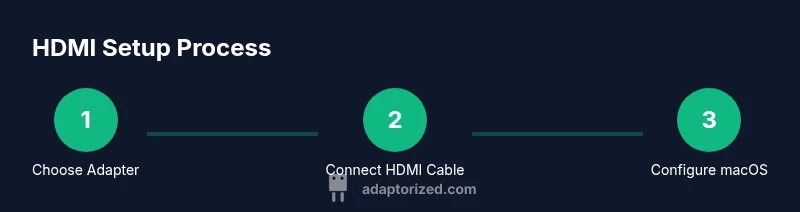
Setting up an HDMI connection on macOS is straightforward once you have the right hardware. First, connect the USB-C to HDMI adapter (or dock) to your MacBook Air. Then attach the HDMI cable from the adapter to the display. Power on the monitor if needed. In macOS, open System Settings (or System Preferences on older versions) and select Displays. Click “Detect Displays” if the external monitor isn’t immediately recognized. Choose the appropriate resolution and refresh rate that your monitor supports, and decide whether you want to mirror or extend your desktop. If you’re using audio, navigate to Output in the Sound settings and ensure the HDMI device is selected. If the system fails to recognize the display, try unplugging and replugging the cable, restarting the Mac, or updating macOS and the adapter’s firmware. For color-critical work, enable color management and calibrate the monitor using a colorimeter when possible.
During extended sessions, you may wish to set a default resolution for when the HDMI monitor is connected and configure Space arrangements to keep your work organized. If you’re using a dock with multiple displays, macOS might arrange them automatically; you can adjust their positions in the Displays preferences. Be mindful of power delivery; if your adapter passes power, keep the charger connected to ensure the MacBook Air doesn’t run on battery alone while extended use occurs.
If you rely on HDMI for presentations, test the setup in advance, including second-screen detection, speaker output, and any embedded media. A quick pre-presentation test can prevent technical glitches and keep your focus on delivering the content.
Troubleshooting common issues
HDMI problems with a MacBook Air are usually due to compatibility, cable quality, or driver glitches. If no signal is detected, first verify the adapter is firmly seated and the HDMI cable is fully plugged in. Try a different HDMI port on the display and a different HDMI cable to rule out a faulty cable. Ensure the adapter supports the output resolution you want and that the monitor is set to the correct input. If audio is missing, check macOS Settings > Sound > Output and confirm HDMI is selected. Update macOS and the adapter firmware if available, as firmware updates can resolve handshake issues. If frames stutter or color looks off, test with a shorter cable and ensure both devices support the selected resolution and refresh rate. In some cases, changing the display’s color profile or calibrating the monitor can fix color or brightness discrepancies. Finally, reseating the adapter and rebooting both devices often clears temporary handshake errors and stabilizes the connection.
For frequent users, keeping a small toolkit with spare HDMI cables and a backup adapter helps you quickly swap hardware without disrupting your workflow. If you still encounter persistent problems, consult the adapter’s support resources or consider a higher-quality unit with better compatibility guarantees. In many cases, the issue is resolved by using a newer HDMI version or a reputable brand with proven compatibility with macOS.
Use cases: productivity, media, presentations
HDMI connectivity turns a MacBook Air into a portable workstation, suitable for productivity scenarios like multi-monitor editing, large-screen code reviews, and collaborative design sessions. At a conference or classroom, an HDMI connection enables smooth demonstrations without relying on wireless screen-sharing setups. For media professionals, HDMI output ensures accurate video playback, color representation, and synchronized audio across a display or speaker system. In home entertainment contexts, you can mirror or extend your desktop to a TV for streaming, gaming, or video calls with improved viewing comfort. When you pair a high-quality HDMI adapter with a reliable display, you unlock a flexible, scalable workflow that reduces clutter and keeps your desk tidy. Adaptorized tips emphasize choosing adapters that balance price with performance to support long-term use without frequent replacements.
If you frequently switch between on-the-go usage and fixed setups, a compact USB-C to HDMI adapter is a practical choice for travel. For a steady, multi-monitor desk setup, a dock can simplify cable management and provide additional ports to support peripherals, charging, and network access. Regardless of your scenario, the key is ensuring compatibility, stable handshakes between devices, and a clean, repeatable setup routine that minimizes downtime.
In all cases, having a clear plan for cable management and a simple recovery path will save time and reduce frustration when things go wrong. A well-chosen HDMI connector for MacBook Air is a small investment that pays off through improved productivity and a smoother user experience.
Budget vs premium adapters: what you'll get
Budget HDMI adapters can deliver essential functionality—video at common resolutions and basic audio—but they may come with trade-offs in reliability, longer handshake times, and reduced build quality. Premium adapters or docks often provide faster, more stable connections, better shielding, broader compatibility across macOS versions, and additional ports like USB-A, Ethernet, and card readers. If your use case includes 4K60 or HDR, or if you rely on mission-critical displays in a professional setting, investing in a reliable, well-supported adapter is worth the extra cost. When evaluating price versus performance, consider warranty length, update frequency, and accessibility of customer support. The goal is a durable solution that doesn’t require frequent replacements.
For many DIYers and makers, mid-range adapters strike a good balance between cost and reliability. These adapters typically support 4K at 60 Hz, audio pass-through, and stable handshake with macOS while offering reasonable build quality. If you’re primarily mirroring a 1080p display or using a secondary monitor for extended tasks, a mid-range adapter may be sufficient. Always check user reviews and compatibility notes for your exact MacBook Air model and macOS version before purchasing to avoid compatibility pitfalls.
Caring for your HDMI setup and maintenance
Maintaining a clean, reliable HDMI setup reduces downtime and extends the life of your hardware. Store adapters in a protective pouch or case to prevent damage to pins and connectors. Avoid bending cables at sharp angles and use strain relief to minimize wear at connection points. Regularly inspect connectors for corrosion or bent pins, and replace any worn components promptly. Keep firmware on your adapter or dock up to date—some devices offer firmware updates that address compatibility with newer macOS versions. When possible, use high-quality cables with proper shielding to shield against EMI in busy environments. Finally, label your cables and keep a simple diagram of your docking setup to facilitate quick reconfiguration during meetings or travel. A well-organized system reduces the chance of miswiring and ensures consistent performance across sessions.
Tools & Materials
- MacBook Air with USB-C/Thunderbolt ports(Ensure model supports video output (most 2018 onward).)
- HDMI cable (HDMI 2.0 or higher preferred)(Support 4K at 60 Hz if needed.)
- USB-C to HDMI adapter or USB-C/Thunderbolt dock with HDMI(Active adapters with power pass-through are useful for longer sessions.)
- External HDMI display (monitor/TV/projector)(Test device with HDMI input.)
- Optional USB-C power adapter or dock(Keeps MacBook charged during extended use.)
Steps
Estimated time: 15-25 minutes
- 1
Verify ports and requirements
Check that your MacBook Air has USB-C/Thunderbolt ports and decide whether you’ll use a simple adapter or a dock. Confirm the display supports the desired resolution and refresh rate (e.g., 4K@60 Hz).
Tip: Document your target setup (resolution, audio, charging) before buying. - 2
Connect the adapter or dock
Plug the USB-C to HDMI adapter into the MacBook Air or connect the dock. Ensure the connection is secure and not loose.
Tip: If the dock has multiple ports, connect power first to stabilize the device. - 3
Attach HDMI cable to display
Connect the HDMI cable from the adapter or dock to your external display’s HDMI input. Power on the display if needed.
Tip: Use a fresh HDMI cable to minimize signal issues. - 4
Configure macOS display settings
Open System Settings > Displays. Click Detect Displays if it doesn’t appear. Choose Mirror or Extend mode and set the correct resolution.
Tip: For color-critical work, calibrate the monitor after setup. - 5
Set up audio output
In System Settings > Sound > Output, select HDMI if you want audio through the external display.
Tip: Test a short video to verify audio alignment with visuals. - 6
Test stability and performance
Run a quick video or presentation to confirm smooth playback and no flicker or delay.
Tip: If issues occur, try a different HDMI port on the display and reseat the cable. - 7
Troubleshoot and finalize
If the display isn’t detected, reboot and recheck the connections. Update macOS or adapter firmware if available.
Tip: Keep a backup adapter and cable for field use.
Your Questions Answered
Do I need an adapter to connect HDMI to a MacBook Air?
Yes. Most MacBook Air models use USB-C/Thunderbolt ports, so you’ll need an HDMI adapter or a dock with HDMI output to connect to an HDMI display.
Yes—you’ll need a USB-C to HDMI adapter or a dock with HDMI output to connect to an HDMI display.
Can I get audio through HDMI on MacBook Air?
Yes. HDMI carries both video and audio. Select HDMI as the output device in macOS Sound settings if you want sound from the external display.
Yes. HDMI carries audio; just select HDMI in Sound settings.
Will HDMI 4K@60 Hz work with my MacBook Air?
If your adapter and display support HDMI 2.0 or 2.1, you can achieve 4K at 60 Hz. Check the monitor’s specs and ensure the MacBook Air model supports the desired output.
Yes, with HDMI 2.0/2.1 adapters and a 4K-capable display.
What should I do if the display isn’t detected?
First, reconnect cables, try another HDMI port, and select Detect Displays in macOS. Update macOS and adapter firmware if available.
Reconnect cables, try another port, and detect displays in macOS. Update firmware if available.
Is a USB-C to HDMI cable better than an adapter?
A dedicated USB-C to HDMI cable is convenient but less flexible than a dock. For most setups, a reliable adapter with proper shielding is sufficient.
Cables are convenient, but adapters give more flexibility with extra ports.
Do I need to power the adapter separately?
Not always, but many docks or active adapters benefit from power delivery, especially during long sessions or when driving multiple peripherals.
Power helps stability, especially with docks or power-heavy setups.
What about latency or color accuracy?
Quality adapters and cables minimize latency and preserve color accuracy. If color is critical, calibrate the external display.
Choose a reliable adapter and calibrate the display if color accuracy matters.
Can I chain adapters or connect multiple displays?
Some docks support multiple HDMI outputs, but it depends on the model. Verify the dock’s specifications and GPU capabilities for your MacBook Air.
Only if the dock supports multiple HDMI outputs and your GPU can handle it.
Watch Video
What to Remember
- Choose the right adapter type for your setup
- Check HDMI version and bandwidth for desired resolution
- Configure display settings in macOS for best results
- Test audio output through HDMI if needed
- Maintain and test regularly to prevent issues