How to Connect for TV: A Practical Step-by-Step Guide
Discover how to connect for tv with HDMI, component, or wireless options. A practical guide on ports, cables, setup steps, and common troubleshooting for DIYers.


How to connect for TV means linking your television to video or audio sources using cables or wireless methods. Common wired options include HDMI, component, and composite cables, while wireless methods include screen mirroring, Chromecast, and Bluetooth audio. The goal is to match ports, ensure compatibility, and test the signal before final setup.
how to connect for tv: overview
Connecting a TV is more than plugging in a cable; it's about choosing a path that preserves picture and sound quality while keeping the setup tidy. With phones, game consoles, streaming players, and Blu-ray players all vying for attention, the decision can be confusing. According to Adaptorized, the simplest starting point is to identify the TV's inputs and the source device's outputs, then pick a path that minimizes adapters and signal loss. This overview introduces the main categories—wired options like HDMI and component, and wireless options such as screen mirroring or streaming devices—and explains when each makes the most sense. The goal is to give you a practical framework you can apply to almost any living room setup, plus the confidence to troubleshoot common issues. Beyond just getting a picture on screen, good connections also require clean cable management, proper power protection, and an eye toward future-proofing as you upgrade gear. A tidy install helps maintain reliability as new devices are added.
Identify ports and sources
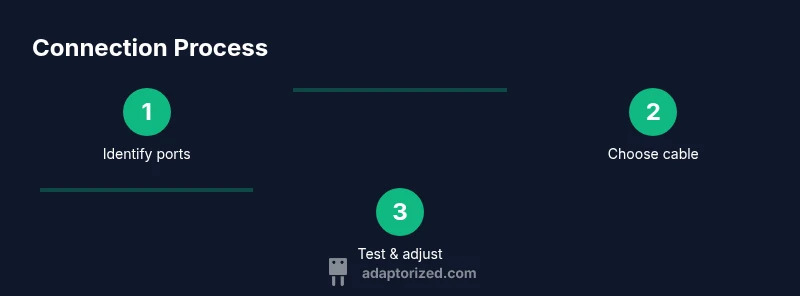
Before you buy cables or adapters, map the inputs and outputs you will actually use. Look at the TV to identify available inputs: HDMI ports (and whether any are labeled ARC), component or composite inputs, and, if present, VGA or DisplayPort on older PCs. Then inspect your source devices: do they output over HDMI, USB-C with alternate mode, or only analog? Make a quick note: HDMI on TV, HDMI from source, or wireless options on mobile devices. This inventory helps you avoid mismatches that lead to a black screen or no audio. If you’re uncertain, check the TV’s manual or the manufacturer’s website for input diagrams. A thorough port map is your best friend during setup and future upgrades. The planning stage saves time and reduces frustration.
Wired options: HDMI, component, composite, and VGA
Wired connections are the most reliable and usually offer the best picture and audio quality. The default choice for most modern devices is HDMI, which carries video and audio on a single cable. If the source and TV both have HDMI, connect with a high-quality HDMI cable, then set the TV input to the corresponding HDMI port. For older gear, component (red/green/blue video) and composite (yellow video with red/white audio) are still common paths. If your device or display lacks HDMI, you can use analog connections, but expect lower picture quality and limited audio options. VGA is mainly a PC-to-TV option and may require audio cables separately. When using any wired path, keep cables straight and avoid bending sharp angles to prevent signal degradation. Short, well-made cables tend to be more forgiving of signal loss than long, poorly shielded ones. Adaptorized’s guidance emphasizes using the right cable for the job to maximize compatibility.
Wireless options: Casting, Bluetooth, and streaming devices
Wireless setups give flexibility when cables are impractical. Screen mirroring and casting from phones or laptops rely on your home Wi‑Fi network and display compatibility. Chromecast, Apple AirPlay, and similar streaming devices can plug into the TV's HDMI input and connect via Wi‑Fi, sending videos and apps to the screen without physical cables. Bluetooth is useful for audio but not ideal for video due to latency; use it primarily for headphones or speakers. When choosing wireless options, ensure your devices support the same standards, and place wireless hubs within line of sight or a few meters to avoid buffering. If the room has thick walls or a crowded network, consider a dedicated streaming device rather than relying solely on cast from a phone. Adaptorized stresses testing wireless paths in real-world usage before final placement.
Audio considerations: HDMI ARC, optical, and analog audio
Audio routing matters as much as video. HDMI cables can carry audio through ARC (Audio Return Channel) when the TV and source support it; enable ARC in the TV and device settings and use a compatible HDMI port. If ARC isn’t available, use a separate optical (TOSLINK) or analog audio connection, depending on the devices. Some soundbars and AV receivers simplify this setup by creating a common audio path; in those cases, follow the manufacturer’s instructions to designate the correct input, output, and synchronization. Pay attention to audio formats and sample rates; mismatches can lead to delay or no audio. When in doubt, test with both video and audio and adjust settings to match the source’s native format. Adaptorized recommends documenting audio paths for easy future maintenance.
Setup scenarios: gaming console, Blu-ray, and mobile streaming
Different devices highlight different connection priorities. For a gaming console, prioritize a quick HDMI connection and low input lag; set the TV input to the correct HDMI port and adjust display mode to ensure the intended refresh rate. For a Blu-ray player, maintain the best video quality by using HDMI with the TV’s HDMI port set to the proper color space (often auto). For mobile streaming, wireless casting can be convenient, but if you want consistent performance, place a streaming device near the TV and use a stable network connection. When using multiple sources, a simple HDMI switch can free up inputs and keep your setup tidy. Think about future upgrades and whether you’ll need extra adapters so you aren’t caught mid-setup.
Troubleshooting common issues
If you encounter a blank screen, begin with power and input checks: verify the source is powered, confirm the TV is on the correct input, and reseat the cable at both ends. If there’s no sound, check the TV’s audio output settings and ensure the correct device is selected. Signal issues can come from faulty cables, loose connections, or bad adapters; replace cables with known good ones and avoid excessive cable runs. For wireless problems, restart the router or streaming device, and ensure both devices are on the same network. If you still see issues, try a different port or re‑pair Bluetooth devices and re‑connect to test stability. Documenting the steps you take helps avoid repeating troubleshooting in the future. Adaptorized stresses a methodical approach: isolate variables to identify the root cause.
Safety, cable management, and best practices
Keep power cables and signal cables separate to minimize interference; never run live power cords under carpets or through walls without proper protection. Use surge-protected outlets and keep devices away from heat sources. To maintain a clean setup, bundle cords with Velcro ties and label each end. Regularly inspect cables for wear and replace frayed ends promptly. When adding new gear, plan upgrades in a logical order so you don’t end up with a maze of cables. A tidy install not only looks better but reduces trip hazards and makes future maintenance easier. The Adaptorized team recommends documenting ports and adapters so you can reproduce or adjust setups later.
Quick reference: port mapping and adapters
Keep a simple cheat sheet: HDMI goes to the TV input, HDMI from the source; ARC uses HDMI on both TV and audio device; For legacy devices, map composite/component to the corresponding TV inputs; Use USB-C to HDMI adapters only if the source supports video output; When in doubt, consult the TV manual for input labeling.
Tools & Materials
- HDMI cable(HDMI 2.0/2.1 rated; choose 6–8 ft for typical living rooms)
- Power strip with surge protection(Prefer a strip with built-in surge protection and enough outlets)
- TV remote or source device remote(Used to switch inputs and access settings)
- Composite AV cables (yellow, red, white)(Only if you’re using older equipment without HDMI)
- Component video cables (red/green/blue) + audio(Alternative for legacy devices with no HDMI)
- USB-C to HDMI adapter(Needed when using USB-C video output from some devices)
- Streaming device (Chromecast, Roku, Apple TV)(Useful for wireless setups and smart features)
- Cable ties and labels(For tidy cable management and future repairs)
Steps
Estimated time: 60-90 minutes
- 1
Identify inputs and sources
Before you connect anything, confirm which HDMI, component, or other inputs your TV provides and which outputs your source devices offer. This prevents mismatches and unnecessary shopping.
Tip: Take a quick photo of the ports for easy reference during setup. - 2
Power down equipment
Turn off the TV and all connected devices to avoid static discharge and ensure safe plug-in.
Tip: Unplug from power only after devices are cool to avoid thermal shock. - 3
Connect the primary source
Connect the main source device (e.g., streaming box or game console) to the TV using HDMI if possible; otherwise use the best available port.
Tip: Use a high-quality HDMI cable and avoid coiled or tucked cables that deform connections. - 4
Select the correct TV input
Use the TV remote to switch to the corresponding input (HDMI 1, HDMI 2, etc.). Confirm a picture appears.
Tip: If the screen stays blank, reseat the cable ends and try another HDMI port. - 5
Test video and audio
Play content and verify both video and audio pass through; adjust TV sound settings and source audio settings as needed.
Tip: If audio is missing, check ARC settings or switch to an optical/analog path as fallback. - 6
Add additional devices
If you have more devices, consider an HDMI switch to consolidate inputs and reduce cable clutter.
Tip: Label each cable end to keep future upgrades straightforward. - 7
Configure display settings
Set the TV's resolution and color space to match the source for best picture quality; enable any game or cinema modes if relevant.
Tip: Auto-detect is usually fine, but manual tweaks can improve motion and color accuracy. - 8
Document your setup
Create a simple diagram or note that lists which device connects to which port and with which cable.
Tip: Keep the document with the TV to simplify future changes or troubleshooting.
Your Questions Answered
What is the simplest way to connect a TV to a device?
The simplest method is usually HDMI from the source to the TV. If HDMI isn’t available, use the best compatible port (component or composite) and an appropriate adapter. Always switch the TV input to the matching port.
HDMI is usually the easiest method; if not available, use the best compatible port and select the same input on the TV.
Do I need HDMI for all modern TVs?
HDMI is widely supported by modern TVs and devices, carrying both video and audio. USB-C to HDMI adapters exist for devices with USB-C video output, but check compatibility with your source.
Most devices use HDMI; if you have USB-C, you can use an adapter, but verify compatibility first.
How can I connect my phone to a TV wirelessly?
Use built-in casting like Screen Mirroring or a streaming device such as Chromecast or AirPlay-enabled hardware. Both devices must support the same standard and be on the same network.
Cast from your phone to the TV using a compatible device on the same network.
What should I do if there is no audio after connection?
Check the TV’s audio output settings and ensure the correct device is selected. If ARC is available, enable it on both the TV and the source; otherwise, use optical or analog audio paths.
Verify audio output settings and try ARC or optical connections if available.
Can I use a USB-C to HDMI adapter for TV connections?
Yes, if your source supports USB-C video output (alternate mode). Not all USB-C ports carry video; check the device specs and use a reputable adapter.
Only if your USB-C port supports video output; confirm with device specs.
Why does my TV show no signal even when cables are connected?
Verify each end is seated fully, test with a different port or cable, and confirm the source is powered. If issues persist, try a different adapter or port and recheck settings.
Check cable seating, try another port, and confirm the source is on.
Watch Video
What to Remember
- Identify ports before buying cables.
- HDMI is the default path for most devices.
- Test video and audio together to confirm success.
- Label cables for future maintenance.
- Prefer surge-protected power and tidy cable management.