Phone to HDMI Connector: A Practical DIY Guide
Learn how to connect your phone to HDMI with the right adapter, verify compatibility, and follow a step-by-step setup. Adaptorized explains wired and wireless options for DIYers seeking reliable screen mirroring.


Goal master a phone to hdmi connector setup that reliably mirrors your display. In this guide you will verify whether your device can output video, choose the correct adapter (USB-C or Micro-USB/MHL), connect power if required, and complete a safe, wired setup that projects your phone screen onto a TV or monitor. We'll cover compatibility, cables, and common issues.
What is a phone to HDMI connector?
A phone to HDMI connector is a simple, purpose-built link that lets a phone send video and audio signals to a larger display. When the phone supports video output—through USB-C Alt Mode, MHL, or SlimPort—the adapter translates the device’s digital signal into HDMI so a TV or monitor can render the phone’s screen. The setup is popular with DIYers who want to show apps, photos, or presentations on a bigger display without relying on wireless streaming. Not every phone supports video output, so compatibility checks matter. Even compatible devices may require the right kind of adapter and, in some cases, external power supply to maintain signal stability.
Compatibility basics: HDMI output depends on hardware and standard support
Phone video output is not universal. Some devices use USB-C Alt Mode to carry HDMI signals, others rely on MHL or SlimPort via micro-USB. To determine compatibility, check the phone’s official specs, user manual, or manufacturer support pages. Look for terms like “HDMI output,” “MHL,” or “HDMI Alt Mode.” If your device supports it, you can often mirror the screen with a single cable, the right adapter, and a powered connection. If there’s no official support, you may need to rely on wireless mirroring or device-specific accessories.
Wired vs. wireless: Pros and cons for screen mirroring
Wired connections using a phone to HDMI connector generally offer lower latency, more reliable video, and consistent resolution. They work well for apps that require fast refresh and for presentations where lag hurts. Wireless screen mirroring, by contrast, provides convenience and mobility but can suffer from lag, compression artifacts, or interference. If your goal is games or fast action, a wired solution is typically the better choice. For casual media consumption or casual demos, wireless might suffice, but confirm performance with your setup before a critical session.
Choosing the right adapter: USB-C to HDMI, Micro-USB/MHL, or SlimPort
USB-C to HDMI adapters are common for newer phones with USB-C ports and HDMI Alt Mode. They usually require power delivery to sustain operation, especially at higher resolutions. Micro-USB/MHL adapters are used with older devices that support MHL; SlimPort is another older standard. When selecting, match the adapter to your phone’s port, verify support for your target resolution (1080p, 4K as applicable), and ensure the adapter is compatible with your TV or monitor. Always check the adapter’s documentation for supported devices and features like audio pass-through.
Step-by-step overview (high level)
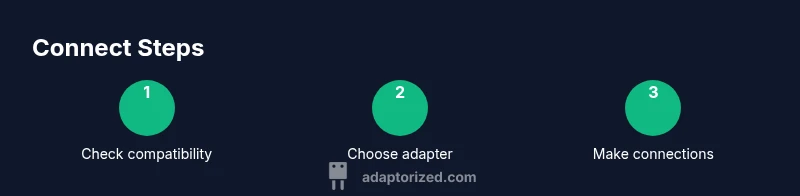
- Confirm phone output capability and port type. 2) Gather a powered adapter and an HDMI cable. 3) Connect the adapter to the phone and to the HDMI cable. 4) Attach the HDMI cable to the display and select the correct input. 5) If required, power the adapter with a charger. 6) Test without delay to verify audio and video. 7) If issues arise, revisit compatibility and cable quality.
Troubleshooting common issues and caveats
If you see a blank screen, recheck the port compatibility and ensure HDMI input is selected on the display. Audio may not pass through if the adapter isn’t wired for audio or if the device is muted. A loose HDMI connector or damaged cable can cause instability; try a shorter, well-made HDMI cable. Some devices require enabling specific settings to allow external display output.
Best practices and safety tips
Always use certified adapters from reputable brands and avoid cheap knockoffs that claim HDMI support. Keep cables tidy to avoid physical strain on connectors, and avoid bending cables sharply. If you connect power, use a dedicated charger rather than a phone’s battery alone to ensure stable performance. Finally, verify that the display’s input matches the adapter’s output settings for best results.
Tools & Materials
- Phone with HDMI output support (USB-C Alt Mode, MHL, or SlimPort)(Check official specs or manual for compatibility.)
- USB-C to HDMI adapter (with power pass-through if needed)(Choose a model known to support your phone and desired resolution.)
- Micro-USB to HDMI/MHL adapter(Only if your phone uses micro-USB/MHL instead of USB-C.)
- HDMI cable(High-quality cable helps avoid signal drop or artifacts.)
- HDMI-capable display (TV/monitor/projector)(Ensure input is HDMI and not DisplayPort-only.)
- USB-C PD charger or power supply(Recommended for higher resolutions or longer sessions.)
Steps
Estimated time: 15-30 minutes
- 1
Verify phone output capability
Check your device specs to confirm HDMI output support (USB-C Alt Mode, MHL, or SlimPort). If the phone isn’t listed as compatible, the adapter may not work. This step saves time and avoids damaged cables.
Tip: Search the exact model + “HDMI output” in official support pages. - 2
Choose the correct adapter
Select an adapter that matches your port (USB-C or micro-USB/MHL). Ensure it supports your target resolution and, if possible, offers power pass-through.
Tip: Prefer adapters with LED indicators to confirm power and signal. - 3
Gather a compatible HDMI cable
Use a standard HDMI cable appropriate for your display (HDMI 1.4+). A short, sturdy cable reduces potential interference and signal loss.
Tip: Test with a fresh cable to rule out a faulty lead. - 4
Make the physical connections
Connect the adapter to the phone, then attach the HDMI cable to both the adapter and the display. If the adapter requires external power, plug in the charger.
Tip: Connect power before testing to avoid intermittent failures. - 5
Set the display input
Switch the TV/monitor to the HDMI input corresponding to your cable. The phone should begin mirroring automatically if everything is compatible.
Tip: If there are multiple HDMI ports, try another port if the first shows no signal. - 6
Test audio and video
Play a video or app to confirm both audio and video pass through the HDMI link. Some adapters require you to select audio output within the phone settings.
Tip: If audio is missing, check volume, mute status, and the adapter’s audio support. - 7
Troubleshoot common issues
If nothing displays, revisit compatibility, try a different adapter, and verify cable integrity. Ensure the display supports the chosen resolution.
Tip: Power-cycle the phone and display to clear stuck outputs.
Your Questions Answered
Can any phone output HDMI video over USB-C?
No. Only phones that explicitly support USB-C HDMI Alt Mode or MHL will output video over HDMI. Check the manufacturer’s specs or support pages for confirmation.
Not every phone can output HDMI. Look for USB-C HDMI Alt Mode or MHL support in the device specs.
Do I need power for the adapter?
Often yes. Many USB-C adapters require power delivery to maintain signal integrity at higher resolutions. If your setup includes a charger, plug it in.
Usually, yes. Power helps keep signal stable at higher resolutions.
Why is there no image or audio?
Check compatibility first, then verify that the correct HDMI input is selected on the display. Ensure the HDMI cable and adapter support audio pass-through and that the phone is not muted.
If there’s no image or sound, double-check compatibility and that the right HDMI input is chosen.
Which adapter should I buy for a USB-C phone?
Choose a USB-C to HDMI adapter with power pass-through and proven compatibility with your phone model and display resolution. Read product reviews and specs carefully.
Pick a USB-C to HDMI adapter that supports your phone and desired resolution, with power passthrough if possible.
Can I charge my phone while using HDMI?
Yes, many USB-C adapters include a USB-C PD port for charging while streaming. This setup keeps the phone from draining during extended use.
You often can charge while mirroring via a USB-C adapter with power passthrough.
Is wireless mirroring a better option?
Wireless mirroring is convenient but can introduce latency and compression artifacts. For reliable, low-latency display, a wired phone to HDMI connector is usually preferable.
Wireless is handy, but wired often offers better reliability and less lag.
Watch Video
What to Remember
- Check device compatibility before buying adapters.
- Match the adapter to USB-C or Micro-USB and expect power pass-through.
- Always use a high-quality HDMI cable for best results.
- Power the adapter if required and select the correct HDMI input.
- If issues arise, test different cables or ports and re-check settings.