How to Connect Internet: A Complete DIY Guide for Home
Learn practical, step-by-step methods to connect to the internet, whether via Wi‑Fi or Ethernet. This Adaptorized guide covers setup, security, and troubleshooting for home networks.


Goal: Learn how to connect to the internet using either a wired Ethernet or wireless Wi‑Fi setup. You'll verify your modem, configure a router if needed, join the correct network, enter the password, and confirm online access across devices. This quick guide covers basic setup, security basics, and common troubleshooting steps for home networks.
Why Internet Connectivity Matters for DIYers
In a connected world, reliable access is foundational for learning, prototyping, and sharing. For DIYers and makers, internet connectivity unlocks cloud-based tools, firmware updates, remote diagnostics, and access to sensors and microcontrollers. If you're wondering how to connect internet in a home workshop, this guide will walk you through wired and wireless options and explain how to optimize stability and security. According to Adaptorized, getting online reliably begins with a clear plan, the right hardware, and solid configuration — not guesswork. A stable connection reduces troubleshooting time, preserves data integrity during experiments, and keeps your projects productive.
There are two main paths: wired Ethernet, which offers consistent speeds and low latency, and wireless Wi‑Fi, which offers flexibility across multiple devices. Each path has prerequisites, from the modem or gateway provided by your ISP to compatible routers and adapters. The choice often depends on your space, device density, and whether you need mobility or the lowest possible latency for real-time control. In this section we’ll lay out the core concepts, terminology, and practical steps to get you connected quickly and securely.
Understand Your Options: Wi‑Fi vs Ethernet
Choosing between Wi‑Fi and Ethernet hinges on your priorities: speed, stability, and location. Adaptorized analysis shows that most homes benefit from a well-balanced mix of Ethernet reliability and Wi‑Fi flexibility. Ethernet is typically faster and more reliable, delivering consistent throughput with minimal interference, ideal for desktops, gaming consoles, and lab equipment. Wi‑Fi provides mobility and clean aesthetics for laptops, phones, and IoT devices scattered around a workshop or living space. Security considerations differ: wired connections rely on physical access, while Wi‑Fi requires proper encryption (WPA2/WPA3) and strong passwords. For many DIY setups, a mixed approach works best: keep essential devices on Ethernet for reliability, while providing Wi‑Fi for portable gear and sensors. In this section we’ll translate the jargon into practical choices, map out typical speeds, and outline the kinds of hardware that make sense for various room layouts and device densities.
Prerequisites: What You Need Before You Start
Before you touch a cable or a dashboard, gather the essentials and confirm compatibility. You’ll need a modem or gateway provided by your ISP, and in most cases a separate router to share the connection wirelessly. Have at least one Ethernet cable (Cat5e or newer) and a power source for each device. Keep your network name (SSID) and password handy, along with any ISP login credentials if you’re provisioning a new service. Check that your devices support the latest wireless standards (802.11ac/ax) and that firmware on your modem and router can be updated. If you’re unsure, consult your device manuals or reach out to your ISP for compatibility notes. This planning step saves you from late-night troubleshooting and firmware surprises.
Step-by-Step: Prepare Your Network Environment
Start by clearing a small workspace near your primary modem and router. Inspect cables for wear and ensure you have spare power adapters and a reliable outlet. Update the firmware on your modem and router if updates are available, and back up any current configuration in case you need to revert. Label each cable according to its role (modem, router, device), and prepare a simple map of your network layout. By planning upfront, you’ll prevent cross-wiring and misconfigurations, which are common reasons devices fail to obtain an IP address or connect to the internet. In addition, verify that your devices are set to obtain an IP address automatically (DHCP) unless you have a fixed IP requirement.
Step-by-Step: Connect via Ethernet
Connect a Cat5e/6 Ethernet cable from the modem’s LAN port to the router’s WAN/Internet port if you’re using a separate router. Power on the modem first, wait 60 seconds, then power on the router. On a computer, open a browser and check the status page or run a quick speed test to confirm you have a live connection. If you don’t, try swapping the Ethernet cable or using a different port. This wired path minimizes latency and reduces interference, especially in environments with many wireless devices or thick walls. Ensure your devices wired to the router use DHCP or have static IPs properly configured within the router’s DHCP range.
Step-by-Step: Connect via Wi‑Fi
Power on the router and locate the default SSID on a label or in the router’s admin page. On each device, open Wi‑Fi settings, select the correct network, and enter the password. If your network uses two bands (2.4 GHz and 5 GHz), choose the band that best fits your needs: 2.4 GHz for range and 5 GHz for speed and reduced interference. If you’re setting up a new network, consider giving guests a separate SSID and enabling a guest network. Use a strong WPA2/WPA3 password and disable WPS if possible to reduce security risks. After joining, test internet access on several devices and note any dead zones where you may need to adjust placement or add a wireless extender.
Step-by-Step: Verify, Test, and Troubleshoot
Once connected, perform baseline tests: load multiple webpages, run a speed test, and ping a reliable server to check latency and jitter. If pages load slowly or pages time out, try rebooting the modem and router, then rechecking your cables. Check DHCP status and confirm devices obtain IP addresses in the correct range. If DNS resolution fails, manually set a trusted DNS (for example, 1.1.1.1 or 8.8.8.8) in the device network settings. For persistent problems, examine router logs for failed authentications, verify firmware versions, and consider temporarily disabling firewall rules or parental controls to isolate the issue. When in doubt, contact your ISP to verify service status and confirm whether a planned outage or a device MAC-lock is preventing access.
Security, Privacy, and Maintenance
Security is a lifetime task, not a one-off configuration. Change default admin passwords on your modem and router, enable automatic firmware updates, and use strong, unique passwords for each network. Create a separate guest network to keep visitors off your primary devices, and enable network isolation for IoT gear where possible. Regularly review connected devices and remove unfamiliar entries. Consider enabling WPA3 if supported, and keep your router positioned to minimize exposure to outside interference or tampering. Finally, document your network settings so future setups or migrations are straightforward. Regular maintenance reduces the likelihood of outages and keeps your setup resilient. The Adaptorized team recommends keeping firmware updated and documenting your network for future troubleshooting.
Authority Sources and Further Reading
- FCC: Protecting and improving home internet access and network security: https://www.fcc.gov/
- NIST: Wireless networking basics and security standards: https://www.nist.gov/topics/networking
- Cisco: Understanding WPA2 and WPA3 security protocols: https://www.cisco.com/c/en/us/products/security/what-is-wpa2.html
These sources provide foundational guidance on reliability, security, and best practices for modern home networks, complementing the practical steps in this guide.
Tools & Materials
- Modem(ISP-provided or standalone modem)
- Router(Needed for Wi‑Fi and network sharing)
- Ethernet cables (Cat5e/6)(At least one, for wired setup)
- Power adapters(One for each device)
- Device to configure (computer or phone)(Access admin pages)
- ISP credentials (if provisioning a new service)(Optional if already active)
Steps
Estimated time: 30-45 minutes
- 1
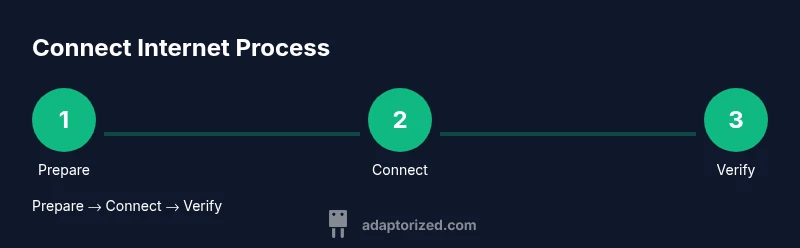
Prepare your equipment
Gather the modem, router, cables, and a powered device to configure settings. Create a simple map of where devices will live and ensure you have a reliable workspace.
Tip: Label cables to avoid confusion during setup. - 2
Power down and connect the modem
Unplug the modem, connect the incoming line, then plug it back in and wait 60 seconds for it to boot. This ensures a clean baseline before adding a router.
Tip: Don’t rush the reboot; a full boot helps avoid IP conflicts. - 3
Connect the router to the modem
Connect the router’s WAN/Internet port to the modem’s LAN port using an Ethernet cable. Power on the router and wait for lights indicating connectivity.
Tip: If the router has multiple WAN ports, use the primary one labeled Internet. - 4
Configure router settings
Access the router admin page from your computer, update admin credentials, set a unique SSID, and enable WPA3 or WPA2 security. Ensure DHCP is enabled to assign IPs automatically.
Tip: Force firmware updates after initial login. - 5
Join the network on devices
On each device, select the new network name and enter the password. Verify that the device obtains an IP address and reaches the internet.
Tip: For guest devices, enable a separate guest network. - 6
Test connectivity and adjust
Open a browser on multiple devices and run a speed test. If speeds are weak, reposition equipment or add a wireless extender. Reboot devices if necessary.
Tip: Document settings for future upgrades.
Your Questions Answered
Do I need a separate router if I have a modem from my ISP?
Often yes if you want Wi‑Fi and device sharing. Some ISPs provide a combined gateway with built-in Wi‑Fi, but using a separate router can improve performance and control.
Usually you’ll want a router for Wi‑Fi; many providers offer a gateway that combines both, but a dedicated router gives you better range and settings.
Can I connect multiple devices with a single network?
Yes. A single home network can support many devices. Use DHCP on the router and ensure your bandwidth matches your usage.
Absolutely—most homes support many devices; if needed, upgrade your plan or adjust QoS settings.
What is the difference between 2.4 GHz and 5 GHz Wi‑Fi bands?
2.4 GHz travels farther but is slower and more crowded. 5 GHz is faster with less interference but has shorter range.
2.4 GHz is good for distance, 5 GHz for speed; you can use both if your router supports dual-band.
Why can't I connect after entering the Wi‑Fi password?
Double-check the network name, password, and security type. Ensure you’re not connecting to an old network and that the router’s SSID broadcasts.
Check you’re joining the right network with the correct password and security setting.
What should I do if there is no internet even though devices show connected?
Verify ISP status, reboot the modem/router, and confirm DNS settings. If the problem persists, contact your provider for outages or line issues.
If devices show you’re connected but pages won’t load, check with your provider and try a DNS switch.
Is it safe to use public Wi‑Fi networks?
Public networks can be risky. Use a VPN, avoid sensitive transactions, and prefer a private home network for critical work.
Public Wi‑Fi can be unsafe; use a VPN and avoid handling sensitive information on open networks.
Watch Video
What to Remember
- Choose wired or wireless based on needs and space
- Secure networks with strong passwords and up-to-date firmware
- DHCP simplifies device IP management
- Test across multiple devices to ensure consistency
- Document settings for easy future maintenance