How to Connect WiFi Without Password or QR Code
Learn safe, legitimate ways to connect to a Wi‑Fi network when you don’t have the password or a QR code, including guest networks, WPS (if enabled), and authorized alternatives for DIYers and makers.


To connect to Wi‑Fi when you don’t have the password or QR code, use authorized routes like a guest network, WPS if supported, or ask the owner for access. This guide covers legitimate methods and safe alternatives, with practical steps and security reminders. Always ensure you have permission before attempting access and follow local policies.
Open networks and authorized access paths
In homes and offices, you’ll sometimes encounter networks that don’t require a password or that offer a guest network with restricted access. Before attempting to connect, confirm you have explicit permission from the network owner. This ensures you stay within legal and ethical bounds. Adaptorized emphasizes the importance of authorization; connecting without consent can violate terms of service and local laws.
If the network is truly open, you may connect with minimal friction, but you still should consider security and privacy. Open networks are convenient, but data transmitted on them can be intercepted, and devices may be exposed to rogue login prompts. When possible, use a password-protected network; when you must connect without a password, prefer a trusted guest network or a controlled hotspot provided by the network owner. In organizations, guest networks are common and isolate guest traffic from critical systems.
This section sets the stage for legitimate options. You’ll learn about identifying whether an open or guest network exists, how to request credentials properly, and what to do if you cannot obtain access. The Adaptorized approach is to plan first, verify authorization, and proceed with clear steps rather than guessing or bypassing protections.
Guest networks and open access: what to look for
Many routers enable a guest network that allows visitors to connect without using a private password. These networks typically have separate SSIDs and bandwidth controls. When scanning for networks, look for names that indicate guest access or open access. Some organizers configure open networks that require no password but present a captive portal page that asks you to accept terms before internet access is granted. In either case, connecting without proper authorization can violate policy. If you find an open network, ensure the network is legitimate and under the control of the property owner. Some devices will warn you about unsecured connections; you should heed those warnings. If the owner provides a password at a later time, consider saving it for easier future access.
Using Wi‑Fi Protected Setup (WPS) as an authorized method
WPS is a feature that can simplify joining a network when you’re authorized. The Push Button Connect (PBC) method lets you press the WPS button on the router and then select WPS on your device within a short window. The device will exchange credentials automatically and connect. If your router or access point has a WPS PIN, you may also enter that code on your device.
Important: WPS is convenient but has known security weaknesses. Only use WPS when you control the router or have express permission from the network owner, and disable WPS after connecting if the router supports that option. If WPS is disabled or unavailable, skip to other legitimate routes described in this guide.
How to obtain credentials the right way
If you’re on someone else’s network (home, business, classroom), the simplest path is to ask for guest access or the official password. Politely request the guest network name (SSID) and password, or ask the owner to provide temporary access terms. If you’re in a business or school setting, there may be a captive portal or a guest access workflow; follow the on-screen prompts and terms to gain access. If you own the network, consider creating a guest network with its own password and clear terms for visitors, which preserves security for your main network.
Connect to the network once you have access
On most devices, the process is straightforward: open Wi‑Fi settings, pick the correct SSID, and enter the password if prompted. If you’re using a guest network, you may only need to accept terms in a captive portal. For each platform, the exact path differs slightly: iOS and Android show a list of networks; Windows and macOS show a network icon in the taskbar or menu bar. After you’re connected, verify that you can reach a webpage or run a quick network test to confirm stability and speed.
Alternatives when access is not possible: offline options and safety
If you cannot obtain legitimate access, consider these alternatives rather than attempting unauthorized intrusion: use your mobile hotspot if your data plan allows it, use a personal portable router with your SIM, or connect devices via Ethernet if the router supports it. In shared environments, you can also ask for permission to use a guest network or for a time-limited access code. Always keep security in mind; avoid exposing sensitive data on public networks.
Tools & Materials
- Smartphone or laptop(Device to connect and test network)
- Router admin interface access(Needed if you are the owner and want to enable guest network or reset password)
- Ethernet cable(Optional for wired setup or initial config)
- Notes of network name (SSID) and possible guest network name(Helpful for finding the correct network)
- Power supply for devices(Keep devices charged during setup)
Steps
Estimated time: 15-30 minutes
- 1
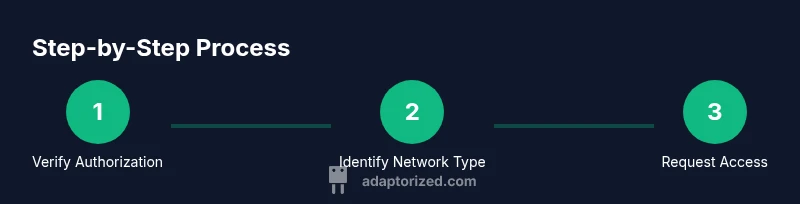
Verify authorization
Confirm you have explicit permission from the network owner before attempting any connection. This protects you from accidental policy violations and keeps the setup compliant with local rules.
Tip: If in doubt, ask for written permission or a guest access agreement. - 2
Identify the network type
Scan for networks and determine whether a guest network exists or if the network is open. Avoid networks that require passwords you don’t have unless you have explicit authorization.
Tip: Look for SSIDs that indicate guest access and check for a captive portal. - 3
Try WPS if supported and authorized
If the router and device support WPS, use the push-button method or PIN only with permission. This can simplify joining without typing a password, but may be insecure on some routers.
Tip: Disable WPS after connecting if you can to reduce risk. - 4
Request credentials or guest access
Ask the network owner for the guest network name and password, or for temporary access terms. If they provide a portal, follow the on-screen prompts to gain access.
Tip: Be ready with your device name and intended use to speed up the process. - 5
Connect to the network
On your device, open Wi‑Fi settings, select the correct SSID, and enter the password if required. Confirm you’re online by loading a page or running a network test.
Tip: If you encounter a portal, complete the required terms before browsing. - 6
Use safe alternatives if access is not granted
If you cannot obtain access, use your mobile hotspot, a personal portable router, or a wired Ethernet option where available. Respect the owner’s rules and avoid attempts to bypass protections.
Tip: Keep data usage in check and disconnect when finished to conserve bandwidth.
Your Questions Answered
Is it illegal to connect to a Wi‑Fi network without a password?
Yes, connecting to a network without permission is generally illegal and violates terms of service. Always obtain authorization or use guest access provided by the owner.
Unauthorized access to Wi‑Fi is illegal; always get permission or use a guest network.
What is a guest network and how does it work?
A guest network is a separate access path provided by the router for visitors. It isolates guest traffic from the main network and typically requires a password or terms acceptance.
A guest network is intended for visitors and usually has its own credentials or terms.
Should I use WPS to connect without a password?
WPS is convenient but has known security weaknesses. Only use it if you control the router or have explicit permission, and disable WPS when possible after connecting.
WPS can be risky; use it only with authorization and disable after use.
What should I do if the owner refuses access?
Respect the decision. You can ask for a guest code if appropriate, or use a personal hotspot or other authorized alternatives.
If the owner refuses, respect their decision and consider alternatives like your hotspot.
Why do some networks require a login through a portal?
Captive portals require you to accept terms or sign in through a browser before granting full internet access. This is common in cafes, hotels, and public spaces.
Many open spaces use captive portals to verify access before full use.
How can I tell if a network is open or secured?
Open networks show no password prompt but can present a captive portal. Secured networks require a password. Always verify authorization before connecting.
Open networks may still require portal acceptance; secured networks always need proper credentials.
Watch Video
What to Remember
- Always obtain explicit authorization before connecting to any network.
- Guest networks are legitimate alternatives to avoid exposing private credentials.
- WPS can simplify access but should be used cautiously and disabled afterward.
- If access isn’t granted, rely on legitimate alternatives like mobile hotspots.
- Prioritize secure connections to protect data and devices.