How to Connect Without Password WiFi: Safe, Legitimate Methods
Learn legitimate ways to join a Wi-Fi network without typing a password, including WPS push-button, QR provisioning, and guest/open networks. Practical steps, safety tips, and best practices for DIYers and makers.


To connect to Wi‑Fi without typing a password, use legitimate methods like WPS push-button, WPS PIN, or QR code provisioning, or connect to an open/guest network if available. These options let devices join securely without manual password entry, but watch for security implications and disable WPS where possible.
Understanding legitimate ways to connect without password wifi
If you’re asking how to connect without password wifi, you’re likely looking for safe, authorized methods to join a network without typing credentials every time. In this guide, we cover WPS (Push-Button and PIN methods), QR-code provisioning, and open/guest networks that administrators allow without a password. These approaches keep your device connected with minimal input while preserving network security. According to Adaptorized, modern routers increasingly support user-friendly options that avoid manual password entry while maintaining control for network owners. The Adaptorized team emphasizes choosing methods that are documented by your router’s manufacturer and that you have explicit permission to use. Before attempting any method, verify you’re on a network you own or have permission to access. When used correctly, these options can simplify connectivity for phones, laptops, and IoT devices without compromising security.
WPS: Push-button method
Wi‑Fi Protected Setup (WPS) enables devices to connect without entering a password by using a physical button on the router. The process is quick, though platform specifics vary by device. Locate the WPS button on your router (often labeled), enable WPS in the device’s Wi‑Fi settings, and press the router button within 60 seconds. If successful, the device will connect automatically without typing a password. Note that some routers disable WPS by default due to security concerns, and the push‑button window is short, so act promptly. This method is convenient for smartphones and laptops you frequently use, especially in a home or small office where you control the router.
WPS PIN method: Pros, cons, and steps
If your device or router supports a WPS PIN entry, select the PIN option on the device and enter the PIN displayed on the router label or admin page. The PIN method is less user-friendly and has known vulnerabilities if exposed; many routers are moving away from PIN security. Use this only when you have direct access to the router and understand the risk. If the PIN is compromised, an attacker could gain access to your network, so disable WPS PIN and prefer the push-button method when possible.
QR code provisioning: How to generate and scan
Many modern routers and some third‑party apps can generate a Wi‑Fi QR code that embeds the network name (SSID) and password. You can display this code on a screen or print it for trusted devices to scan. To use it: open the device’s camera or a QR scanner, scan the code, and follow prompts to join the network without entering a password. This method is particularly convenient for sharing guest networks with guests or family members without revealing the password.
Open/open-with-permission networks: When it makes sense
Some networks are intentionally configured as open (no password) or with a captive portal. If you own or have explicit permission to use such networks, you can connect without typing a password. Be mindful that open networks expose data to local attackers and should be used with caution. Disable sharing features that could expose personal information and consider using a VPN for any sensitive activity on public networks.
Security considerations and best practices
Even when you can connect without typing a password, security remains essential. Prefer QR provisioning or WPS push-button with a strong router configuration, keep devices updated, and disable WPS if you don’t need it. Avoid sharing credentials via insecure channels, and always ensure you have explicit permission to access the network. When possible, use a guest network with restricted access rather than the main network, and consider enabling a firewall and VPN on guest devices.
Adaptorized approach: practical guidance for DIYers
At Adaptorized, we emphasize practical, safe steps for connectivity challenges. Our guidance focuses on using built-in, manufacturer-supported features, avoiding password exposure, and validating the network owner’s permissions. For DIYers, this means checking the router’s admin interface for WPS or QR options, testing with a trusted device, and documenting any changes you make to avoid future access issues.
Troubleshooting common issues
If your device won’t connect via WPS, verify that WPS is enabled on the router and that you’re within range. For QR codes, ensure the code is current and that you’re using a compatible scanner. If you’re attempting an open network and cannot connect, confirm the network is active and not on a restricted captive portal. When in doubt, consult the router’s manual or the manufacturer’s support site for model-specific instructions.
Best practices and next steps
Regularly review your network’s security settings, disable WPS if not needed, and keep firmware updated. When sharing access with guests, prefer QR codes or captive portals over exposing the main password. If you need to frequently connect new devices, create a guest network with its own password and restrict access to critical devices.
AUTHORITY SOURCES
- https://www.nist.gov/topics/wi-fi
- https://www.cisa.gov/publication/for-consumers-wireless-network-security-basics
- https://www.ftc.gov/business-guidance/blog/2020/07/secure-wi-fi-tips
Tools & Materials
- Smartphone or laptop(Device to perform setup)
- Wi-Fi router with WPS or QR capability(Check router label or admin page)
- QR code scanner app or built-in scanner(Optional for QR provisioning)
- Printer or display device for QR code(Optional for sharing QR codes)
- Authorized network access(Ensure you have permission to use the network)
Steps
Estimated time: 15-30 minutes
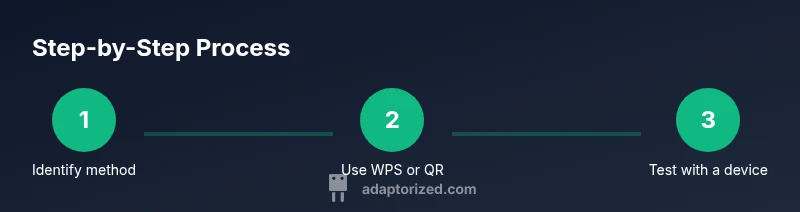
- 1
Identify supported connection method
Check your router and device for WPS or QR code capabilities; confirm you have permission to use the network. This step sets expectations and reduces trial-and-error.
Tip: Look for WPS markings on the router or enter Wi-Fi settings on your device to scan for QR options. - 2
Use WPS Push-button if available
On the router, press the WPS button within the window shown on the device, then select WPS on the device. The device should connect automatically without typing a password.
Tip: If your router button is recessed, use a pin to press inside the hole briefly. - 3
Try WPS PIN if required
If the device only supports PIN, enter the PIN displayed on the router label or admin page on the device’s WPS entry. This method is less secure and should be used sparingly.
Tip: Prefer push-button over PIN for security. - 4
Scan a Wi‑Fi QR code
Open the device’s camera or a QR scanner, scan the QR code that encodes SSID and password, and follow the prompts to join the network without entering a password.
Tip: Ensure the code is from a trusted source (your router or guest network). - 5
Connect to an open/guest network with permission
If the network is open or uses a captive portal, connect without a password and complete any portal login if required. Use VPN for sensitive tasks.
Tip: Prefer guest networks with isolation features to protect devices.
Your Questions Answered
Is it safe to use WPS to connect to Wi-Fi?
WPS is convenient but has known vulnerabilities; disable WPS if possible and use it only when necessary.
WPS is convenient but carries risk; disable it if you can and use it only when needed.
What is a Wi‑Fi QR code and how do I use it?
A Wi‑Fi QR code encodes SSID and password and can be scanned to join the network without typing anything. Ensure the code comes from a trusted source.
A Wi‑Fi QR code lets devices join by scanning; make sure the code is trusted.
Can I connect to an open network safely?
Open networks pose security risks; use them only when necessary and prefer VPN or a guest network with isolation.
Open networks aren’t secure; use VPN or guest networks when possible.
How do I generate a QR code for my own network?
Use a trusted router app or reputable QR generator to embed your network credentials, then store the code securely.
You can generate a QR code with a trusted app or router feature and share it securely.
I don’t see WPS on my router; what now?
Some routers disable WPS by default or lack the feature. Check the manual or admin page, or use QR provisioning if supported.
If WPS isn’t available, check the router settings or use QR provisioning.
What if I’m not allowed to access a network?
Never attempt to access a network you don’t own or don’t have permission to use. Seek owner approval first.
Always have permission before connecting to a network you don’t own.
Watch Video
What to Remember
- Use legitimate methods to avoid password entry
- WPS offers convenience but has security caveats
- QR codes simplify sharing network access securely