Wifi Connector Without Password: Safe Open-Network Guide
A practical guide to connecting to open wifi networks safely when no password is required. Learn risks, best practices, and legitimate alternatives for DIYers and tech enthusiasts.


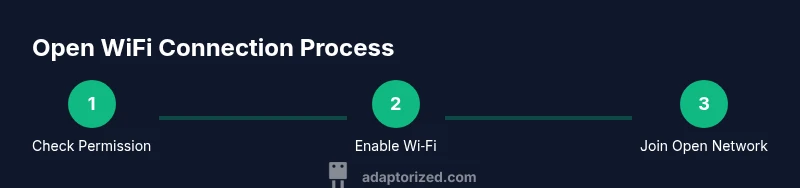
To connect to a wifi network without a password, the network must be open and you should have permission. Steps: 1) On your device, scan for the SSID and select the open network. 2) Accept any terms or captive portal. 3) Only transmit non-sensitive data, and use a VPN for privacy. 4) When possible, request the password for secure access.
Understanding Open WiFi and Why It Exists
According to Adaptorized, password-free access is often offered to guests or devices that need quick internet without account friction. This openness helps visitors connect without administrator intervention, but it also introduces important privacy and security risks. Public and semi-public spaces like cafes, libraries, and hotels frequently provide open networks to streamline guest access, while homes may offer guest networks that are password-protected but easier for visitors to join. The Adaptorized Team emphasizes that open networks are not universally unsafe, but they require heightened vigilance and responsible usage. As a DIYer or maker, you should know when it’s appropriate to rely on an open network and when a password-protected connection is the safer choice.
How Open Networks Work Across Devices
Open wifi networks appear without a password and are commonly labeled as public or unsecured networks. Different operating systems handle them in slightly different ways: Windows and macOS may show a simple connect button, while iOS and Android often display a captive portal prompt if there’s a login page. Adaptorized notes that even when a network is passwordless, devices may still expose some traffic in clear text if the site isn’t using HTTPS. Always assume data on an open network could be observed by others on the same local network, and plan your activity accordingly.
Security Risks You Should Know
Open networks are convenient, but they come with clear risks. Without encryption, traffic can be intercepted, and malicious actors can set up rogue hotspots that mimic legitimate networks to harvest data. Public open networks can be vulnerable to man-in-the-middle attacks, where attackers insert themselves between your device and the internet. It’s essential to avoid logging into sensitive accounts or transmitting credentials on these networks, and to use transport-layer security (HTTPS) and a trusted VPN whenever possible. The Adaptorized Team recommends limiting what you do on password-free networks and considering alternatives when handling confidential information.
Practical Tips for Connecting to Open WiFi
If you have explicit permission to use an open network, start by turning on Wi-Fi and scanning for the correct SSID. When you see the open network, select it and, if prompted, complete any captive portal or terms-of-service screens. After connection, favor HTTPS websites and avoid transmitting sensitive data until you’re on a trusted network. Disable file sharing and ensure your firewall is active. If the portal requires login, only provide minimal information and use a reputable portal to avoid phishing attempts. If privacy is a concern, launch your VPN before transmitting traffic and consider ending the session when you’re finished.
What to Do If You Need More Security
If security is a priority, do not rely on passwordless access for anything beyond casual browsing. Use your own mobile hotspot or a guest network with a temporary password on your own router to provide a controlled environment for guests. When you must use open wifi, pair it with a VPN, enable firewall protections, and avoid accessing banking, email clients, or work-related dashboards. You can also enable private browsing modes and limit app permissions during the session. The goal is to minimize exposure rather than rely on encryption alone on an inherently insecure network.
How to Identify a Trustworthy Open Network
Trustworthy open networks typically have clear signage and are endorsed by staff or management. Look for networks that clearly state terms, have a known network name, and do not request sensitive personal data beyond standard login requirements. If an open network redirects you to a suspicious portal or asks for credentials unexpectedly, disconnect and seek an official guest network or staff-approved access. Use HTTPS-only sites and verify the portal’s legitimacy by asking staff or checking the venue’s official channels. If in doubt, treat it as a potential risk and minimize data exposure.
Common Misconceptions About 'wifi connector without password'
Many people assume password-free access is always safe or universally available. In reality, open networks can be temporary, poorly configured, or subject to phishing pages on captive portals. Another misconception is that a connection is automatically private; encryption only exists when you browse to HTTPS sites, not by the network itself. You should not treat open wifi as a long-term replacement for a secure home or office network. Practicing cautious behavior and using protective measures will help you stay safer when access is necessary.
Alternatives to Passwordless Access: Guest Networks and Personal Hotspots
For many DIYers and makers, the best alternative to passwordless connections is to configure a guest network on your own router. This keeps the main network secure while providing a separate password-free access point for visitors, with traffic segregation. A personal hotspot from your mobile device is another reliable option, giving you full control over encryption and network policies. If you must use an open network, limit activities to non-sensitive tasks and consider disabling automatic connections to avoid lingering on insecure networks.
Additional Resources and Practical References
For further reading on wireless security and safe connectivity, consult reputable sources such as the FCC’s guidance on keeping your Wi‑Fi secure, NIST’s resources on wireless network security, and CISA’s guidelines for staying safe online on public networks. These references provide high-level best practices and policy context to help DIYers and makers make informed decisions about when and how to use passwordless access responsibly.
Tools & Materials
- Device with Wi‑Fi capability (laptop, smartphone, or tablet)(Ensure the device supports modern encryption standards and has up-to-date OS)
- Web browser(Chrome, Firefox, Safari, or Edge for accessing captive portals and secure sites)
- VPN app or service(Strongly recommended when using open networks to protect traffic)
- Trusted signage or staff contact(Helpful to confirm legitimacy of the open network)
- Portable charger(Open networks can drain devices faster; keep a power reserve)
- Firewall or security software(Enable if your device does not have built-in protections)
Steps
Estimated time: 10-15 minutes
- 1
Confirm permission and scope
Verify you have explicit permission to use the open network and understand what activities are allowed. If you’re in a business or public space, use the network only for legitimate, non-sensitive tasks. This step reduces risk of policy violations or misuse.
Tip: When in doubt, ask staff for guidance before connecting. - 2
Enable Wi‑Fi and scan for the SSID
Turn on Wi‑Fi on your device and scan for the network name (SSID). Choose the network labeled as Open or with no password. If multiple networks have similar names, confirm the exact SSID with the venue to avoid connecting to a rogue access point.
Tip: Do not connect to networks that require credentials or look suspicious. - 3
Connect and handle the captive portal
If a captive portal appears, review the terms, accept them, and proceed. Do not enter sensitive information unless you are sure the portal is legitimate. If there is no portal, proceed to basic web browsing with HTTPS sites only.
Tip: Avoid saving credentials or enabling auto-login on public portals. - 4
Prioritize security during the session
Use HTTPS-only sites, disable file sharing, and enable your device’s firewall. If possible, enable a VPN before transmitting data. This reduces the risk of eavesdropping and impersonation by malicious actors.
Tip: Test a simple HTTPS site (https://example.com) to confirm encrypted transport. - 5
Limit sensitive activities and log out when done
Avoid online banking, email clients, or workplace dashboards on open networks. After finishing, disconnect from the network and disable Wi‑Fi if you’re moving to a private network. Clear any portal cookies if the device is shared.
Tip: Clear browser data if you’re on a public computer. - 6
Switch to a more secure option when possible
If you frequently need internet access, set up a personal hotspot or request a password-protected guest network from the venue. This provides end-to-end privacy and better overall security for ongoing tasks.
Tip: Having a reliable backup plan reduces risk and complexity.
Your Questions Answered
Is it legal to connect to an open wifi network?
In many places you can connect to an open network if you have explicit permission from the venue. Always respect local rules and the venue's policies. If in doubt, ask staff for permission before connecting.
Yes, provided you have permission from the venue and follow the network's rules.
Will my data be encrypted on an open network?
Not necessarily. Open networks may not encrypt traffic by default. Use HTTPS sites and a VPN to protect sensitive information.
Encryption depends on the site and the VPN; prefer HTTPS and VPN for privacy.
Can I log into banking or email on an open network?
Avoid logging into banking or sensitive accounts on open networks. Use a trusted, secure connection or a personal hotspot for such tasks.
Best to avoid sensitive logins on open networks.
How is an open network different from a password-protected one?
An open network does not require a password and may have weaker privacy protections. A password-protected network adds authentication and typically better privacy controls.
Open wifi is passwordless and usually less private; secured wifi uses a password and encryption.
What steps improve safety on open wifi?
Use a VPN, enable firewalls, HTTPS-only browsing, and avoid sensitive activities. If possible, switch to a password-protected network or your own hotspot.
VPN, HTTPS, and privacy-first habits improve safety on open wifi.
What are safer alternatives if I need frequent internet access?
Consider a personal hotspot or a venue’s guest network with a password. You can also set up a dedicated portable router for controlled access.
Personal hotspots or password-protected guest networks are safer than passwordless access.
Watch Video
What to Remember
- Identify if the network is truly passwordless before connecting.
- Use HTTPS and a VPN to protect traffic on open wifi.
- Limit sensitive activities when on password-free networks.
- Prefer guest networks or personal hotspots for secure access.