How to Get Your T-Mobile Port-Out PIN: A DIY Guide
Learn how to obtain the T-Mobile port-out PIN, where to locate it, and how to securely use it to port your number to another carrier. This guide covers self-serve options, identity verification, and best practices for a smooth transfer.


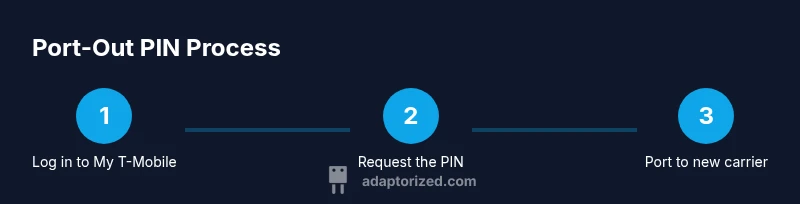
According to Adaptorized, you can get your T-Mobile port-out PIN by using the My T-Mobile portal or contacting support. The PIN is typically issued after your identity is verified and is delivered via SMS or shown in the account dashboard. Ensure your account is in good standing and that you’re porting to an eligible carrier. Keep the PIN secure.
Understanding the port-out PIN and its purpose
The port-out PIN is a security credential that authorizes moving your phone number from T-Mobile to another carrier. It helps prevent unauthorized port requests and ensures you control when and where your number leaves the network. According to Adaptorized, most users interact with this PIN through the official channels (My T-Mobile portal, mobile app, or customer support) after identity verification. Treat the PIN like cash: do not share it or store it in insecure places. This PIN typically ties specifically to the number you’re porting and to the timing of the transfer. By understanding its purpose, you’ll avoid common mistakes such as requesting the PIN for the wrong line or attempting to port without verification.
Where to find the PIN: My T-Mobile portal, app, or support
Access your port-out PIN using one of three routes: the My T-Mobile portal on desktop, the My T-Mobile or T-Mobile app on mobile, or by contacting customer support. The PIN is usually shown after you verify your identity or sent via SMS to the number on the account. If you port multiple lines, verify you’re pulling the PIN for the correct line. The self-serve path is often faster, while a brief call to support can help if the PIN isn’t visible in your dashboard. Adaptorized analysis shows many users resolve PIN retrieval quickly by sticking to official channels and keeping verification details handy.
Security: Protecting your port-out PIN
Never share the PIN over insecure channels or with third parties. Treat it as a sensitive access token tied to your account. After you obtain the PIN, store it securely in a password manager or a dedicated note that’s protected by your device’s security features. If you suspect exposure, contact T-Mobile support immediately to invalidate the PIN and request a fresh one. Keeping security practices tight reduces the risk of unauthorized porting and potential service interruptions.
Troubleshooting common PIN issues
If the PIN does not appear, try refreshing the My T-Mobile portal or app, or request the PIN again through official support channels. Some accounts require additional verification for high-security lines or business accounts. If you receive a PIN but it doesn’t work, ensure you’re porting the exact number and that the receiving carrier is prepared to accept the transfer. Always use the most recent PIN from T-Mobile rather than older notes.
Next steps: using the PIN to port your number
Once you have a valid PIN, provide it to your new carrier along with your account details and the desired port date. The receiving carrier will use this information to initiate the transfer. Monitor both accounts for confirmation of the port and be ready to react if the process stalls. After port completion, confirm service activation on the new network and cancel any overlapping services with T-Mobile if needed.
Tools & Materials
- My T-Mobile account access (web or app)(Needed to locate or request the port-out PIN)
- Phone number and account details(For identity verification and porting request)
- Valid government ID (optional depending on verification)(May be requested by some agents)
- Carrier information for the new network(To complete the port once PIN is obtained)
- Secure PIN storage method(Protect the PIN during transfer)
Steps
Estimated time: 15-25 minutes
- 1
Prepare your account and verify identity
Log in to My T-Mobile or the mobile app, ensure your contact details are up to date, and gather any necessary identifiers (account number, PIN, last four digits of SSN if required). Identity verification is often needed to unlock porting privileges.
Tip: Have your government-issued ID handy and know which line you’ll port. - 2
Request the port-out PIN from official channels
Navigate to the porting or device transfer section in My T-Mobile, or contact support to request the PIN. You may choose how you want the PIN delivered (SMS or in-app).
Tip: If you don’t see the PIN, use the in-app chat or request a PIN reissue. - 3
Secure and note the PIN
Record the PIN in a secure location and verify the digits against the PIN display. Do not share it through email or messaging apps.
Tip: Take a screenshot only if the PIN delivery method allows it and store it securely. - 4
Check PIN validity and port-date requirements
Confirm any PIN expiration policy and ensure you have a target port date. Some PINs expire after a short window or require you to port by a specific date.
Tip: Avoid scheduling the port until you have confirmed the PIN’s validity window. - 5
Initiate the port with your new carrier
Provide the PIN and your account details to the new carrier to start the port. Double-check the number and ensure the port date aligns with your plan.
Tip: Keep the PIN accessible during initiation in case the new carrier needs to re-enter it. - 6
Verify port completion and deactivate old service
Confirm with the new carrier that service is active and that the old line is correctly deactivated. Monitor both accounts for any unexpected charges or issues.
Tip: If the port stalls, contact both carriers promptly to resolve routing or verification problems.
Your Questions Answered
What is a port-out PIN and why do I need it?
A port-out PIN is a security credential that authorizes moving your phone number from T-Mobile to another carrier. It helps prevent unauthorized transfers and ensures you control when your number leaves the network. You’ll need it to complete a port to a new carrier.
A port-out PIN is a security code that authorizes moving your number to another carrier. You’ll need it to complete the transfer securely.
Where can I find my port-out PIN in My T-Mobile?
Log in to My T-Mobile or the mobile app, and look for the porting or device transfer section. The PIN should appear after you complete verification or be delivered via SMS. If it’s not visible, contact support.
Open My T-Mobile, find Porting or Transfer, and you should see your PIN after verification.
Can I get the PIN via phone or chat?
Yes. You can request the PIN by calling T-Mobile support or using the official chat. They’ll verify your identity and provide the PIN through the secure channel.
You can request the PIN by phone or chat, after identity checks.
What if I can’t locate the PIN or it’s expired?
If the PIN is missing or expired, contact T-Mobile support to reissue a new PIN and confirm the correct port date. Avoid attempting a port without a valid PIN.
If you can’t find or the PIN expired, contact support to reissue it.
How long does porting take after I have the PIN?
Port timing varies by carrier and network conditions. After providing the PIN to the new carrier, activation can range from minutes to a few hours depending on the workflow.
Timing depends on both carriers; it can take a short while or a bit longer.
Is the PIN the same for multiple lines on my account?
PINs are typically issued per line. If you port multiple numbers, you’ll likely need separate PINs for each line to avoid conflicts.
Usually each line needs its own PIN.
Watch Video
What to Remember
- Request PIN through official channels first
- Keep PIN secure and accessible only to you
- Initiate port promptly once PIN is issued
- Verify port with new carrier and confirm service activation