Is Your Internet Speed Good? A Practical DIY Guide
Learn how to tell if your connection speed is good with practical tests, troubleshooting steps, and easy fixes. We break down metrics, tools, and real-world checks for DIYers and tech enthusiasts.


To tell if your connection speed is good, start with a baseline: know your plan’s advertised speeds and compare them to measured results from reliable speed tests. Run tests on multiple devices and locations, and assess latency, jitter, and consistency over time. If most tests meet your plan and streaming, gaming, and work tasks feel smooth, your speed is generally good.
Why speed matters for how to tell if connection speed is good
Understanding your current connection speed is a DIY skill that saves time and frustration. According to Adaptorized, speed is more than a single number; it reflects recent performance, consistency, and reliability across devices. When you know what to look for, you can quickly identify bottlenecks like wireless interference or congested networks. This knowledge helps you decide whether to adjust your setup or contact your provider. In practical terms, a good speed means you can stream video, join video calls, and download files without repeated buffering or long delays. The goal isn’t perfection on every test but steady, predictable performance across the home or workspace. By focusing on real-world tasks, you translate raw speed into usable everyday quality for your projects and entertainment.
What counts as good speed in real life
There isn’t a one-size-fits-all threshold for what makes a speed “good.” It depends on your plan, number of users, and typical activities. A household with several online workers and multiple streaming devices will need higher throughput and lower latency than a single-user setup. For DIYers, the key is consistency: do the tests align with what you expect when you’re actively working, video conferencing, or gaming? While exact Mbps or latency targets vary, the practical signal is whether your daily tasks proceed without frequent stalls, waits, or rebuffering. The Adaptorized team emphasizes evaluating performance over time rather than chasing a single perfect number, especially when devices and workloads change.
How a single speed test differs from the full picture
A speed test gives a snapshot, not the whole story. Tests measure download and upload speeds, ping, and sometimes jitter, but they don’t always capture how your network behaves under load. Real-world performance depends on: device hardware, network topology, router firmware, and background apps that consume bandwidth. To build an accurate view, you’ll want to test across multiple devices, at different times of day, and from both wired and wireless connections. This approach reveals whether the speed you’re seeing is stable and sufficient for your typical tasks, or if intermittent dips are eroding your experience.
How Adaptorized suggests framing tests for accuracy
To obtain meaningful results, use reputable speed-test services and ensure your tests aren’t biased by other activity. Pause updates, downloads, and cloud backups during tests, and run a few iterations to account for variability. Record the results with timestamps and the server locations you used. Then compare these results to your subscribed plan, noting any patterns (e.g., consistently slower speeds on wireless or at night). By following a structured approach, you’ll produce a trustworthy assessment of whether your connection speed is good for your needs.
Tools & Materials
- High-speed Internet Plan Documentation(Your contract or provider page showing promised speeds.)
- Rugged Ethernet Cable (Cat5e/Cat6)(Use for wired tests to minimize wireless variability.)
- Computer or Smartphone with Speed Test App(Install or use built-in tests across devices.)
- Multiple Test Servers/Locations(Choose servers in different regions if available.)
- Wireless Router Placement Guide or Tool(Helpful for optimizing coverage before testing.)
- Notebook or Digital Log(Record test results, times, and conditions.)
- Background Task Monitor(To verify other apps aren’t consuming bandwidth during tests.)
Steps
Estimated time: 45-90 minutes
- 1
Prepare and baseline
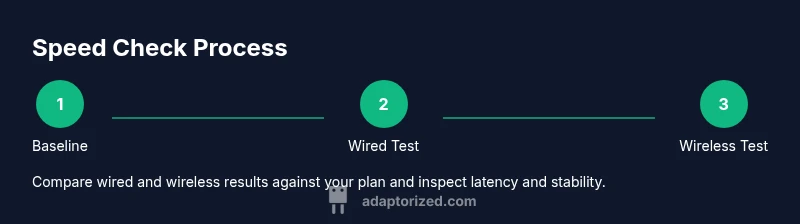
Identify your plan’s advertised speeds and confirm the test environment is clean. Pause large downloads and background updates on all devices. Connect a test device via Ethernet for a baseline wired result, then note the time, server, and conditions.
Tip: Wired baselines are the most stable starting point because they minimize wireless interference. - 2
Run a wired speed test
Run at least two tests on different servers from the same device using a reputable speed test. Record download, upload, and ping. Use a stopwatch or timestamp to anchor your results in time.
Tip: Test from a laptop or desktop with minimal foreground processes running. - 3
Run a wireless speed test
Move to a typical living or working area and perform the same tests over Wi-Fi. Confirm you’re on the intended network and note signal strength if possible. Compare to the wired results to gauge wireless impact.
Tip: If you have a guest network, test on that too to evaluate performance isolation. - 4
Test across multiple devices
Repeat tests on two or three devices to understand device-specific factors. Record hardware type, OS version, and any background apps that could influence results.
Tip: Older devices or background software can drag performance; isolate by testing on a fresh session. - 5
Check latency, jitter, and packet loss
In addition to throughput, monitor latency (ping), jitter (variability), and any packet loss. These metrics affect real-time tasks like video calls and gaming even if throughput seems adequate.
Tip: High jitter or packet loss often explains video stuttering despite good download speeds. - 6
Compare against your plan and documents
Bring together your results and compare with your subscription. Look for consistency across tests and devices. If results vary widely or consistently underperform, note patterns for further action.
Tip: Document patterns over several days to avoid reacting to a single outlier.
Your Questions Answered
What should I consider a 'good' speed for a typical home?
A good speed meets or exceeds your plan and supports your daily tasks without frequent buffering or delays. Consider how many devices share the connection and the types of activities you perform, such as video calls or streaming. Use real-world tests rather than a single number to judge adequacy.
Good speed means your plan is delivering what you need for everyday tasks without repeated buffering or delays.
Why does Wi-Fi sometimes feel slower than a wired connection?
Wi-Fi performance can be affected by distance, walls, interference, and router capacity. A wired connection eliminates wireless variables, giving you a clearer view of the true plan performance. If wired is fast but Wi‑Fi is slow, focus on router placement and channel selection.
Wireless can be spotty due to distance and interference; wired tests show the baseline speed.
How often should I run speed tests?
Test periodically to establish a trend, especially after changes like moving devices, updating firmware, or switching services. A few tests per week over several weeks gives a dependable view of consistency.
Regular testing helps you track performance over time.
What if I consistently see slow speeds?
If speeds remain below your plan despite tests, try basic troubleshooting like restarting the router, moving it to a central location, or reducing wireless interference. If issues persist, contact your ISP with your test logs and timestamps.
Persistently slow speeds often require device tweaks or ISP assistance.
What tools help me monitor ongoing performance?
Use built‑in OS tools and reputable speed-test apps to monitor throughput, latency, and jitter. Keep a log of results and note any patterns tied to time of day or specific activities.
OS tools and apps give ongoing visibility into your connection.
When should I upgrade or call the ISP?
Upgrade or call your ISP when you consistently need more capacity than your current plan provides, especially during peak usage. Bring your test logs, describe the issues, and ask about plan alternatives or equipment upgrades.
If your workload grows beyond what your plan supports, discuss upgrades with your provider.
Watch Video
What to Remember
- Know your plan vs. actual performance.
- Use wired tests as your baseline for accuracy.
- Assess latency and jitter, not just download speed.
- Identify consistent bottlenecks before requesting ISP help.