Why is my connection speed? A practical troubleshooting guide
An urgent, practical troubleshooting guide to diagnose and fix slow connection speed on WiFi or wired networks. Learn how to test speeds, identify bottlenecks, and apply safe, step-by-step fixes.


Most speed issues come from local factors rather than your ISP. Start by testing a wired connection to compare with WiFi, then reboot your modem and router, and check for firmware updates. If speeds remain slow, reduce interference, verify cables, and run a structured speed test at different times. This guided flow helps pinpoint the bottleneck quickly.
Why speeds vary and why it matters
Speeds aren’t a single number you should chase; they’re a range across devices, times, and methods. Latency, jitter, and packet loss can make a 100 Mbps plan feel slow even when a speed test says you’re close to the mark. According to Adaptorized, many households see faster, more consistent results after addressing local setup first, before blaming the ISP. Understanding your baseline helps you spot when a change truly fixes the issue rather than masking it. This section explains the core factors that influence perceived speed—distance to the router, building materials, and device capabilities all play roles. By recognizing these variables, you can tailor fixes to your specific environment and avoid unnecessary upgrades.
Quick checks you can do right now
- Run a wired speed test to establish a baseline and compare with wireless results.
- Reboot your modem and router to refresh connections and clear minor glitches.
- Check for firmware updates on your router and modem; apply if available.
- Disable VPNs or security features temporarily while testing to isolate bottlenecks.
- Look for interference sources (microwaves, cordless phones, thick walls) and relocate your gear if possible.
- Note the time of day; speeds can vary with network congestion.
As you perform these checks, keep a log of results. This helps you quantify improvements and communicate with your ISP if needed. Adaptorized emphasizes simple, repeatable tests to separate transient slowdown from persistent bottlenecks.
How to run a reliable speed test
A rigorous speed test compares apples to apples. Use multiple testing services (e.g., independent tools) and test both wired and wireless connections. Ensure no other devices are actively downloading during tests. Record downstream and upstream speeds, latency (ping), and jitter. Compare results against your plan’s advertised throughput. If wired tests are close to your plan but WiFi tests are significantly slower, the issue likely lies with wireless configuration or interference. Adaptorized recommends repeating tests on different devices to confirm consistency across hardware.
Common culprits: hardware, WiFi, and interference
- Outdated firmware or misconfigured settings on routers/modems can cap performance.
- Overloaded routers with many devices or low TCAM throughput contribute to slowdowns.
- Wireless interference from neighbors, appliances, or dense building layouts degrades signal quality.
- Wires and connectors that are damaged or of low grade introduce packet loss and retransmissions.
- VPNs or security software can add latency.
Addressing these culprits often yields the biggest gains without upgrading service. Adaptorized notes that many users see improved stability after a firmware update and optimizing wireless settings.
The hardware trio: cables, modems, and routers
Quality cables matter. Use at least Cat5e/Cat6 for Ethernet runs, and replace any frayed or loosely seated cables. A modern, capable router handling your peak load is essential; consider upgrading if it’s more than 4–5 years old. The modem should be compatible with your ISP and not experience signal degradation. If any component shows physical damage or excessive heat, replace it and re-test.
Wireless fundamentals: 2.4 GHz vs 5 GHz and channel optimization
2.4 GHz travels farther but is crowded and slower; 5 GHz is faster but shorter-range. If your devices support 5 GHz, connect closer to the router or use a mesh system for better coverage. Adjust channel width and channel selection to minimize interference from neighbors. A simple starting point is to set your router to a 40 MHz (or 80 MHz on 5 GHz) channel and test performance. If issues persist, switching between bands can help identify the best path to stability.
ISP throttling and data caps: what to look for
Some ISPs throttle speeds during peak hours or impose caps on certain plans. If you frequently hit a low ceiling, verify your current plan against actual speeds and check for outages via your provider’s status page. Contacting support with a documented speed test log can help you confirm whether throttling or outages are at fault. In some cases, negotiating a higher-tier plan or adding a wired backhaul can improve sustained throughput.
When to escalate to your ISP or a network professional
If speed tests consistently underperform, especially on wired connections, contact your ISP with test results and timestamps. Ask for a line test, any outages, or maintenance affecting your area. If the issue remains unresolved after the above steps, consider a professional assessment or technician visit. Early escalation can prevent weeks of slow performance and identify faults not visible to the consumer.
Safety and best practices to prevent future issues
- Keep firmware up to date and secure your network with strong passwords.
- Place routers on a high shelf, away from metal obstacles and large walls.
- Schedule regular reboots and baseline tests to catch changes early.
- Document your fixes and outcomes to create a living reference for future troubleshooting.
- Use wired connections for critical work when possible to guarantee consistent speeds.
Steps
Estimated time: 60-90 minutes
- 1
Check basics and baseline
Begin with a quick sanity check: note the baseline speeds on a wired vs wireless setup and look for obvious issues like a loose cable or powered-down devices. This establishes a reference point for the rest of the flow.
Tip: Document baseline speeds before making changes. - 2
Test wired vs wireless
Use a computer connected via Ethernet and run at least two speed tests. If wired speeds are close to your plan but wireless are slower, the bottleneck is wireless.
Tip: Use the same testing tool on both connections. - 3
Reboot and refresh
Power cycle the modem and router, waiting 60 seconds between steps. Re-test to see if the performance improves after a fresh session.
Tip: Power cycle in the order: modem, then router. - 4
Inspect physical links
Check all cables for damage and ensure connectors are secure. Replace any frayed or old Ethernet/CAT cables with at least Cat5e or Cat6 where applicable.
Tip: Avoid using power-line adapters for critical tasks. - 5
Update firmware and reset
Update the router/modem firmware to the latest version and perform a factory reset if issues persist. Reconfigure settings carefully afterward.
Tip: Back up configuration before resetting. - 6
Optimize WiFi
Test different bands (2.4 GHz vs 5 GHz) and adjust channel settings. Consider moving the router away from metal objects and closer to work areas.
Tip: Use a single large channel, avoid congestion, and test after each change. - 7
Measure at different times
Run tests at peak and off-peak hours to assess congestion. Note any patterns that align with your household activity or ISP policies.
Tip: Keep a log of times and results for trend analysis. - 8
Escalate when needed
If persistent issues remain after these steps, contact your ISP with test results or call a network professional for an on-site assessment.
Tip: Ask about line quality, outages, and service level options.
Diagnosis: User reports slower-than-expected connection speeds on WiFi or wired
Possible Causes
- highOutdated firmware or device settings
- mediumCongested network or shared bandwidth
- lowFaulty or low-quality cables
- lowISP issues or throttling
Fixes
- easyRestart equipment and run a speed test on a wired connection
- easyUpdate firmware and reset network settings
- easyReplace damaged cables and optimize WiFi channel
- easyContact ISP to verify service levels and check for outages
Your Questions Answered
Why is my WiFi slower than my Ethernet connection?
WiFi is typically slower due to distance, interference, and band crowding. Ethernet is usually faster and more stable because it’s a direct wired path. Reducing distance, switching to 5 GHz when possible, and using wired backhaul can significantly improve performance.
WiFi tends to be slower than Ethernet because of distance, interference, and crowding on the wireless bands. Try moving closer to the router or switching to a wired connection for critical tasks.
How can I test my connection speed accurately?
Use multiple trusted speed tests, test both wired and wireless connections, and test at different times of day. Record downstream, upstream, latency, and jitter. Compare results to your plan and previous baselines for trend analysis.
Test speed with several tools, compare wired and wireless, and test at different times to get an accurate baseline.
Can my ISP throttle my speeds?
ISPs may throttle or cap speeds under certain conditions. If you notice recurring slowdowns, verify plan limits, outages, and peak-hour behavior with your provider. Collect speed logs to support your case if needed.
ISPs may throttle speeds; check your plan and outages, and keep speed logs if you suspect throttling.
Should I reset my router?
Resetting can clear temporary configuration issues and restore performance. Save settings before a reset and reconfigure afterward. If problems persist, firmware updates or hardware replacement may be necessary.
Resetting can fix temporary glitches; back up settings first and reconfigure after.
What is a good speed for streaming and gaming?
A good speed depends on your service and devices. For smooth 4K streaming and gaming, higher sustained throughput is ideal, but you should compare actual results to your plan and consider wired connections for consistency.
Speeds vary by activity; aim for consistency and use wired connections for best gaming and streaming.
When should I contact my ISP?
Contact your ISP if tests consistently show speeds well below your plan, outages are reported in your area, or after you’ve completed all basic fixes. Share logs and the times you tested to speed up diagnosis.
If tests stay slow and no local fixes help, reach out with your logs and test times.
Watch Video
What to Remember
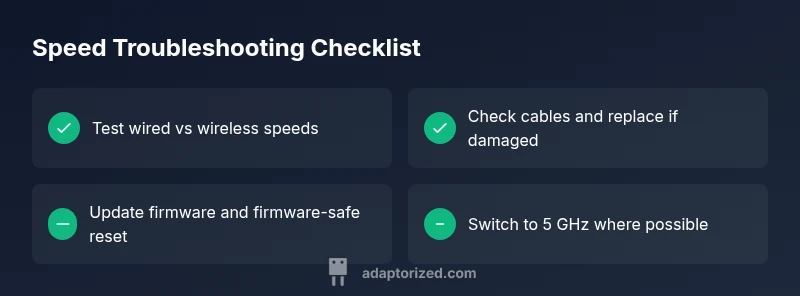
- Test wired vs wireless to isolate issues
- Update firmware and inspect hardware first
- Consider ISP factors if tests fail
- Prioritize wired connections for critical tasks
- Maintain a baseline log and monitor regularly