What to Connect to Wi-Fi: A Practical DIY Guide
Learn what to connect to Wi-Fi, how to join networks on Windows, macOS, Android, iOS, and smart devices, and practical tips for secure, reliable wireless setup. A practical, steps-based guide for DIYers seeking confident, private connectivity.


Learn how to connect your devices to a Wi‑Fi network and verify the connection. This guide covers what you need (SSID, password, and security type), how to choose the right band (2.4 vs 5 GHz), and per‑device steps for Windows, macOS, Android, iOS, and smart home gear. You'll also find common troubleshooting tips.
What to connect to Wi-Fi: device categories and expectations
Devices fall into a few categories when joining a wireless network: personal devices like smartphones and laptops, shared family devices like tablets and printers, and smart home gear such as speakers, cameras, and connected bulbs. The goal is a stable, secure link that keeps your data protected. This guide answers: what to connect wifi to and how devices join securely. According to Adaptorized, understanding what to connect to Wi‑Fi begins with recognizing the difference between a network name (SSID) and a security setting, and it ends with confirming that each device has a working route to the internet. The best practice is to treat each device as a potential entry point for privacy risks and plan a simple, consistent setup flow. Start by writing down the exact SSID you intend to join and the password you will use. Once connected, label devices with meaningful names so you can quickly identify them on other networks or when you enable guest networks. In professional settings, this helps with inventory and troubleshooting and reduces cross-talk between devices on the same router. When you expand networks (adding IoT devices, new printers, or a guest network), maintain a single, strong password policy and rotate credentials periodically for improved security and reliability.
Essential prep: gather network details and security considerations
Before you attempt any connection, collect the key details you’ll need: the network name (SSID) you want to join, the password, and the security type (WPA2/WPA3). If your router broadcasts multiple bands, decide whether you want a single SSID or separate SSIDs for 2.4 GHz and 5 GHz. The 2.4 GHz band travels farther and penetrates walls better but can be slower in crowded areas; the 5 GHz band is faster but shorter in range. If you share with guests, consider enabling a guest network with a separate password to keep your main network protected. For added privacy, disable printer sharing and file-sharing unless needed, and ensure firmware on your router is up to date. Have devices ready to pair, including power sources and cables if needed for setup. If you use WPS, remember that its ease of use can introduce risk; disable WPS after setup to reduce exposure. These steps minimize friction during actual connections and reduce the chance of misconfigurations later.
Step-by-step connections by device family
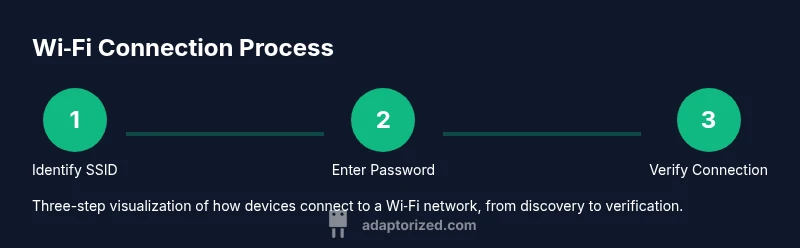
This section outlines how to connect common device families. Use the same flow for Windows, macOS, Android, iOS, and popular smart devices, adjusting the path to reach Wi‑Fi settings as described. Start by turning on the device, locating the Wi‑Fi panel, and selecting your SSID. Enter the password exactly as shown, minding case sensitivity and punctuation. If you see multiple networks with similar names, verify the network name with your router label or your provider’s documentation. After connecting, test an internet page or a cloud service to confirm reachability. If you have public or guest networks, connect to the appropriate SSID and log in if prompted. It’s helpful to annotate devices with simple labels so you always know which network you are on, especially when you manage multiple SSIDs.
Troubleshooting common issues and quick fixes
If a device cannot connect, start with the basics: verify the SSID and password, ensure you are not accidentally joining a neighbor’s network, and confirm the router is broadcasting the signal. A common fix is to forget the network on the device and reconnect from scratch—typos are the leading cause of failed connections. If the network is visible but the device won’t obtain an IP address, reboot the router and retry. Check for interference from densely populated channels and switch to a less congested channel if you can. For devices with outdated software, install the latest updates and retry. If the problem persists, test a different device to determine whether the issue is device-specific or network-wide. Document any changes you make so you can revert to the original configuration if needed.
Security, privacy, and best practices when connecting new devices
Security should guide every wireless setup. Use WPA2‑WPA3 encryption and a strong, unique password. Create separate networks for guests and IoT devices, and disable administrator access from guest networks. Regularly update router firmware and monitor connected devices for unfamiliar activity. Enable network isolation for smart devices where possible and consider enabling firewall features on the router. When sharing access, assign guests to a temporary network and revoke access after use. Finally, avoid public networks for sensitive tasks; if needed, use a trusted VPN to encrypt traffic.
Authority sources and further reading
For deeper guidance on wireless security and setup best practices, consult reputable sources like the Wi‑Fi Alliance, FCC consumer guidance, and national cybersecurity resources. See: https://www.wi-fi.org/learn-about-wi-fi/security, https://www.fcc.gov, and https://www.nist.gov.
Tools & Materials
- Wi-Fi network name (SSID)(Know the exact SSID you wish to join; multiple networks may appear.)
- Wi-Fi password(Password is case-sensitive; capture any special characters.)
- Device with Wi-Fi capability(Phone, laptop, tablet, printer, or smart device.)
- Router/Access Point(Have the admin credentials handy for advanced setup.)
- Power source(Keep devices charged during setup.)
- Ethernet cable(Useful to connect a computer directly for router configuration.)
Steps
Estimated time: 20-30 minutes
- 1
Prepare network details
Gather the SSID, password, security type, and decide on 2.4 GHz vs 5 GHz. Confirm you have access to the router or service provider documentation. This reduces guesswork and speeds up setup.
Tip: Write down SSID and password on paper or a trusted password manager entry to avoid typos. - 2
Open Wi-Fi settings on your device
Open the Wi‑Fi panel from the quick settings or system settings. On desktops, access network adapters; on mobile, use the global Wi‑Fi toggle. You should see a list of available networks.
Tip: Ensure Airplane mode is off to allow scanning for networks. - 3
Select the correct SSID
Tap or click the SSID that matches your router’s network name exactly. If you see multiple entries with similar names, verify the label on the router or the provider’s setup sheet.
Tip: If you’re unsure, ask another trusted user near the router to confirm the exact name. - 4
Enter the password and connect
Enter the password exactly as shown, respecting capitalization and special characters. Tap Connect and wait for a successful association indicator.
Tip: If you mistype, retry after selecting Forget this network to start clean. - 5
Choose the right band (2.4 GHz vs 5 GHz)
If your router broadcasts both bands, connect to the one that matches your needs. 2.4 GHz travels farther and penetrates walls better; 5 GHz offers higher speeds but shorter range. Consider creating separate SSIDs if needed.
Tip: Older devices may work better on 2.4 GHz; newer devices often take advantage of 5 GHz. - 6
Test and troubleshoot
Open a webpage or app to verify internet access. If it fails, power cycle the router and test again. If problems persist, try a different device to isolate the issue.
Tip: If the issue persists, note the error message and search for that exact symptom.
Your Questions Answered
How do I find my Wi-Fi network name (SSID)?
Your Wi‑Fi network name (SSID) is shown in the list of available networks in your device’s Wi‑Fi settings. If you’re unsure, check the router label for the default SSID.
Open your device’s Wi‑Fi settings to see the list of networks and locate your SSID. If in doubt, check the router label.
What if I forgot my Wi-Fi password?
If you forgot the password, check the router label or admin panel to reset it or view the existing password. If you reset, update all devices.
If you forget the password, check the router or admin panel; reset only if needed and update all devices afterwards.
Can I connect to a guest network?
Many routers offer a guest network that isolates devices from your main network. Use the guest SSID and password if you’re sharing access temporarily.
Yes, join the guest network if available; it keeps your main devices separate.
Which band should I use, 2.4 GHz or 5 GHz?
2.4 GHz travels farther and penetrates walls better; 5 GHz is faster but shorter range. Choose based on device proximity and speed needs.
Use 2.4 GHz for far range and 5 GHz for high speed when close to the router.
Why can't my device connect after a firmware update?
Firmware updates can reset settings or alter compatibility. Re-enter your Wi‑Fi details, reboot the router, and check for device compatibility.
After a firmware update, re-enter Wi‑Fi details and reboot to restore connectivity.
How do I secure a Wi‑Fi network for privacy?
Use WPA2‑WPA3 encryption with a strong password, enable guest networks, and keep router firmware up to date. Disable WPS if possible.
Secure your network with strong encryption and updated firmware.
Watch Video
What to Remember
- Identify the correct SSID before connecting.
- Keep a strong, unique password for Wi-Fi access.
- Choose the right band to balance speed and range.
- Verify connectivity with a quick test after joining.
- Secure your network with updated firmware and guest networks.