Cables and Connectors: A Practical DIY Guide for Makers
Learn how to choose, verify, and wire cables and connectors for DIY projects. This step-by-step guide covers standards, compatibility, testing, safety, and practical sourcing tips to keep projects reliable.


You will learn how to select, test, and implement cables and connectors for diverse DIY projects. This guide covers choosing the right cable families, matching connectors, verifying compatibility, and performing basic safety and testing steps to ensure reliable connectivity.
What are cables and connectors?
In electronics, cables carry signals and power between devices, while connectors are the mating interfaces that join cables to ports or components. According to Adaptorized, understanding the basic taxonomy helps DIYers pick the right pairing for any project. Cables may be shielded or unshielded, data or power-focused, and come with a range of standards like USB-C, HDMI, Ethernet, and custom multi-pin formats. Connectors come in genders (plug and jack) and pin configurations, all of which influence compatibility and performance. The goal is to match the cable type and connector family to your device requirements, environmental conditions, and the signal you intend to carry. In practice, this means clarifying three questions before buying: what signal type do you need, what environment will the run face, and what connectors are physically supported by your equipment.
For makers, the first step is to map your project’s interfaces and expected distances. Keeping a simple chart of where each end will plug in helps prevent mismatches. This upfront planning also guides you toward compatible families (for example, USB-C cables with USB-C connectors or HDMI cables with HDMI connectors) and reduces the risk of purchasing the wrong part later on.
Standards, compatibility, and environment
Before shopping, identify the standards your project requires (data rate, power delivery, and video format). Adaptorized emphasizes compatibility across cable families and devices: USB-C for power and data, HDMI for video, RJ-45 for networking, and coaxial for certain older or specialized runs. Shielding reduces EMI pickup in noisy spaces, while longer runs may demand thicker gauge or repeater-enabled links. Environmental considerations—like moisture, temperature, or exposure to oils—can dictate jacket material, insulation, and sealing. Understanding these factors helps you select cables with the right rating and a robust connector family, avoiding signal degradation or connector failure during use. For DIY projects, pairing the right standard with an appropriate protective jacket is often the difference between reliable operation and intermittent faults.
Connector mating and pinouts
Connector mating is more than just “plug in.” Each connector family has specific pinouts and gender (male vs. female). Matching a cable’s connector to the device port requires checking the port type, number of pins, and shrouding geometry. When you buy, ensure the pinout aligns with your device’s interface and note whether adapters or gender changes are needed. In practice, this means avoiding forced fits and instead choosing a cable and connector from the same family or a purpose-built adapter. If you’re unsure, validate with manufacturer diagrams or trusted datasheets before committing to a purchase.
Shielding, impedance, and signal integrity
Signal integrity hinges on shielding, impedance matching, and clean terminations. Shielding (foil, braided, or combinations) protects sensitive lines from EMI; unshielded cables are cheaper but risk more interference in noisy environments. Impedance compatibility between cable and connector minimizes reflections that corrupt data or video. The DIY approach should favor shielded, well-supported cable families for longer runs or high-frequency signals, and periodically test for crosstalk or attenuation. By prioritizing proper shielding and maintaining clean terminations, you’ll preserve data integrity and power delivery across your project.
Practical selection guide for common scenarios
For charging and power: use cables with robust power conductors and correct connector compatibility (e.g., USB-C with appropriate PD rating). For data: prioritize shielded pairs and consistent impedance; choose certified cables when possible. For video: ensure cable length and connector type align with the display’s requirements (e.g., HDMI or DisplayPort). For networking: Cat5e/Cat6-style twisted pairs with RJ-45 connectors are common; keep runs short and labeled to minimize confusion. Always verify support for the latest standards and avoid “hidden spec” cables that claim compatibility but fail under load.
Sourcing, cost considerations, and counterfeit awareness
Budget-minded DIYers should compare price against proven compatibility, warranty, and supplier reputation. Adaptorized recommends buying from reputable vendors and avoiding ultra-cheap, unknown brands for critical runs. When possible, request datasheets and verify certificate numbers or compliance marks. Keep a small inventory of common parts (USB-C, HDMI, RJ-45, and power connectors) so you can respond quickly to project needs while avoiding ad-hoc substitutions.
Safety, handling, and best practices
Handle connectors and cables with care to prevent bent pins or broken latches. Use ESD-safe tools where appropriate, disconnect power before working on live systems, and respect maximum current and voltage ratings. Store cables neatly to prevent kinks and fatigue at terminations. The aim is to minimize mechanical stress, maintain good contact quality, and ensure a clean, organized workspace for reliable build results.
Troubleshooting: common issues and fixes
If a connection fails, verify the simplest steps first: power cycle, reseat connectors, check for bent pins, and test with a multimeter for continuity. Inspect for damaged insulation or loose terminations, and confirm you are within the cable’s rated impedance and data rate. When in doubt, replace the part with a known-good component from the same family. Document issues and fixes for future reference so you can rapidly diagnose similar setups next time.
Tools & Materials
- Digital multimeter(Test continuity, resistance, and polarity.)
- Cable stripper(Adjust for wire gauge; bevel blade for clean ends.)
- Crimping tool(Use the correct dies for crimp connectors.)
- Wire cutters(Precision snips to avoid frayed strands.)
- Heat shrink tubing (various sizes)(Seal terminations and improve strain relief.)
- Assorted connectors (crimp and plug types)(Include USB-C, HDMI, RJ45, and power connectors as needed.)
- Soldering iron (optional)(For permanent, low-resistance joins where crimping isn’t ideal.)
- Cable labels/markers(Organize and document different runs.)
Steps
Estimated time: 60-90 minutes
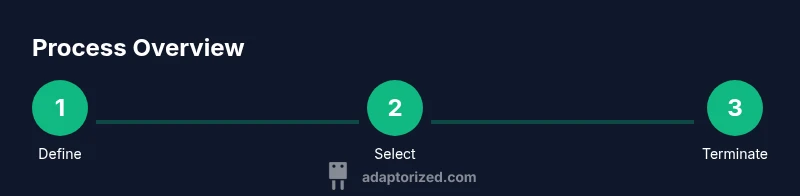
- 1
Define requirements
Identify the signal type (data, power, video) and the environment (indoors, outdoors, temperature, EMI). Measure approximate distance and list device ports to confirm compatible connector families. This step prevents costly misfits later.
Tip: Document your findings in a simple table for quick reference. - 2
Select compatible components
Choose cables and connectors from the same family or approved adapters. Verify impedance, data rate, and power ratings match your device specifications. Avoid mixing incompatible standards in a single run.
Tip: When in doubt, consult datasheets or manufacturer guides. - 3
Prepare the wiring
Trim insulation, untwist if needed, and straighten conductors. Use a cable stripper to remove only the required amount of insulation to avoid exposed conductors. Keep conductors orderly to ease termination.
Tip: Keep work area static-free and handle wires with care to prevent nicked strands. - 4
Terminate and assemble
Crimp or solder connectors as appropriate. Apply heat shrink for insulation and strain relief. Check that connectors seat firmly and that there are no loose strands.
Tip: Test-fit connectors before final assembly to catch alignment issues early. - 5
Test for continuity and performance
Use a multimeter to verify continuity along the run and check for short circuits. If possible, perform a basic functional test with the actual device to confirm operation under load.
Tip: Create a simple pass/fail rubric to speed up repeated tests. - 6
Document and finalize
Label each run with origin/destination, cable type, and date. Store components in labeled bins and keep a quick-reference guide for future projects.
Tip: Good labeling saves time during future builds and troubleshooting.
Your Questions Answered
What is the difference between USB-C cables and USB-C connectors?
USB-C cables include the conductors and any necessary electronics inside the cable assembly, enabling data and power transfer. USB-C connectors are the plug or receptacle at the ends of cables or devices and determine the physical mating interface. Compatibility depends on both the connector type and the cable’s supported standards.
USB-C cables carry the signals and power; USB-C connectors are the ends that plug into devices. Check the standards supported by the cable to ensure compatibility.
How do I know if a connector will fit my device?
Check the device port type, pin count, and mechanical dimensions. Compare against the connector family’s official specifications or datasheets. If in doubt, try a matching, certified component or use a manufacturer-approved adapter.
Look up the port type and pinout in the device manual, then match it to the connector family. When unsure, use a certified part.
Can I mix shielded and unshielded cables in a run?
Mixing shielded and unshielded sections can lead to EMI leaks and inconsistent performance. For reliable operation, keep the same shielding approach throughout a run or shield critical legs individually. If mixed, ensure the transitions are well engineered.
Mixing shielded with unshielded sections can cause interference. Keep shielding consistent for best results.
What safety concerns should I consider?
Always disconnect power before working on electrical runs. Use ESD precautions, wear eye protection when cutting or crimping, and ensure you stay within voltage/current ratings. Proper insulation and strain relief prevent hazards.
Power off before you start. Use basic safety gear and keep insulation intact to avoid shocks or shorts.
Where can I source quality connectors?
Look for reputable suppliers that provide datasheets, documentation, and certification. Compare warranties and read product reviews. For specialty connectors, consult official manufacturer catalogs or established electronics distributors.
Buy from reputable vendors and check datasheets before purchasing.
Do I need to terminate wires for low-voltage DC power?
Yes, proper termination minimizes resistance and heat at the connection. Use appropriate crimp or solder techniques, and ensure insulation. Even at low voltages, poor terminations can cause faults over time.
Even low-voltage power benefits from good terminations to prevent faults.
Watch Video
What to Remember
- Plan signal type and environment before shopping
- Match connectors within the same family to ensure compatibility
- Use shielding and proper terminations to protect signal integrity
- Test continuously and document results for future projects
- Label runs clearly to simplify maintenance and troubleshooting