Can a USB Connector Be Replaced? A Step-by-Step DIY Guide
Learn whether a USB connector can be replaced, how to pick the right part, safety steps, and a detailed step-by-step approach for USB-A, USB-C, and micro USB connectors. Adaptorized guides you through tools, tips, and realistic outcomes.


You can replace many USB connectors, but success hinges on the connector type and board layout. The process typically involves desoldering the old connector, preparing the pads, and soldering a replacement with proper alignment. For devices with sealed or heavily integrated boards, replacement may not be feasible.
Can a USB Connector Be Replaced? Feasibility and Scope
According to Adaptorized, replacing a USB connector is a practical skill for experienced DIYers when you have the right part and tools. The feasibility hinges on the connector family (USB-A, USB-C, micro USB) and how the port is mounted on the PCB. Through-hole connectors are often easier to swap than tiny surface-mount parts. If the board traces are damaged or the connector is integral to a larger subassembly, replacement may not restore full functionality. This guide walks you through evaluating the situation, selecting a compatible part, and performing a careful rework that preserves the device’s integrity. It also prepares you for realistic outcomes and tradeoffs, especially when micro-soldering on a crowded board is involved.
In many hobbyist and repair scenarios, the goal is to restore charging or data transfer capability without compromising the rest of the circuitry. Before you begin, assess whether the device can operate with an alternative port (e.g., USB-C to USB-A adapter) or whether a higher-cost, professional repair is warranted. The Adaptorized team emphasizes patience, precise handling, and verifying board power states at every stage. If you decide to proceed, document the old part’s footprint and pins, which helps when ordering a substitute that matches pitch, pad count, and mounting style.
This section also highlights practical expectations: replacements work best when you can access clean solder pads, there is minimal pad lift, and the replacement connector matches the original footprint. Complex devices, such as sealed boards or custom housings, may not tolerate leakage-free rewiring. In those cases, alternatives like external hubs or cable adapters can be viable stopgaps while preserving device warranty or ongoing functionality.
USB Connector Varieties and Their Repair Implications
USB connectors come in several common flavors, each with unique repair implications. USB-A and USB-B ports are typically larger and can be through-hole or surface-mounted, making them easier to replace on many older boards. USB-C connectors are compact and high-density, often mounted as Surface-Mount Devices (SMD) with many pins; replacing them requires precision and, frequently, a hot-air rework station. Micro-USB connectors are small and can be damaged easily, especially on mobile devices; they demand careful alignment and robust reflow techniques to avoid pad lifting. When planning a replacement, consider the footprint (pad count, pitch, and land pattern) and whether the target part shares the same mechanical mounting holes and shield. A mismatched footprint leads to intermittent connections or complete failure.
Beyond footprint, the integrity of the PCB traces matters. If the pads are lifted or the copper under the connector is damaged, you may need advanced repair techniques such as trace repair or pad reinstatement, which increases cost and risk. Adaptorized notes that, in many consumer electronics, brand-specific connectors or shielded housings require exact part replacements from the same family to maintain mechanical fit and EMI performance. If you are unsure about cross-compatibility, consult a parts database or a trusted supplier with detailed footprint drawings before purchasing.
Safety, Disassembly, and ESD Precautions
Disassembly should begin with power removal and proper grounding to prevent electrostatic discharge (ESD). Use an ESD wrist strap connected to a grounded mat, and work on a non-conductive, static-dissipative workspace. Power down the device completely and disconnect any external power sources. For devices with long battery life or hidden power rails, discharge slowly through a safe load if you’re unsure about residual energy. Keep a clean workspace to prevent solder splashes from reaching nearby components. When removing the old connector, use a desoldering tool or hot-air station with careful, even heat to avoid warping the PCB or lifting copper pads. Inspect the pads for any signs of heat damage, pad lift, or lifted copper, and plan accordingly if repairs are needed after removal.
Always wear eye protection during desoldering to protect against hot solder splashes. If your tool tips or nozzles clog, pause to clean them; clogs reduce heat transfer and can lead to poor joints. Label cables and connectors as you detach them to prevent miswiring during reassembly. Finally, verify that there is no bridging or cold joints after rework, and recheck continuity with a multimeter before re-energizing the circuit.
Understanding Replacement Parts: SMD vs Through-Hole and Footprints
The choice between surface-mount and through-hole USB connectors defines the repair approach. Through-hole connectors have longer pins that pass through the PCB, offering easier manual soldering and more robust mechanical support—often a better choice for boards with damaged pads. Surface-mount USB connectors rely on fine-pitch pads and SMT land patterns; these parts demand precise alignment, controlled heating, and sometimes stencil-assisted reflow. Before you buy, compare the material spec, pin count, and the exact footprint against the original part. If measurement tools show a slight mismatch, you risk poor contact or mechanical failure. A common pitfall is selecting a nearly identical part but with a different shield ground arrangement, which may affect EMI shielding and durability.
When ordering, prefer connectors with the same current rating, shield design, and pin sequence. Verify mechanical compatibility with the device’s frame to avoid interferential mounting that can deform the casing or strain the port when plugging in a cable. If you cannot locate an exact match, consider contacting the manufacturer’s service parts channel or a reputable electronics distributor that provides true footprint drawings and recommended substitutes.
Pre-Repair Preparation: Documentation and Parts Checklist
Preparation saves time and reduces risk. Start by photographing the connector footprint from multiple angles and noting the component labels nearby. Create a parts checklist that includes the intended connector type, whether you need through-hole or SMT variants, and the soldering technique required for your board. Gather essential tools like a fine-tipped soldering iron, flux, desoldering braid, and a hot-air rework system if you’re working with SMT parts. Have magnification available to inspect minute details; a loupe or microscope improves accuracy for misaligned joints. For power-sensitive boards, consider using a current-limited power supply or a bench supply with current protection to avoid accidental short circuits during testing. Finally, ensure you have alcohol-based cleaning solvents and lint-free swabs to remove flux residue after rework.
The Core Repair Process: What to Expect During Soldering
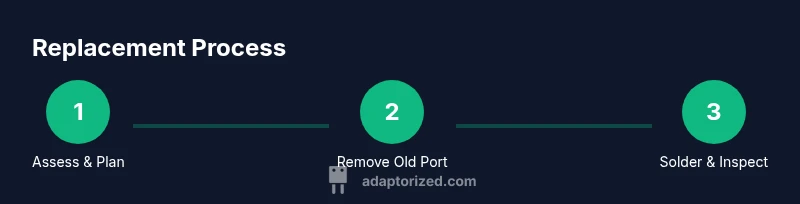
Begin by securing the board to a stable stance using a non-slip mat. Place the new connector on the footprint without soldering to verify alignment and shield clearance. For through-hole ports, insert the pins into the holes and apply tacking solder to hold the part in place. For SMT connectors, use a combination of flux and heat to anchor the part, then reflow with a controlled hot-air device, paying close attention to pad integrity. Solder each pin in a consistent pattern to avoid skew. After securing all pins, verify that all connections are solid with a fine-tipped multimeter test and visually confirm there are no bridge shorts. Reinspect for heat damage around nearby components and ensure the shield can seat flush. Finally, clean the area and perform a power-on test with a simple data/charging check before reassembling the device.
Alternatives When Replacement Isn’t Practical
If the replacement seems overly risky or the board shows extensive pad damage, explore alternatives that restore function without a full rework. An external USB hub can provide a usable workaround for data access and charging needs. USB-C to USB-A adapters or magnetic adapters may also offer temporary solutions in-field. In some devices, replacing a larger daughterboard or using a donor board from a similar model could be more cost-effective in the long run. Consider the device’s age, value, and warranty status before committing to a major repair. When in doubt, seek professional assistance to avoid accidental permanent damage.
Real-World Scenarios: What DIYers Should Try First
If you’re new to soldering, start with a classroom kit that mimics USB port footprints to practice alignment, heat control, and inspection. For damaged pads, you might begin with lighter solder alloy and flux to reflow the existing paths before attempting a complete port replacement. When replacing a USB-C port on a budget device, expect longer repair times and the potential for misalignment due to pin density; plan for redundancy in the budget and time. Always test with a controlled power-up scenario and avoid forcing connectors into misaligned sockets, which can bend blades or damage traces. By approaching the repair with patience and attention to detail, you can regain essential USB functionality while learning essential soldering and PCB-rework skills.
Tools & Materials
- Soldering iron with fine tip (20-40W)(Precision tip for small pads)
- Solder (lead-free preferred)(L1 flux-core or flux paste alternative)
- Flux (rosin/neutral)(Fresh flux improves wetting)
- Desoldering braid/werr(For removing old solder)
- Hot-air rework station(Very helpful for SMT connectors)
- Replacement USB connector (footprint match)(SMT or through-hole type matching original)
- ESD wrist strap(Prevents static damage)
- Magnifying loupe or stereo microscope(Inspect pads and joints)
- Isopropyl alcohol (93%+)(Clean flux residue)
- Lint-free wipes(Avoid fibers in joints)
- PCB holder or vise(Stability during rework)
- Multimeter with continuity(Verify pin integrity after rework)
Steps
Estimated time: 60-180 minutes
- 1
Assess feasibility and prepare
Review the device model, footprint, and whether a replacement port matches the original. Photograph the port area, measure pad spacing, and decide between SMT or through-hole replacement. Gather tools and a compatible replacement part.
Tip: Double-check the footprint against the exact part you plan to install. - 2
Disconnect power and ground yourself
Power down the device completely and disconnect any battery or external power. Put on an ESD strap and work on a non-conductive mat to minimize static discharge that could damage nearby ICs.
Tip: Work on a clean, dry surface to avoid solder splashes on unexpected components. - 3
Remove the old connector
Apply flux to the connector pads and use the desoldering tool or hot-air to melt the solder joints evenly. Gently lift the connector with fine tweezers once the joints soften to avoid pad lift.
Tip: Keep heat on each pad minimal to prevent pad delamination. - 4
Clean and inspect the footprint
Brush away old flux and inspect pads for lift or scorching. Use a loupe to confirm each pad is intact and that there’s no bridging between adjacent pads.
Tip: If pads are damaged, consider pad repair before attempting installation. - 5
Position the new connector
Align the new connector with the footprint, ensuring correct orientation and shield clearance. Temporarily hold in place with a tiny amount of flux only to verify alignment.
Tip: A dry fit check before soldering saves rework time. - 6
Solder the connector
Solder the ground/shield pins first, then progress to the data/power pins with a steady, controlled motion. Use a light, even hand and inspect each joint for cold solder or bridges after cooling.
Tip: Wipe the tip frequently and use flux to ensure smooth wetting. - 7
Test and reassemble
Test continuity on each pin, check for shorts, and perform a safe power-up test with a basic USB data/charging check. If any joint looks suspect, rework immediately before final assembly.
Tip: Document the test results for future repairs or warranty decisions.
Your Questions Answered
Is replacing a USB connector always possible?
No. Replacement depends on the board design, footprint availability, and whether the connector is through-hole or SMT. Some devices are not repairable due to structural or safety considerations.
In many cases you can replace a USB connector if the footprint matches and you have the right tools, but some devices aren’t repairable if the board is sealed or heavily damaged.
What tools are essential for replacing a USB connector?
A fine-tipped soldering iron, flux, desoldering braid, a replacement connector, and a way to inspect joints (loupe or microscope) are essential. A hot-air station helps with SMT parts.
You’ll need a good soldering iron, flux, desoldering braid, and the replacement connector; a magnifier helps during alignment.
Can I replace a USB-C port if I don’t have a hot-air station?
USB-C ports are often SMT and may require hot air or a dedicated rework station. If you don’t have one, it’s risky to attempt without damaging nearby pads.
A hot-air rework station is strongly recommended for USB-C, but careful iron work can work with practice.
What are the signs of a failed USB connector after replacement?
Intermittent data transfer, charging failure, or visible cold solder joints indicate a failed connector. Recheck solder joints and continuity to identify issues.
Look for loose contacts or data errors, then re-inspect joints and test with a cable.
Are there safer alternatives to replacing the connector?
Yes. Use an external USB hub or adapter to regain functionality while avoiding further PCB risk. Consider professional repair for critical devices.
If you’re unsure, external hubs can buy time; professional repair may be best for valuable electronics.
Watch Video
What to Remember
- Assess feasibility before attempting a replacement
- Choose the correct connector footprint and mounting style
- Use proper ESD protection and heat control during soldering
- Test thoroughly before final reassembly