How to Check If Port Forwarding Works
Learn how to verify port forwarding on your home network with practical tests and step-by-step checks. This guide from Adaptorized covers external and internal testing, troubleshooting, and security considerations for DIYers and tech enthusiasts.


You will confirm external access to a service on your network by testing if a chosen port is reachable from outside the LAN. Start with the exact port, protocol, and internal device, then use a public tester and report any closed ports. If issues appear, proceed with troubleshooting steps outlined below.
Understanding Port Forwarding
According to Adaptorized, port forwarding is a targeted NAT (network address translation) technique that lets external clients reach a specific device inside your private network. By mapping a public port on your router to a private IP and port, you expose a service—such as a web server, game server, or camera feed—without opening your entire network. This selective exposure improves security while enabling remote access. The Adaptorized team emphasizes choosing a non-default, memorable port when possible and documenting the rule for future reference.
In practice, port forwarding is often confused with UPnP or DMZ. UPnP automates mappings, which can be convenient but less secure; DMZ exposes a whole device to the internet. Manual port forwarding, in contrast, provides precise control over which service is reachable and under which conditions. Understanding these distinctions helps you decide when to use each method and how to test the result reliably.
descriptionSpan2 := null},
How It Works Under the Hood
At the heart of port forwarding is your router performing NAT: translating a public IP:port to a private IP:port inside your home network. The router keeps a NAT table that links the external port number to the internal destination. When an external client attempts to connect, the router looks up the mapping, inspects the firewall rules, and forwards the traffic accordingly. A properly configured rule must point to a fixed internal IP for the device hosting the service. If the internal IP changes (due to DHCP without reservation), the mapping can break. UPnP can reclaim a lot of this, but it also introduces variability that complicates troubleshooting. The Adaptorized analysis, 2026, notes that many failures arise from IP drift, mis-specified ports, or conflicting firewall rules.
stepByStepNotes4 := null}
Common Home Networking Scenarios
Many DIY projects rely on port forwarding to enable remote access or external testing. Common scenarios include hosting a personal web server on a Raspberry Pi or NAS, allowing remote desktop to a home computer, streaming a CCTV or IP camera feed, or running a small multiplayer game server. Each scenario requires choosing the correct port, protocol, and destination device. The outcome depends not only on router configuration but also on how the service is exposed on the internal network. Security considerations—like using TLS, strong credentials, and limiting exposure to specific IPs—should guide your setup as you test, not after you expose a port. The Adaptorized team notes that documenting your rules helps prevent future outages during firmware updates or ISP changes.
comment2 := null}
Quick Validation Checklist
Before diving into tests, confirm you have the right port and protocol, a stable internal device, and access to your router’s admin interface. Ensure the internal device uses a fixed IP, or reserve it in the DHCP settings. Write down the public IP or dynamic DNS name you’ll test against. If your ISP uses CGNAT, port forwarding from your home router may not be possible; you’ll need a different topology (e.g., a VPN or cloud-based relay). Having these prerequisites documented reduces back-and-forth during the tests. The checklist approach is praised by the Adaptorized team for clarity and repeatability.
checklistNotes := null}
Step-by-Step to Check If Port Forwarding Works
This section provides a focused, practical sequence to verify a port-forwarding rule. Start with the simplest test, then move to more rigorous checks. Ensure you perform tests from a network separate from your home LAN to simulate real-world access.
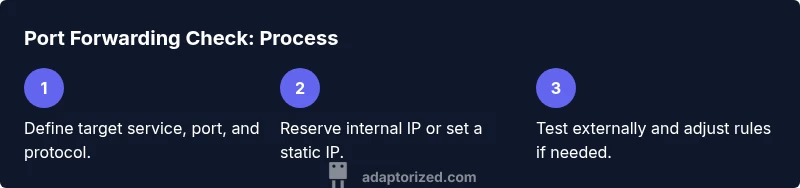
- Define target: port, protocol (TCP/UDP), internal device IP, and service. 2) Verify the forwarding rule exists and matches the current internal IP. 3) Confirm external IP visibility from an outside network. 4) Use a port-check tool or a service on a remote network to test reachability. 5) Cross-check the service response on the internal device to confirm correct mapping.
tip1 := null}
Testing Methods: External vs Internal
Testing from inside your network often bypasses NAT, which can hide misconfigurations. External testing—via a phone’s data network or a friend’s Wi‑Fi—offers a realistic view of whether the port is actually reachable from the internet. If you cannot reach the service externally, double-check router rules, firewall settings, and the service binding. Complex setups may involve double NAT or CGNAT, requiring separate approaches like a VPN or reverse proxy. The Adaptorized analysis underscores the importance of testing from an external path to validate real-world accessibility.
tip2 := null}
Interpreting Results and Troubleshooting
A successful test means the external client can connect to the intended service, and the router forwards the traffic to the correct internal device. If the test fails, start with the basics: verify the port/protocol, confirm the internal IP is correct and reserved, check firewall allowances, and ensure the service is listening on the expected port. Common blockers include ISP-level blocks, misconfigured NAT, and closed ports due to a service not running. When issues persist, capture screenshots of router rules, port tests, and service status to guide troubleshooting. The Adaptorized team recommends incremental verification to pinpoint the exact failure point.
tip3 := null}
Security Considerations When Port Forwarding
Port forwarding can increase exposure to the internet. Limit what is exposed, implement strong authentication, and use encrypted protocols where possible. Prefer non-default ports and consider access controls (e.g., allow-list specific IPs) to reduce risk. Periodically review your rules, especially after firmware updates or network changes. If you don’t need external access to the service all the time, disable the rule when not in use. The Adaptorized guidance emphasizes balancing accessibility with security to keep your network safe.
tip4 := null}
Common Pitfalls and Quick Fixes
Misconfigured destination IPs, wrong port numbers, or stale DHCP leases are frequent culprits. Always reserve the internal IP for the hosting device and re-check the mapping after any reboot or DHCP lease renewal. Ensure the service binds to the correct port and interface. If you are still stuck, temporarily simplify the setup (e.g., test with a basic web server on a known port) to verify the path works, then reintroduce complexity. The Adaptorized team highlights incremental testing as a practical strategy to avoid guesswork.
tip5 := null}
Maintenance, Documentation, and Next Steps
Document every port-forwarding rule with details: service name, port, protocol, internal IP, device type, exact dates of changes, and owner. Regularly audit rules to remove those no longer needed. Consider a dynamic DNS option if your external IP changes frequently. Planning ahead with a small change log reduces downtime during router rewrites or firmware updates. The Adaptorized team suggests turning this into a living document so future you can quickly review and adjust.
Tools & Materials
- Computer or smartphone on your local network(Used to configure the router and test from inside the LAN.)
- Router admin credentials(Needed to view and edit port-forwarding rules.)
- Internal device with the service running(Ensure the service is listening on the chosen port.)
- External testing device on a different network(Phone data or a friend’s Wi‑Fi works for true external testing.)
- Port-check tool or online tester(Examples: canyouseeme.org, yougetsignal.com, or a curl/wget test.)
- Public IP address and/or dynamic DNS setup(Needed to reach the router from outside the LAN.)
Steps
Estimated time: 60-90 minutes
- 1
Identify target service and port
Determine which service you want reachable from the internet, including the port number and protocol (TCP or UDP). Note the internal device that will host this service and the exact local IP it uses. This ensures your test is hitting the correct destination.
Tip: Use a non-default port to reduce accidental exposure. - 2
Verify the internal device has a fixed IP
If the internal device uses DHCP, its IP might change, breaking the mapping. Set a static IP or create a DHCP reservation for the hosting device.
Tip: A changing IP is the most common cause of broken port-forward rules. - 3
Check the router rule for accuracy
Log into the router and locate the port-forwarding section. Confirm the external port, internal IP, internal port, and protocol match your target. If UPnP is enabled, consider disabling it to enforce a fixed manual rule.
Tip: Document the rule in a note for future reference. - 4
Test from inside your network
First, verify the service is accessible locally to confirm the service is running and listening on the expected port. This helps separate service issues from networking issues.
Tip: If the service isn’t reachable locally, fix that before external testing. - 5
Find your external access point
Determine your public IP address or set up a dynamic DNS hostname. You’ll use this to attempt external connections from a network outside your LAN.
Tip: CGNAT may prevent direct access; you’ll need an alternative like a VPN or relay. - 6
Perform external reachability tests
From the external device, attempt to connect to the external IP:port using a tester or a client app. Record whether the connection opens or is refused or times out.
Tip: Repeat tests at different times to rule out transient ISP blocks. - 7
Verify service response on the internal device
Check where the traffic ends on the internal host. Ensure the service logs show incoming connections and that the application responds correctly.
Tip: Check that the service is bound to the correct interface (0.0.0.0 or specific IP). - 8
Review firewall and device-level rules
Ensure the host firewall allows the service port and that the router’s firewall isn’t blocking the incoming connection. Disable other rules temporarily if needed to isolate the issue.
Tip: Always re-enable security controls after testing. - 9
Consider alternate paths if CGNAT blocks emerge
If your ISP uses CGNAT (shared public IP), port-forwarding from your home router won’t work directly. Explore VPN-based access or a cloud relay to host the service.
Tip: CGNAT is common in consumer internet; plan for it early. - 10
Document outcomes and next steps
Record the results of your tests, including what worked and what didn’t, and update your notes. Decide if you’ll keep the rule, adjust it, or remove it for security.
Tip: Good documentation speeds future troubleshooting.
Your Questions Answered
What is port forwarding and when should I use it?
Port forwarding maps an external port to a specific internal device and port, allowing external clients to reach a service inside your network. Use it when you need remote access to a server, camera, or game host while keeping other devices shielded behind the router.
Port forwarding lets you expose one service to the internet safely. Use it when you need remote access to a device inside your network.
Why might port forwarding not work even after I configure it?
Common reasons include using a dynamic IP without a proper dynamic DNS, a misconfigured destination IP, a conflicting firewall rule, or a service not listening on the expected port. Double-check all settings, and test from an external network.
Most failures come from IP drift, wrong port, or blocked ports. Verify each setting and then test from outside your LAN.
Should I forward both TCP and UDP?
Only forward the protocols your service requires. Some services use TCP, others UDP, and some use both. Forwarding unnecessary protocols increases exposure. Verify the protocol in the service documentation.
Forward only what your service needs. If it uses TCP only, don’t open UDP unnecessarily.
Is port forwarding inherently insecure?
Port forwarding adds exposure to the internet for a targeted service. Use strong authentication, encryption, and limit access by IP where possible. Regularly audit rules and disable them when the service is not in use.
There is some risk; protect the exposed service with strong security and keep rules tight.
Do I need a static IP or dynamic DNS for port forwarding?
A static IP makes the external reachability stable. If your public IP changes, Dynamic DNS provides a hostname that updates automatically. Choose based on your ISP and needs.
If your IP changes often, use Dynamic DNS so you can always reach your network by name.
How can I test port forwarding without exposing a device publicly?
Use a controlled test with a test service on a non-critical port, or set up a VPN/tunnel to your home network to verify the path without exposing services broadly.
You can test through a VPN or a safe test service to avoid exposing real systems.
Watch Video
What to Remember
- Verify external reachability with a dedicated test
- Lock in a fixed internal IP for the host
- Use precise, documented port-forward rules
- Test from an external network for real-world results
- Balance accessibility with security considerations