Is It Port Open? Step-by-Step Troubleshooting for Network Ports
Learn how to determine if a network port is open, diagnose blockers like firewalls and NAT, and fix common issues quickly. This urgent, practical guide helps DIYers verify port openness and improve connectivity with safe, proven steps.


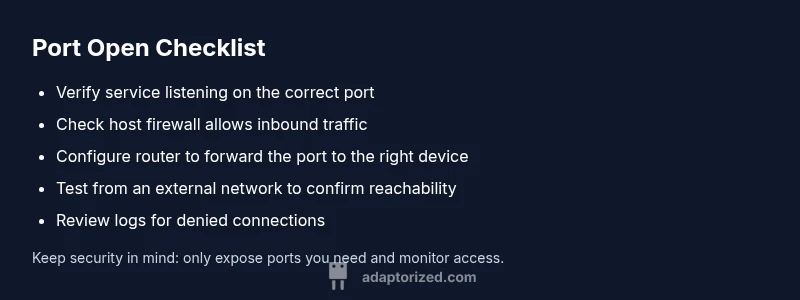
Is it port open? In most home networks, a port is open when a listening service accepts connections and traffic can reach it. Quick checks: confirm the service is listening on the expected port, verify firewall and router rules allow incoming connections, and test from an external network or using a local tester. If it still fails, review NAT settings and port forwarding.
Is it port open? Why this matters
According to Adaptorized, understanding whether a port is open is essential for secure remote access and troubleshooting connectivity. The Adaptorized team found that many home networks expose ports unintentionally, leading to security risks or flaky connections. In this guide, we explain how to determine port openness and what to do next when results surprise you. A port that is open can enable convenient services, but it can also expose your device if misconfigured. Start with a calm, methodical approach to confirm status and then apply targeted fixes. The goal is to have a service reachable when intended, while staying shielded from unwanted access.
Quick checks you can do before diving deeper
Before diving into advanced tooling, perform a few simple checks that reveal obvious blockers. Verify the hosting device is powered on and connected, confirm you know the exact port number and protocol (TCP/UDP), and test from a trusted network (LAN) to determine if the issue is local or network-wide. Check the service log for binding errors and ensure the port hasn’t been repurposed by another application. Keeping a small notes page helps track what you tried and the outcomes.
How firewalls affect port visibility
Firewalls sit at the edge and on hosts to filter traffic. A port can be technically open on a device, yet still appear closed to the outside world if a firewall blocks inbound connections. On Windows, macOS, and Linux, ensure the firewall rules allow traffic on the target port and protocol. Router firewalls/NAT can also block inbound connections; in many setups, you must create a port-forwarding rule and ensure the destination device accepts the traffic. Remember: overly permissive rules create risk, so apply the principle of least privilege.
Understanding common ports and protocols
Certain ports are widely used and well understood. For example, port 80 and 443 carry HTTP/HTTPS traffic for web services, while 22 is SSH and 3389 is RDP on Windows. When testing, verify you’re testing the correct port for the intended service and consider whether the service is bound to the correct network interface. Misbindings or binding to localhost (127.0.0.1) will make a port appear closed from other devices even if the service is running locally.
Practical methods to test port openness
Use a mix of local and remote tests to form a complete picture. Local tests confirm the service is listening; remote tests confirm reachability. Tools include netcat or nc, PowerShell's Test-NetConnection, and, for broader checks, lightweight port scanners. For Windows, run: Test-NetConnection -ComputerName <host> -Port <port> -InformationLevel Detailed. For macOS/Linux, nc -vz <host> <port> is a quick check. When using online tools, ensure you test both TCP and UDP where applicable.
Networking gear basics: router, modem, and ISP
A router often performs NAT and can block inbound connections by design. A port-forwarding rule maps a public port to a private IP address and port. If you’re not seeing the expected results, double-check the public ISP modem mode, verify the router’s WAN settings, and confirm the forwarded port lands on the correct device. If your ISP blocks certain ports, you may need to request an outage-friendly alternative or a business-grade connection.
Troubleshooting common results and what they mean
If a test times out, it usually means the traffic isn’t reaching the destination or a firewall is dropping the packets. A connection refused indicates the host received the attempt but isn’t listening on the port. If you see no route to host, the network path is blocked upstream. Each result narrows the possible causes: listen status, local firewall, router rules, NAT configuration, or ISP-level filtering. Work methodically to rule out causes one by one.
Prevention: keeping ports properly managed
Keep ports secure by disabling services you don’t use, enabling strong authentication, and applying the latest firmware on network devices. Use non-default ports where possible, enable logging for proposed port rules, and routinely test port visibility after changes. Document changes so you can revert if something breaks. Regularly review firewall and NAT configurations to prevent accidental exposure.
When to seek professional help
If you cannot identify the reason a port is not open after a thorough, methodical check, or if you manage a business network with complex VLANs and multi-site NAT, seek assistance from a qualified network technician. For consumer setups, a guided remote session with a trusted expert can save time and reduce risk.
Steps
Estimated time: 45-60 minutes
- 1
Identify target port and service
Clarify which port number and protocol the service should use. Check service configuration to confirm binding address and port. Document expected behavior so you can validate results later.
Tip: Use a test service on a known good port first to verify your testing process. - 2
Check local listening status
On the host machine, verify the service is listening on the intended port. Use commands like netstat, ss, or lsof to confirm binding. If the service isn’t listening, start it or fix binding issues.
Tip: Ensure you’re checking from the correct host and not a remote machine. - 3
Test within the LAN
From another device on the same network, attempt a connection to the port. If it works locally but not externally, the issue is likely router or ISP-related.
Tip: Disable any VPNs briefly to avoid masking issues. - 4
Inspect firewall rules
Review host and router firewall rules to ensure the port is allowed. Create a temporary allow rule for testing, then constrain it back to a safe, specific rule.
Tip: Record changes to avoid accidental exposure. - 5
Configure NAT/port forwarding
If behind NAT, configure port forwarding to the correct internal IP and port. Confirm that the rule is active and not shadowed by other rules.
Tip: Avoid using 0.0.0.0 as the destination; specify a real internal IP. - 6
Test from an external network
Use a different network (mobile hotspot, public wifi) to check port reachability. External tests help confirm if the remote path is open.
Tip: Be mindful of ISP-level blocks or carrier-grade NAT. - 7
Validate DNS and hostnames
If a domain name is used, ensure DNS resolves to the correct public IP. Misrouted DNS can mimic a blocked port.
Tip: Flush DNS cache if you recently updated records. - 8
Review logs and metrics
Check service and firewall logs for denied connections or binding errors. Logs often reveal misconfigurations or security blocks.
Tip: Enable verbose logging for clearer insights during tests. - 9
Document, re-test, and recover
Record all configurations and test results. Re-test after each change to confirm impact. If needed, revert to known-good settings and re-approach suspect configurations.
Tip: Always have a rollback plan.
Diagnosis: Connection to remote service fails due to blocked port
Possible Causes
- highPower issue or service not listening
- highHost firewall blocking inbound traffic
- highRouter/NAT firewall preventing inbound connections
- lowISP or network-level filtering
Fixes
- easyConfirm the service is listening on the correct port and protocol
- easyTemporarily disable or adjust host firewall rules to allow the port
- easySet up proper port forwarding on the router and ensure NAT maps correctly
- mediumTest from an external network to rule out LAN-only visibility
Your Questions Answered
What does it mean if a port is open or closed?
An open port means a service is listening and reachable on that port. A closed port has no listener or is blocked by a firewall or NAT. Always verify the listening status before concluding about reachability.
An open port means a service is listening and reachable. If it's closed, check the listener and firewall rules.
How can I test if a port is open on my device?
Use local tests to confirm listening, then try external checks via a different network. Tools like Test-NetConnection on Windows or nc on Linux/macOS help verify TCP and UDP reachability.
Test the port locally to confirm listening, then test from another network to verify reachability.
Why is my port open in one test but not another?
Inconsistencies usually mean a filtering device is affecting some paths. Check firewall rules, NAT port forwarding, and ISP-level blocks. Ensure you test with the same protocol and port across tests.
If tests disagree, check firewall and NAT settings and retry with consistent parameters.
What tools should I use to test ports safely?
Prefer built-in tools like Test-NetConnection or nc for quick checks. Reserve full network scanners for controlled environments and ensure you have permission to test ports on remote networks.
Use built-in tools like Test-NetConnection or nc, avoid aggressive scanners on networks you don't own.
Can a port be open but blocked by a firewall?
Yes. A service may listen on a port, but inbound traffic is blocked by a firewall. Check both host and router firewall rules and confirm port-forwarding settings if NAT is used.
Yes. The port may be listening but blocked by a firewall, so check rule sets.
When should I contact my ISP or a network admin?
If you cannot determine the root cause after systematic testing, or if the issue involves complex routing, multiple subnets, or business-critical services, seek professional help from your ISP or a qualified network admin.
If you’re stuck after trying, consider contacting your ISP or a network pro.
Watch Video
What to Remember
- Know the port and protocol for your service
- Test both locally and externally to isolate issues
- Firewalls and NAT are the common blockers
- Port forwarding must be correctly configured
- Document changes and test iteratively