Is the Port Open? A Practical Troubleshooting Guide
A practical, step-by-step guide to determine if a port is open, diagnose common blockers, and fix issues quickly for DIYers and tech enthusiasts.


To answer is the port open right now? The quickest check is a two-step test: confirm the service is listening on the target port, then verify firewall and NAT rules aren’t blocking traffic. If the port is open, you should see a successful connection from a remote tester; if not, proceed with the diagnostic flow below.
Understanding Port States and Why It Matters
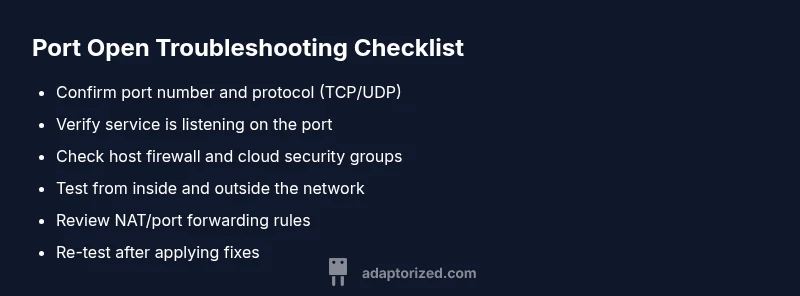
When you ask 'is the port open', you're testing reachability between two endpoints: the client and the server service. Ports are virtual doors that apps use to communicate over a network. If traffic can traverse that door, the port is effectively open; if traffic is blocked or the door is closed, the port appears closed. According to Adaptorized, understanding port openness is the first step in narrowing down network problems and designing resilient connectivity. The trust in a port opening depends on several layers: the host where the service runs, the host firewall, the network path, and any intermediate devices such as routers or load balancers. Start by identifying the exact port number and the protocol (TCP or UDP) used by the service. Next, separate symptoms (like slow connection or timeouts) from root causes (like a misconfigured firewall). With a methodical approach, you can quickly decide whether you need to adjust firewall rules, start or restart the service, or re-map NAT settings. By mapping out these factors, you gain clarity on whether the port is truly open or if something else is blocking traffic.
Common Causes When a Port Seems Closed
Several common culprits can make a port appear closed or unreachable even when the service is running. A misconfigured firewall or cloud security group can block inbound or outbound traffic. The listening service may be stopped, crash, or bound to the wrong interface, so the port isn't actually listening. NAT or port-forwarding rules at the router or firewall may be incorrect, preventing remote testers from reaching the internal host. In some setups, the port is being probed with the wrong protocol (testing TCP when UDP is required), or the test tool itself is misconfigured, leading to false negatives. Finally, some ISPs implement port filtering or carrier-grade NAT that can interfere with inbound connections. Each of these causes has a different remediation path, so identifying which one applies is key to fixing the issue quickly.
Quick Tests You Can Run Locally
Begin with simple checks on the host. Verify the service is listening on the correct port with commands like ss -tulnp or netstat -tulpen. If the port is listening, try a local connection test using curl, telnet, or a dedicated port tester to confirm reachability from the host itself. Next, inspect firewall rules on the host and, if you use cloud instances, the cloud firewall or security groups to ensure inbound traffic to the port is permitted. Confirm you are using the proper protocol (TCP vs UDP) and version of the test tool. If you cannot reach the port locally, you must fix the service listening or firewall first before testing from outside. Remember to document each test result so you can correlate it with later steps.
How to Test from Outside Your Network
Testing from outside your network validates whether the port is reachable through the wider Internet. Use an external port checker or a partner system to attempt a connection to the remote host on the target port. If the test fails, review NAT rules, port forwarding, and any intermediate firewalls. Ensure the router or firewall forwards the port to the correct internal IP and that the port matches the service's listening port. If you see success, verify the response is consistent at different times of day, as some routers and ISPs may throttle or randomize connections. If a failure persists, switch to a controlled external environment (e.g., a mobile hotspot) to rule out your home network issues.
What to Do If a Port Is Open but Unresponsive
An open port means traffic can reach the server, but the service may not respond. This can happen if the service handles the connection slowly, the application layer has a bug, or authentication or rate limiting blocks the handshake. Check the application logs for connection attempts and error messages. Verify that the service is configured to respond on the expected interface and port, and confirm that any middleware or security appliances are not dropping packets after the TCP handshake. In such cases, re-examine timeouts, connection backlogs, and keep-alive settings, and consider temporarily increasing logs to capture more detail during testing.
Security Implications and Best Practices
Open ports are potential attack surfaces. Only open ports that are necessary, and use strong access controls and monitoring. Prefer least-privilege rules, restrict inbound access to known IPs when feasible, and enable logging and alerting for unusual connection attempts. Keep software up to date, apply rate limiting on sensitive services, and consider implementing a reverse proxy or VPN to avoid exposing services directly to the Internet. Regularly audit open ports and remove those that are no longer required. Adaptorized emphasizes a disciplined testing regimen to minimize risk while maintaining connectivity.
Documentation and Change Management to Track Open Ports
Maintain a changelog of port-related modifications, including firewall rule changes, service restarts, and NAT configuration updates. Create a simple checklist for pre-change testing and post-change verification to ensure port status remains predictable. Include who requested the change, the reason, the expected impact, and any risk factors. This discipline helps teams reproduce fixes and prevents regression when network equipment or security policies update. By tying port openness to documented processes, you create a robust, auditable connectivity baseline for future troubleshooting.
Steps
Estimated time: 60-90 minutes
- 1
Identify port and protocol
Begin by confirming the port number and whether the service uses TCP or UDP. Check the application documentation or configuration files to avoid testing the wrong door.
Tip: Double-check port numbers and ensure the test uses the same protocol the service expects. - 2
Check local listening state
On the host, verify the service is listening on the target port with commands like ss -tulnp or netstat -tulpen. If the port isn’t listening, start or restart the service and re-test.
Tip: Look for binding to the correct interface (0.0.0.0 or specific IP). - 3
Test from the same host
Try connecting to the port locally (localhost or 127.0.0.1) to confirm the service responds without network traversal. This isolates service issues from network issues.
Tip: If local test fails, fix the service or firewall first. - 4
Inspect host firewall
Review local firewall rules to ensure inbound traffic to the port is allowed. Disable temporarily for testing if needed, then re-enable with correct rules.
Tip: Prefer temporary allowances with specific IPs or time windows. - 5
Test from outside the network
Use an external tester or a device on a different network to check reachability. If it fails, investigate router/NAT and ISP-related filters.
Tip: Test at different times to account for dynamic routing. - 6
Review NAT/port forwarding
If you’re behind a router, confirm port forwarding rules map the external port to the internal IP and port. Update if the internal host changes.
Tip: Reserve a static internal IP for reliable forwarding. - 7
Re-test and document
After applying fixes, re-run the full test sequence, noting results and any lingering issues. Update the runbook with lessons learned.
Tip: Keep a changelog entry for future audits.
Diagnosis: Connection to a specific port times out or is refused.
Possible Causes
- highFirewall or security group blocks traffic to the port
- mediumNo service listening on the target port
- lowNAT/router port forwarding misconfiguration or ISP blocking
- lowIncorrect port or protocol used in the test (e.g., testing TCP vs UDP)
- lowExternal tester misconfigured or hitting a rate limit
Fixes
- easyVerify the service is listening on the port on the host (e.g., ss -tulnp, netstat -tulpen)
- easyCheck host firewall rules and cloud security groups to allow inbound traffic on the port
- mediumTest port forwarding/NAT rules on the router or firewall and ensure correct mapping
- easyAttempt test from multiple external networks to rule out your ISP blocking the port
- easyConfirm you are using the correct protocol (TCP vs UDP) and test tool accordingly
Your Questions Answered
What does it mean if a port is open?
An open port means the service is reachable on that port and the network path allows traffic. It doesn't guarantee the service will respond quickly or securely.
An open port means the service is reachable, but performance and security still matter.
How can I tell if a port is open from inside my network?
Use local tests like netstat or ss to confirm the service is listening, then try connecting from another device on your LAN to verify internal reachability.
Test from inside by checking listening state and connecting from another device on your LAN.
What tools can I use to check ports?
Common tools include netstat/ss, curl, telnet, and external port scanners. Use the right protocol (TCP or UDP) and be aware some tools are blocked by firewalls.
Netstat, curl, telnet, and external testers can help, using the correct protocol matters.
Why might a port appear open to one tester but closed to another?
Differences in network paths, NAT rules, or test timing can cause varying results. Ensure both testers use the same protocol and port, and verify firewall settings.
Different networks and timing can make a port seem open at times and not others.
How do I open a port on Windows Firewall?
Open Windows Firewall settings, create an inbound rule allowing traffic on the port and protocol, and test again. Make sure the rule applies to the correct network profile.
Create a firewall rule to allow traffic on that port, then test.
Is it safe to leave ports open?
Only keep ports open that are necessary and restrict access by IP or use a VPN. Regularly audit and close unused ports to reduce risk.
Keep only necessary ports open and monitor them.
Watch Video
What to Remember
- Verify service listening first before testing reachability
- Test from inside and outside networks to isolate issues
- Prioritize firewall/NAT fixes before changing the service
- Secure open ports with least privilege and monitoring
- Document every test and change for repeatable results