How to Tell If a Port Is Open: A Practical Testing Guide
A practical, beginner-friendly guide to determine whether a network port is open, with safe testing methods, tools, and troubleshooting tips for makers and IT hobbyists.


To tell if a port is open, test whether a host can establish a connection to the target port and observe the response. Use a trusted tool (like Nmap, Netcat, or a built-in OS utility), verify firewall rules, and check service listening status on the target. This tells you if the port is open, closed, or filtered.
Why Port Status Matters
According to Adaptorized, understanding whether a port is open is essential for diagnosing connectivity issues, securing services, and troubleshooting network paths. Whether you’re debugging a home lab, validating a server deployment, or auditing a router’s behavior, knowing the open/closed state of essential ports (like 80, 443, 22) helps you map service exposure and potential risk areas. This knowledge is foundational for network hygiene and practical troubleshooting. By the end of this section, you’ll have a mental model for open ports, common states, and the typical signals you’ll see when you run tests from a trusted testing workstation. The goal is not to scare you, but to empower you to verify connectivity confidently and safely.
Quick Checks You Can Do Locally
You don’t need fancy equipment to get started. On most operating systems, you can perform quick connect checks using built-in tools or simple network utilities. A successful connect often indicates an open port with a listening service, while a timeout or reset can indicate a closed or filtered port. Start with these baseline checks to establish a frame of reference before moving to dedicated port scanners. Remember to test from a device that has permission to reach the target and to document your results for future reference. These quick checks lay the groundwork for more rigorous testing and will help you distinguish transient issues from persistent port state.
Using a Port Scanner (Nmap) for Clarity
Nmap is a popular, cross-platform tool that can quickly reveal which ports are open on a host and which services are likely running behind them. A basic scan can be executed with a simple command like nmap -p 1-1000 target or nmap -p 80,443 target to focus on common web ports. When interpreting results, look for states like open, closed, or filtered. An open port means a service is listening and reachable; closed means no service is listening on that port; filtered means traffic is being blocked by a firewall or network device. For complex networks, combine host discovery with version detection and script scans to gather more context.
Interpreting Results: Open, Closed, or Filtered
Understanding the three main states helps prevent misinterpretation. An open port responds to probes with a banner or acknowledgment; a closed port may respond with a reset, indicating no service listening; a filtered port might not respond at all due to firewall rules or network filters. Distinguish between true open ports and those that appear open only because of misconfigured routes or VPNs. If you see inconsistent results across methods or devices, it’s a sign you should verify with additional checks and review firewall policies.
Common Pitfalls and How to Avoid Them
Several factors can mimic or mask port status. NAT devices can rewrite addresses in a way that hides open ports from certain perspectives. Firewalls can drop probes silently or reset them, creating the impression of a closed or filtered port. Intrusion detection systems might rate-limit scans, causing false negatives. To avoid these pitfalls, run tests from multiple network perspectives (internal and external when permitted), ensure you’re testing against correct IPs/hostnames, and verify that you’re not triggering rate limits. Always confirm results with a secondary method when possible.
Testing from Different Perspectives: Internal vs External
Port visibility can vary dramatically between an internal network and an external observer. Inside a LAN, hosts may be directly reachable, while from the internet edge, the same port could be blocked by a firewall or NAT. When testing from multiple vantage points, document the source, the tested port, and the observed state. This multi-perspective approach helps you isolate whether issues are host-based, firewall-based, or network-path related. It also aids in reproducing problems for teammates or support.
Safety, Legality, and Permissions
Only test ports on systems you own or have explicit permission to test. Scanning networks without authorization can violate terms of service and local laws. If you’re unsure, pause tests and seek consent. When in doubt, limit your tests to non-destructive probes and keep a clear log of what you attempted and when. Safety and compliance are part of responsible testing, and this mindset protects both you and the networks you’re evaluating.
Example Scenarios and Commands
Scenario A: Check if port 22 is open on a remote server. Command: nmap -p 22 example.com. If you see open, you have SSH listening; if closed, SSH isn’t listening or is filtered. Scenario B: Test a local host’s port 8080. Command: nc -vz localhost 8080 (or Test-NetConnection -ComputerName localhost -Port 8080 in PowerShell). These practical examples illustrate how to translate results into actionable steps.
What to Document and Next Steps
Record the tested host, port, method, timestamp, and observed state. If a port is unexpectedly open or closed, corroborate with another tool or another device. If issues persist, check firewall rules, service configuration, and network ACLs. Use the findings to adjust access controls, update documentation, and plan remediation if exposure creates risk. Documentation ensures repeatability and helps others reproduce your testing results.
Tools & Materials
- Computer or testing device(Laptop or desktop with network access to target)
- Target IP address or hostname(IP or hostname you want to test)
- Port numbers to test(List of ports under test, e.g., 80, 443, 22)
- Port testing tools(Nmap, Netcat (nc), or OS-native utilities like PowerShell Test-NetConnection)
- Permission to test(Written or explicit authorization to test the target network or host)
- Documentation medium(Notes app or spreadsheet to record results and timestamps)
Steps
Estimated time: 45-75 minutes
- 1
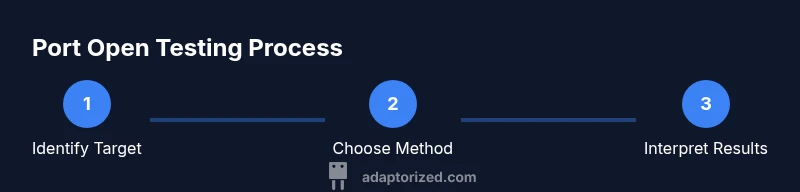
Define the test target and permissions
Identify the host you want to test and confirm you have authorization to test the port(s) in question. Gather the exact port numbers and any relevant network context (internal vs external access). This ensures you’re testing the right endpoints and prevents policy violations.
Tip: Keep written authorization handy in your project notes. - 2
Choose your testing method
Decide between a local connect test and a formal port scan. Local checks are quick for quick sanity, while scans reveal broader service exposure. If you’re unsure, start with a simple connect test and then escalate to a scanner for deeper insight.
Tip: Use multiple methods to corroborate results. - 3
Run a simple connect test
From your testing device, attempt to establish a TCP connection to the target port using a basic tool (like nc or a OS utility). A successful connection typically indicates an open port with a listening service; timeouts or resets imply different states.
Tip: Note any immediate errors or banners received. - 4
Perform a port scan for confirmation
Run a port scan targeting the specific port(s) using Nmap or an equivalent tool (for example, nmap -p 80,443 target). Review the reported state (open/closed/filtered) and cross-check against the connect test results.
Tip: If results differ between tools, verify syntax and permissions. - 5
Interpret the results
Open means a service is listening and reachable; closed means no service is listening on that port; filtered means traffic is blocked by a firewall or network device. Consider network path and device-specific ACLs when interpreting.
Tip: Document any discrepancies and investigate firewall policies. - 6
Check firewall and service configuration
Review host firewall rules and any network firewall or router ACLs that could affect visibility. Ensure that the service is configured to listen on the expected interface and port, not just on localhost.
Tip: Restart service or adjust listening address if necessary. - 7
Test from multiple perspectives
If possible, run checks from another device within the same network and from an external network (where permitted). This helps determine whether the issue is internal, external, or device-specific.
Tip: Note differences between internal and external test results. - 8
Document findings and plan remediation
Compile results with timestamps, commands used, and observed states. If a port should be open but isn’t, outline remediation steps (e.g., adjust firewall, update service binding). Ensure stakeholders have access to the record.
Tip: Create a compact remediation checklist for future tests.
Your Questions Answered
What is considered an open port?
An open port is one where a listening service accepts connections and responds to probes. This indicates that the port is reachable on the target host.
An open port means a service is listening and reachable at that port.
How can I tell if a port is protected by a firewall?
If probes time out or are dropped, or if the probe is met with a reset, the port may be protected by a firewall. Filtering can prevent responses from reaching your test tool.
Timeouts or drops often indicate firewall protection.
Is it legal to scan ports on a network I don’t own?
Only perform scans with explicit permission from the owner. Unauthorized scanning can violate policies and laws and could lead to penalties.
Only scan networks you have explicit permission to test.
What’s the difference between open, closed, and filtered ports?
Open means a service is listening; closed means no service listens on that port; filtered means traffic is blocked by firewall or network filters. Each state requires a different remediation approach.
Open means listening, closed means not listening, filtered means blocked.
Which tools are best for beginners?
Start with built-in OS utilities or a simple scanner like Nmap. Avoid heavy scanning unless you understand the scope and permissions.
Nmap is a good starting point for beginners.
Watch Video
What to Remember
- Test with permission and document results clearly
- Different tools corroborate port state (open/closed/filtered)
- Firewall and NAT can mask true port visibility
- Use multiple perspectives to validate results
- Record findings for repeatability and remediation